This article was created before Azure Stack HCI was renamed to Azure Local (link) in November 2024, which is why some references or hardcoded URLs may still point to Azure Stack HCI. However, the content has been updated accordingly, and if you find any errors, I would greatly appreciate it if you could report them either through the comment function or by emailing blog@schmitt-nieto.com
Azure Local: Demolab
Azure Local is a hyperconverged infrastructure solution that combines software-defined compute, storage, and networking. While it’s a powerful tool for modernizing your data center and integrating with Azure services, setting it up for testing or development can be resource-intensive.
Deploying Azure Local can often seem daunting, especially when constrained by hardware resources. Traditional methods typically require substantial infrastructure, making it challenging for individuals or small teams to set up testing and lab environments. In this article, I’ll explore a streamlined approach using the AzSHCI scripts, which allow you to deploy Azure Local on minimal hardware setups, such as a laptop.
Existing Solutions and Their Limitations
Several tools and guides exist to help deploy Azure Local in lab environments. However, they often come with limitations that make them less suitable for minimal hardware setups.
MSLab by Jaromir Kaspar
MSLab is a comprehensive solution that allows you to deploy various Microsoft products in a lab environment.
- Pros:
- Supports a wide range of scenarios and configurations.
- Highly customizable and feature-rich.
- Served as the foundation for my lab setups for a long time.
- Maintained by the community.
- Cons:
- Setup process involves more steps and hardware resources compared to AzSHCI.
Additionally, the DellGEOS Repository offers more current scenarios and use cases. Most scenarios in the DellGEOS repository are designed for infrastructures somewhat more robust than a simple laptop. In the past, DellGEOS has been the base for my configurations on Azure Local with Dell hardware, providing very current troubleshooting scenarios.
Azure Arc Jumpstart by Lior Kamrat
Azure Arc Jumpstart provides automated deployment scenarios for Azure Arc-enabled resources.
- Pros:
- Automates Azure Arc deployments with ease.
- Contains beautifully documented infrastructure with detailed diagrams.
- Cons:
- Makes it difficult to carry out PoCs that extend beyond HCI, such as AVD on HCI.
- Lack of flexibility in networking due to virtualization and Azure-based implementation, limiting access to VM consoles.
- Costs approximate around $3,000 per month, not accounting for additional expenses. Cost Details
Manual Deployment
Deploying Azure Local manually using the Deployment Guide is another option. However, this manual approach has several drawbacks:
- Pros:
- Direct control over the deployment process.
- Cons:
- The configuration hasn’t been updated since April this year.
- Missing steps and incomplete documentation make the process cumbersome.
- Performing a manual deployment is much more tedious and time-consuming compared to using AzSHCI scripts.
Why AzSHCI?
The AzSHCI scripts are designed to bridge this gap by providing a lightweight, efficient way to deploy Azure Local on minimal hardware. Key advantages include:
- Resource Efficiency: Optimized for environments with limited CPU, RAM, and storage.
- Simplicity: Straightforward scripts that are easy to understand and modify.
- Quick Deployment: Allows you to set up a single-node Azure Local cluster rapidly for testing and development.
Prerequisites
Before you begin, ensure you meet the following requirements:
- Hardware Requirements:
- A computer with a TPM chip.
- A processor capable of running Hyper-V.
- Recommended RAM: 64 GB or more.
- Minimum RAM for Basic Testing: 32 GB.
- Software Requirements:
- Azure Subscription: With the necessary permissions.
Getting Started with AzSHCI
Understanding Nested Virtualization
The AzSHCI scripts leverage Nested Virtualization to create a fully functional Azure Local environment within your existing hypervisor setup. This means you can run virtual machines (VMs) inside other VMs, allowing you to simulate a complex infrastructure on minimal hardware.
The deployment process involves the following key steps:
-
Installation of Windows Server 2025 Evaluation: The scripts automate the setup of a Windows Server 2025 VM, which will be configured as an Active Directory Domain Controller (DC). This includes installing updates and preparing the environment for cluster registration, which is essential for setting up Azure Local.
-
Setup of the Azure Local Node: Another VM is created to serve as the Azure Local node. Thanks to Nested Virtualization, this node can act as a hypervisor itself, allowing you to run additional workloads or services on top of it.
By utilizing Nested Virtualization, you can simulate a realistic Azure Local deployment without the need for extensive physical hardware, making it ideal for testing and development purposes.
Repository Overview
The AzSHCI scripts are hosted on GitHub: github.com/schmittnieto/AzSHCI
The repository is structured as follows:
AzSHCI/
│
├── scripts/
│   ├── 01Lab/
│   │   ├── Set-LabEnv.ps1
│   │   ├── .env.example
│   │   ├── 00_AzurePreRequisites.ps1
│   │   ├── 00_Infra_AzHCI.ps1
│   │   ├── 01_DC.ps1
│   │   ├── 02_Cluster.ps1
│   │   ├── 99_Offboarding.ps1
│   │   └── Old version/          # archived scripts, reference only
│   ├── 02Day2/
│   │   ├── 10_StartStopAzSHCI.ps1
│   │   ├── 12_AKSArcServiceToken.ps1
│   │   ├── 13_VHDXOptimization.ps1
│   │   └── OldImageBuilder/      # archived image builders, reference only
│   ├── 03VMDeployment/
│   │   └── 20_SSHRDPArcVM.ps1
│   └── 04AVD/
│       ├── 30_AVDAzureLocal.ps1
│       ├── 31_FSLogixFileShare.ps1
│       └── SessionHostScripts/
│
├── terraform/
├── README.md
└── LICENSE
Configuration with the .env file
The 01Lab scripts now read their configuration from a single scripts/01Lab/.env file that you load once per session with Set-LabEnv.ps1. Every value lives in that one file: Azure identifiers, ISO paths, lab root folder, VM sizing and lab credentials. The fully interactive 00_AzurePreRequisites.ps1 is the only script that does not use .env, because it selects subscription, resource group and principal through prompts.
Copy the template once per machine:
Copy-Item scripts\01Lab\.env.example scripts\01Lab\.env
notepad scripts\01Lab\.env
At a minimum set these keys before running any script:
AZSHCI_LAB_ROOT_FOLDER,AZSHCI_ISO_PATH_HCI,AZSHCI_ISO_PATH_DCfor the local infrastructureAZSHCI_SUBSCRIPTION_ID,AZSHCI_TENANT_ID,AZSHCI_RESOURCE_GROUP,AZSHCI_LOCATIONfor the Arc registrationAZSHCI_DEFAULT_ADMIN_PASSWORD,AZSHCI_DC_LCM_PASSWORD,AZSHCI_NODE_SETUP_PASSWORDfor the lab credentials
At the start of each session, load the variables once:
.\scripts\01Lab\Set-LabEnv.ps1
The configuration-based 01Lab scripts use these variables in the same PowerShell session and load the file automatically when needed. Run the loader again after editing .env; values already loaded into a session do not change when you save the file. The loader does not print secrets. The prerequisite script does print a newly created SPN secret once, so keep its output private. scripts/01Lab/.env is gitignored and must never be committed.
Review sizing before starting: the current template allocates 96 GB of RAM and 32 virtual processors to the Azure Local node. Those are my larger lab settings. Reduce AZSHCI_HCI_VM_MEMORY_GB and AZSHCI_HCI_VM_PROCESSORS to fit your host while leaving capacity for the DC and the host OS. Replace every example password in the template.
Which identity does each step use?
The Azure deployment identity and the accounts inside the lab have different jobs:
| Step | Identity and configuration |
|---|---|
| Azure prerequisite setup | Interactive Azure user with permission to assign the requested roles and register providers; creating an application also needs the relevant Entra rights |
| Node Arc registration | SPN from AZSHCI_SPN_APP_ID and AZSHCI_SPN_SECRET, or device code login when both are empty |
| Local VM preparation | Guest administrator credentials from .env, used through PowerShell Direct |
| Terraform | Azure CLI session established by terraform/Connect-Spn.ps1, using the SPN values in terraform.tfvars |
| AVD deployment and management | 04AVD/30_AVDAzureLocal.ps1 checks permissions for the selected operation; Azure RBAC and Graph consent are separate |
Run 00_AzurePreRequisites.ps1 as the bootstrap user. It signs out a cached SPN session before prompting for user authentication. Its principal menu supports an existing user, a new SPN or an existing SPN. For the existing-SPN option, enter the application/client ID or a unique display name. The script resolves the service principal object ID for RBAC; it does not retrieve or rotate the existing secret.
Azure role assignments do not grant Microsoft Graph application permissions. Review any failed role assignments in the prerequisite output before continuing. The AVD workflow adds its own operation-specific checks, including Graph consent for directory searches or optional Entra device deletion. The Entra joined AVD article explains that workflow.
Script Breakdown
00_AzurePreRequisites.ps1
Azure Pre-requisites Setup Script
- Purpose: Prepares Azure providers and the requested role assignments for the selected subscription, resource group and principal. Run it again when those targets change.
- Features:
- Checks and installs required Az PowerShell modules (
Az.Accounts,Az.Resources). - Authenticates to Azure via device code login and prompts you to select a subscription.
- Lets you choose an existing resource group or create a new one (recommended name:
rg-azlocal-lab). - Assigns all required RBAC roles at subscription scope (
Azure Stack HCI Administrator,Reader) and resource group scope (Key Vault Data Access Administrator,Key Vault Secrets Officer,Key Vault Contributor,Storage Account Contributor,Azure Connected Machine Onboarding,Azure Connected Machine Resource Administrator). - Registers all necessary Azure resource providers (
Microsoft.AzureStackHCI,Microsoft.HybridCompute,Microsoft.KeyVault, and others). - Assigns roles to an existing user, an existing SPN or a newly created SPN. Only the new-SPN path creates and prints a secret. Store the client ID and secret in the private
.envfile for non-interactive Arc registration.
- Checks and installs required Az PowerShell modules (
00_Infra_AzHCI.ps1
Configuration and VM Creation Script
- Purpose: Sets up virtual networking, creates necessary folder structures, and deploys both the HCI node (
AZLN01) and Domain Controller (DC) VMs. - Features:
- Configures an internal virtual switch with NAT (
172.19.18.0/24, gateway172.19.18.1). - Adds an inbound ICMPv4 firewall rule so VMs can ping the NAT gateway.
- Creates the lab folder structure under
E:\AzureLocalLab(subfoldersVM\andDisk\). - Automates VM creation with vTPM, nested virtualization, MAC spoofing, and boot-from-ISO configuration.
- Default ISO paths:
E:\ISO\AzureLocal24H2.iso(HCI node) andE:\ISO\WS2025.iso(DC). AdjustAZSHCI_ISO_PATH_HCI,AZSHCI_ISO_PATH_DCandAZSHCI_LAB_ROOT_FOLDERinscripts/01Lab/.envif your paths differ.
- Configures an internal virtual switch with NAT (
01_DC.ps1
Domain Controller Configuration Script
- Purpose: Configures the Domain Controller VM, including network settings and Active Directory setup.
- Features:
- Removes ISO media from the VM.
- Renames the VM and sets static IP (
172.19.18.2). - Sets the time zone and installs necessary Windows features.
- Promotes the server to a Domain Controller (
azurelocal.local). - Configures DNS forwarders and creates a full Organizational Unit (OU) structure in Active Directory.
- Runs
New-HciAdObjectsPreCreationto pre-create the AD objects required by Azure Local LCM.
02_Cluster.ps1
Cluster Node Configuration Script
- Purpose: Configures the Azure Local node VM (
AZLN01) and registers it with Azure Arc. - Execution modes (selected interactively at startup):
- Mode 1 – Full setup: ISO removal, user creation, NIC configuration and Arc registration. Use on first run.
- Mode 2 – Arc only: Retries only the Arc registration step without repeating node configuration. Use to recover from a failed registration without starting over.
- Features:
- Removes ISO media from the VM.
- Creates a local administrator account (
Setupuser) and renames the VM toAZLN01. - Configures network adapters with static IPs and RDMA (
MGMT1:172.19.18.10,MGMT2: RDMA only). - Installs essential Windows features.
- Registers the node with Azure Arc via
Invoke-AzStackHciArcInitialization, with automatic retry for transientBootstrapOobeServiceconnection errors. - Optional SPN authentication: if
AZSHCI_SPN_APP_IDandAZSHCI_SPN_SECRETare set inscripts/01Lab/.env(output from00_AzurePreRequisites.ps1), the script authenticates non-interactively via Service Principal instead of an interactive device code prompt.
Archived: 03_TroubleshootingExtensions.ps1
This script used to reconcile the Azure Connected Machine extensions on the node and apply an LcmController patch for build 10.2601. Neither the portal wizard nor the Terraform path needs it any more, so it now lives in scripts/01Lab/Old version/ for reference only. Its extension versions are pinned to that older build, so running it against a newer cluster would reinstall older extensions.
99_Offboarding.ps1
Offboarding Script to Clean Up Configurations
- Purpose: Removes the local Hyper-V lab, including VMs, VHD files, virtual switches, NAT settings and the lab folder structure. It does not delete Azure resources or Entra objects.
- Features:
- Stops and removes
AZLN01andDCVMs and their associated VHD files. - Removes the HgsGuardian entries for both VMs.
- Removes the NAT object and virtual switch (
azurelocal). - Deletes the entire
E:\AzureLocalLabfolder tree.
- Stops and removes
Step-by-Step Deployment Guide
Below is the exact deployment process to set up your Azure Local environment using the AzSHCI scripts. This guide will help you get everything up and running smoothly.
1. Download the Scripts from the Repository
Clone the AzSHCI repository to your local machine:
git clone https://github.com/schmittnieto/AzSHCI.git
Or download the repository manually: Download Here
2. Download the Necessary ISO Files
- Windows Server 2025 Evaluation ISO: Download Here
- Azure Local OS ISO: Download directly from the Azure Portal.
Place both ISO files in a directory accessible to the host. The scripts default to E:\ISO\AzureLocal24H2.iso (Azure Local node) and E:\ISO\WS2025.iso (Domain Controller). If your drive letter or filenames differ, set AZSHCI_ISO_PATH_HCI, AZSHCI_ISO_PATH_DC and AZSHCI_LAB_ROOT_FOLDER in scripts/01Lab/.env before running the scripts. See the Configuration with the .env file section above.
3. Preparing Your Environment
Navigate to the scripts directory:
cd AzSHCI/scripts/01Lab
Ensure your execution policy allows script execution:
Set-ExecutionPolicy RemoteSigned -Scope CurrentUser
Copy the environment template and open it. Fill in your ISO paths, Azure identifiers and lab credentials as described in Configuration with the .env file:
Copy-Item .env.example .env
notepad .env
Then load the variables into the current session:
.\Set-LabEnv.ps1
Every 01Lab script you run afterwards picks the values up automatically.
4. Prepare Azure Pre-requisites
Before setting up any local infrastructure, run 00_AzurePreRequisites.ps1 to automate all Azure-side setup:
.\00_AzurePreRequisites.ps1
This interactive script will:
- Install required Az modules if missing.
- Authenticate to Azure and let you select a subscription.
- Create or select the resource group (
rg-azlocal-labis the recommended default). - Assign all required RBAC roles at subscription and resource group scope.
- Register all required Azure resource providers.
- Assign roles to an existing user, an existing SPN or a new SPN. If you create one, save the printed client ID and secret privately. If you reuse one, supply its existing valid secret yourself. Step 9 uses these values for non-interactive Arc registration.
Copy the chosen subscription, tenant and resource group into .env, then reload it with Set-LabEnv.ps1. The prerequisite script does not write those selections back to your configuration file.
5. Initial infrastructure script
If you have not loaded the lab configuration yet in this session, run it once so the AZSHCI_* variables are available to every script:
.\Set-LabEnv.ps1
Then run the infrastructure script:
.\00_Infra_AzHCI.ps1
This script will set up the virtual networking, create necessary folder structures, and deploy the VMs for the Domain Controller (DC) and the Azure Local node.
6. Manual Installation of the DC Operating System
- Start the DC VM: Open Hyper-V Manager and start the
DCVM. - Follow the Installation Wizard: Proceed through the Windows Server 2025 installation wizard.
- Perform First Login: Log in as the Administrator for the first time.
No additional configuration is needed at this stage.
7. Domain Controller configuration script
Make sure AZSHCI_DEFAULT_ADMIN_USER and AZSHCI_DEFAULT_ADMIN_PASSWORD in scripts/01Lab/.env match the local administrator credentials you set during the Windows Server 2025 installation on the DC VM.
# In scripts/01Lab/.env
AZSHCI_DEFAULT_ADMIN_USER="Administrator"
AZSHCI_DEFAULT_ADMIN_PASSWORD="YourAdminPassword"
Then execute the script:
.\01_DC.ps1
This process takes approximately 30 minutes due to Windows Updates. The script will:
- Remove the ISO from the VM.
- Configure network settings.
- Promote the server to a Domain Controller.
- Install updates and prepare the environment for cluster registration.
8. Manual Installation of the Node Operating System
- Start the AZLN01 VM: Open Hyper-V Manager and start the
AZLN01VM. - Follow the Installation Wizard: Proceed through the Azure Local OS installation wizard.
- Perform First Login: Log in as the Administrator for the first time.
No additional configuration is needed at this stage.
9. Node configuration and ARC registration
All values for this script live in scripts/01Lab/.env. Confirm the following keys are set:
# Credentials (must match the password used during OS installation)
AZSHCI_DEFAULT_ADMIN_USER="Administrator"
AZSHCI_DEFAULT_ADMIN_PASSWORD="YourAdminPassword"

# Azure identifiers
AZSHCI_SUBSCRIPTION_ID="your-subscription-id"
AZSHCI_TENANT_ID="your-tenant-id"
AZSHCI_RESOURCE_GROUP="rg-azlocal-lab"
AZSHCI_LOCATION="westeurope"
If you created or selected a service principal in Step 4, enable non-interactive Arc registration by setting its client ID and valid secret:
AZSHCI_SPN_APP_ID="your-application-client-id"
AZSHCI_SPN_SECRET="your-client-secret"
If both values are left empty, the script falls back to an interactive device code login on the node. Once the values are in place, execute the script:
.\02_Cluster.ps1
When prompted, select the execution mode:
- Mode 1 – Full setup: runs the complete flow (ISO removal, user creation, NIC configuration, Arc registration). Use this on the first run.
- Mode 2 – Arc only: retries only the Arc registration step without touching the node configuration. Use this to recover from a failed registration.
This process takes approximately 10 minutes. The script will:
- Remove the ISO from the VM.
- Create a setup user and rename the node to
AZLN01. - Configure network adapters with static IPs and RDMA.
- Install required Windows features.
- Register the node with Azure Arc (with automatic retry for transient connection errors).
10. Understand Extension Installation
Arc registration prepares the node for deployment. Both the portal wizard and the Terraform path install the four required Azure Local extensions themselves, so no pre-staging script is needed. Continue to cluster deployment after registration, then inspect extension status if validation fails:
- Go to the Azure Portal.
- Navigate to the Azure Arc machines.
- Check that all extensions are installed and in a successful state.
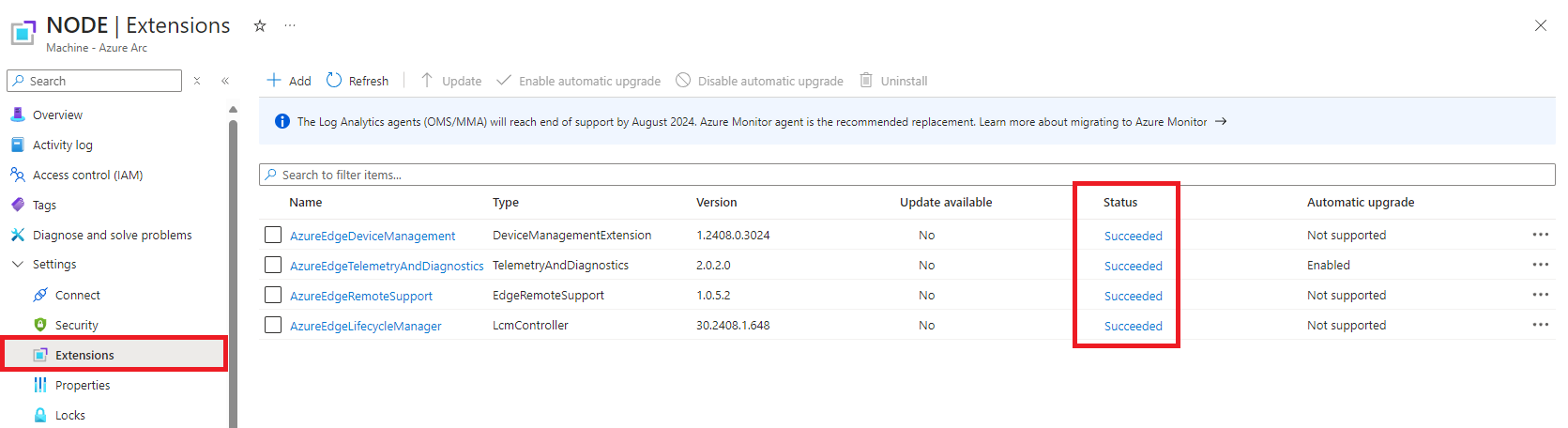
If an extension ends up in a failed state, use the troubleshooting guide to diagnose it. The old extension repair script is archived in scripts/01Lab/Old version/ and targets an older build, so do not run it against a current release.
11. Registering the Cluster
Once the node is Arc-registered, follow the portal path below or use the Terraform alternative at the end of this section:
-
Assign Required Rights:
Check the role-assignment results from Step 4. The script assigns Azure RBAC to the selected principal, which may be an SPN rather than the user opening the portal. The portal operator needs the relevant deployment rights too. Azure RBAC assignment does not grant Entra directory roles. For the portal path, review:
- Subscription Level:
Azure Stack HCI Administrator,Reader. - Resource Group Level:
Key Vault Data Access Administrator,Key Vault Secrets Officer,Key Vault Contributor,Storage Account Contributor. - Microsoft Entra Roles and Administrators:
Cloud Application Administratorfor the user performing the deployment.
- Subscription Level:
-
Initial Cluster Registration:
-
Use the Azure Portal for initial cluster registration: Azure Local Deployment via Portal
- Extension Installation
- Since April 2025, extensions must be installed manually during the cluster deployment. To do this, simply select the nodes and click the Install extensions button:
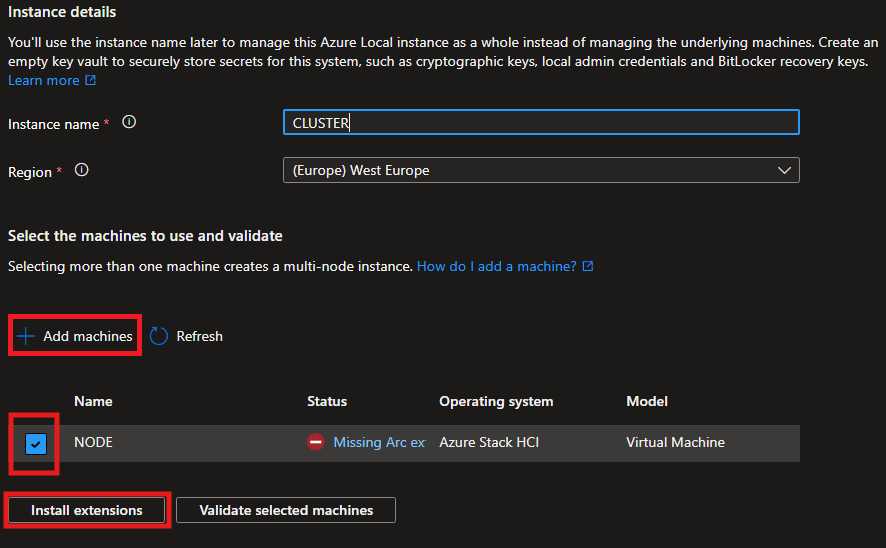
- Since April 2025, extensions must be installed manually during the cluster deployment. To do this, simply select the nodes and click the Install extensions button:
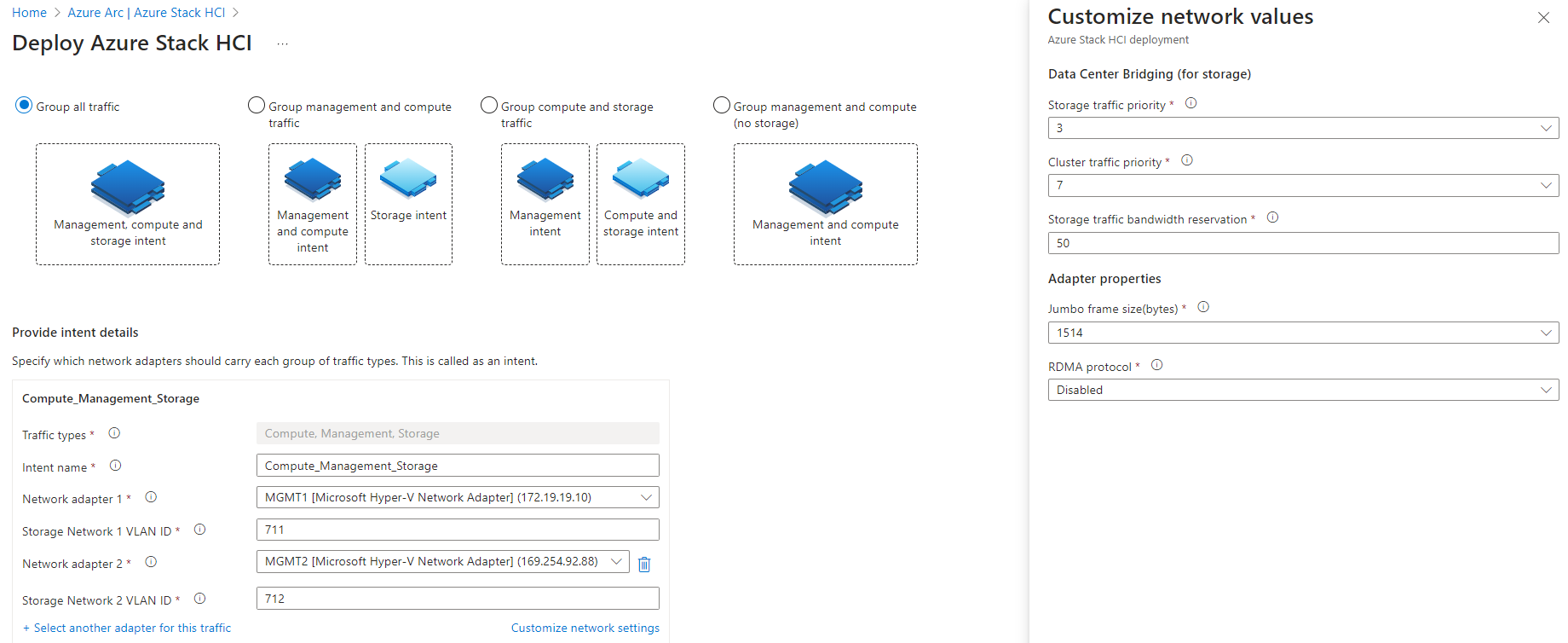
- Network Configuration:
-
Apply the following network settings to the interfaces:
-
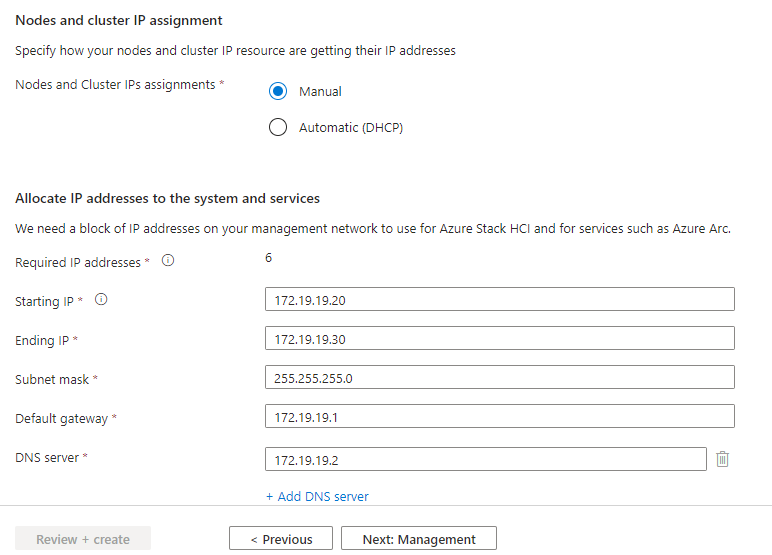
Personally, I use the following IP configurations:
-
- Custom Location and User Configuration:
- Use the domain, OU and LCM user prepared by
01_DC.ps1, with the credentials from your private.envfile: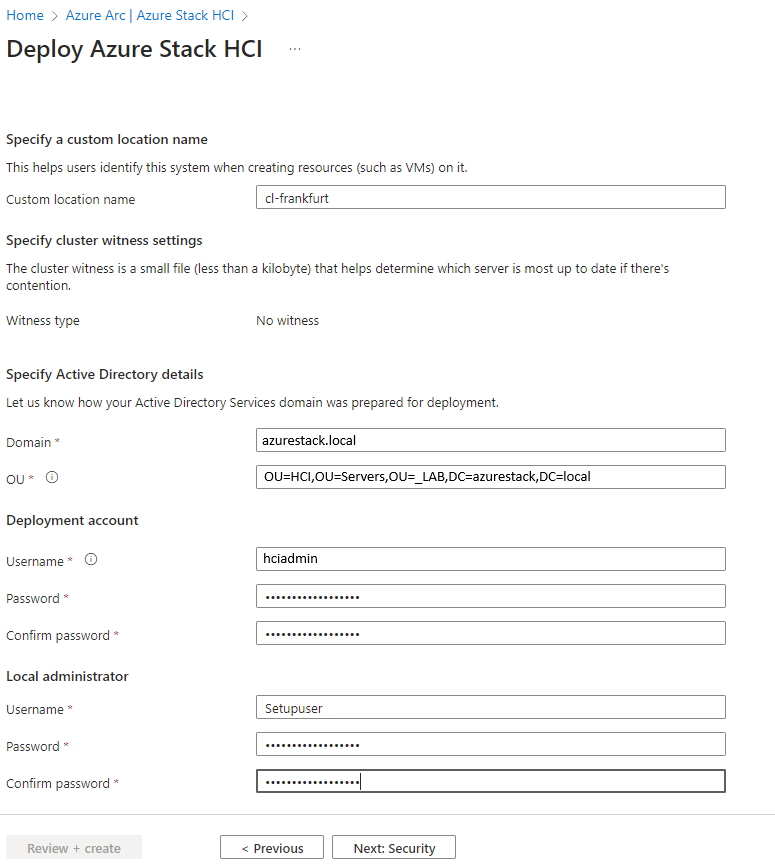
- Use the domain, OU and LCM user prepared by
- Security Options:
- It’s crucial to disable BitLocker to prevent excessive storage consumption (totaling 2.1 TB), which could render your system inoperable if you lack sufficient capacity:
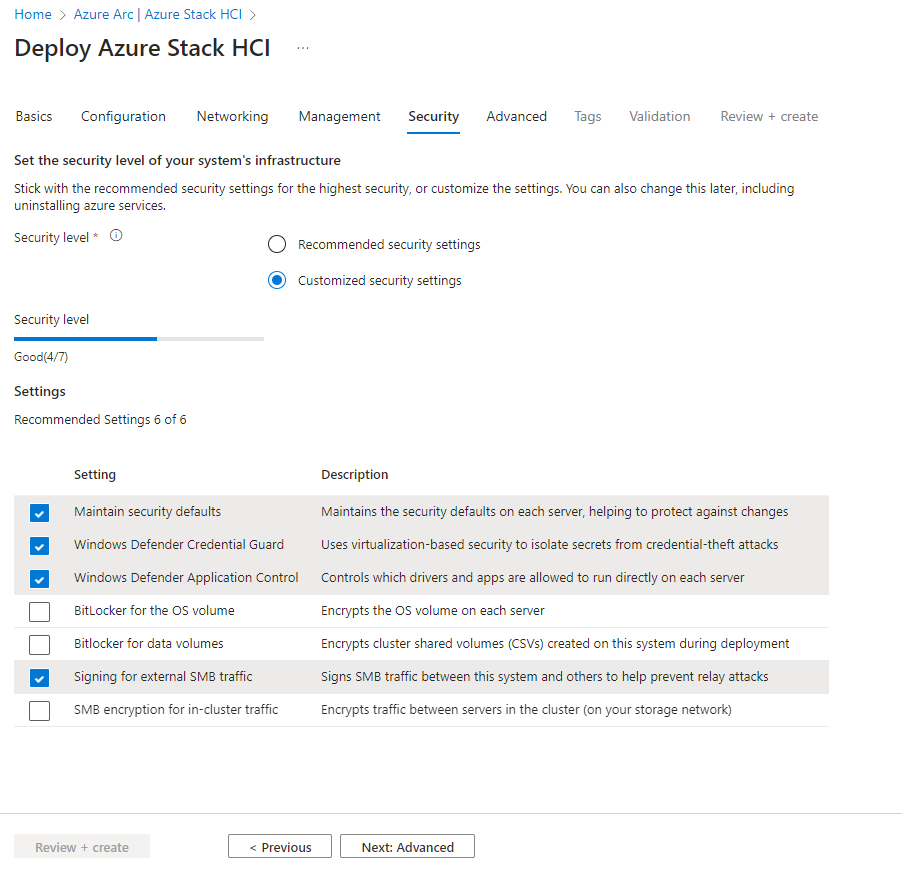
- It’s crucial to disable BitLocker to prevent excessive storage consumption (totaling 2.1 TB), which could render your system inoperable if you lack sufficient capacity:
- Finalize Configuration:
- Leave the remaining settings at default. The system will be ready for provisioning after the validation, which take approximately 20 minutes.
-
-
Perform Cloud Deployment:
- Initiate the cloud deployment and wait approximately 2 hours for the cluster to be ready for subsequent steps.
Terraform alternative: The repository also includes a
terraform/folder that provides an Infrastructure-as-Code alternative to clicking through the portal wizard. It deploys the cluster using a local fork of the Azure Verified Module for Azure Local. For a full walkthrough of that path, including the bugs I hit and how I fixed them, see Azure Local: Terraform Deployment.
Cost Considerations
One of the advantages of using the AzSHCI scripts and Nested Virtualization is the minimal cost involved in setting up your Azure Local environment.
- Hardware Costs: 0€
- I use my regular work laptop for deployment, so there are no additional hardware expenses.
- License Costs for the Domain Controller: 0€
- We use the Windows Server 2025 Evaluation version, which is free for 90 days, ample time for testing and development.
- License Costs for the Node: 0€
- The Azure Local OS does not incur costs.
- Azure Local Costs: 0€
- Azure Local is free for the first 60 days. Since we won’t exceed this period for our testing, no costs will be incurred.
When rebuilding the lab, remove the Azure deployment before removing the local VMs. For a Terraform-managed deployment, review and run terraform destroy from terraform/ while the node and Terraform state are still available. Then run scripts/01Lab/99_Offboarding.ps1 on the outer host to remove the local lab. Resources created outside Terraform, such as workloads or the bootstrap SPN, need their own cleanup. Deleting the local VMs alone leaves Azure resources and role assignments behind.
Conclusion
By following these steps, you should have a functional Azure Local environment running on minimal hardware. The AzSHCI scripts are designed to make the deployment process as smooth as possible, allowing you to focus on exploring Azure Local features without worrying about extensive setup procedures.
Additional Resources
- AzSHCI GitHub Repository: github.com/schmittnieto/AzSHCI
- MSLab Repository: github.com/microsoft/MSLab
- DellGEOS AzureStackHOLs: github.com/DellGEOS/AzureStackHOLs
- Azure Arc Jumpstart: azurearcjumpstart.io
- Azure Local Documentation: Microsoft Docs
Workloads and Ongoing Operations
The repository now includes Entra joined AVD deployment and management under scripts/04AVD/. For cluster deployment through code, follow the Terraform article. The Day 2 guide covers logical networks, images and the updated graceful start/stop workflow. You can also continue with Arc VM deployment or AKS on Azure Local.
Contributing
Contributions are welcome! If you have suggestions, improvements, or bug fixes, feel free to fork the repository and submit a pull request.
License
This project is licensed under the MIT License - see the LICENSE file for details.
Contact
For any questions or issues, please open an issue in the repository.
Thank you for using AzSHCI! I hope these scripts simplify your Azure Local deployment process and enable efficient testing and development in your environment.
RAW Scripts
To make it easier to read I have moved all the RAW scripts to the end of the article, they will be automatically synchronized via Github Actions to the article. That is to say, in case there are modifications in the Github repository where they are located, these will be picked up in the scripts here.
00_Infra_AzHCI.ps1
# 00_Infra_AzHCI.ps1
# Configuration and VM Creation Script

<#
.SYNOPSIS
    Configures virtual networking, creates required folder structures, and deploys HCI Node and Domain Controller VMs.

.DESCRIPTION
    This script performs the following tasks:
    - Checks required prerequisites.
    - Configures an internal virtual switch with NAT.
    - Ensures the required folder structures exist.
    - Creates two virtual machines: an HCI Node and a Domain Controller.
    - Configures networking, storage, security, and boot settings for the VMs.

.NOTES
    - Designed by Cristian Schmitt Nieto. For details: https://schmitt-nieto.com/blog/azure-stack-hci-demolab/
    - Run this script with administrative privileges.
    - Ensure ISO paths are correct before execution.
    - Execution Policy may need to allow script execution:
    - Set-ExecutionPolicy RemoteSigned -Scope CurrentUser
    - Approved PowerShell verb usage:
    - Functions and cmdlets use approved verbs such as `New` for creation.
    - Updates:
        - 2025/11/10: Adding ICMP allow rule to permit pinging the NAT gateway from VMs.
#>

#region Variables

# Load the lab configuration into this session if it has not been loaded yet.
# Tip: run scripts\01Lab\Set-LabEnv.ps1 once per session to set everything from
# scripts\01Lab\.env. See scripts\01Lab\.env.example for the full list of keys.
if ($env:AZSHCI_ENV_LOADED -ne '1') { & "$PSScriptRoot\Set-LabEnv.ps1" }

# Virtual Switch and Network Configuration
$vSwitchName = $env:AZSHCI_VSWITCH_NAME
$vSwitchNIC = "vEthernet ($vSwitchName)"
$vNetIPNetwork = $env:AZSHCI_LAB_SUBNET
$vIPNetworkPrefixLength = ($vNetIPNetwork -split '/')[1]
$natName = $env:AZSHCI_NAT_NAME
$HCIRootFolder = $env:AZSHCI_LAB_ROOT_FOLDER

# ISO Paths
$isoPath_HCI = $env:AZSHCI_ISO_PATH_HCI   # HCI Node ISO
$isoPath_DC  = $env:AZSHCI_ISO_PATH_DC    # Domain Controller ISO

# Management network adapter names (shared by both VMs)
$NIC1 = $env:AZSHCI_MGMT_NIC1
$NIC2 = $env:AZSHCI_MGMT_NIC2

# HCI Node VM Configuration
$HCIVMName = $env:AZSHCI_HCI_VM_NAME
$HCI_Memory = [int64]$env:AZSHCI_HCI_VM_MEMORY_GB * 1GB
$HCI_Processors = [int]$env:AZSHCI_HCI_VM_PROCESSORS
$HCI_OSDiskSize   = [int64]$env:AZSHCI_HCI_OS_DISK_GB * 1GB
$HCI_S2DDiskSize  = [int64]$env:AZSHCI_HCI_S2D_DISK_GB * 1GB
$HCI_S2DDiskCount = [int]$env:AZSHCI_HCI_S2D_DISK_COUNT
$HCI_Disks = @(
    @{ Path = "${HCIVMName}_C.vhdx"; Size = $HCI_OSDiskSize }
)
for ($s2d = 1; $s2d -le $HCI_S2DDiskCount; $s2d++) {
    $HCI_Disks += @{ Path = "s2d$s2d.vhdx"; Size = $HCI_S2DDiskSize }
}
$HCI_NetworkAdapters = @($NIC1, $NIC2)

# Domain Controller VM Configuration
$DCVMName = $env:AZSHCI_DC_VM_NAME
$DC_Memory = [int64]$env:AZSHCI_DC_VM_MEMORY_GB * 1GB
$DC_Processors = [int]$env:AZSHCI_DC_VM_PROCESSORS
$DC_Disks = @(
    @{ Path = "${DCVMName}_C.vhdx"; Size = [int64]$env:AZSHCI_DC_OS_DISK_GB * 1GB }
)
$DC_NetworkAdapters = @($NIC1)

# Tasks for Progress Bar
$tasks = @(
    "Checking Prerequisites",
    "Configuring Virtual Switch and NAT",
    "Setting Up Folder Structures",
    "Creating HCI Node VM",
    "Creating Domain Controller VM"
)

$totalTasks = $tasks.Count
$currentTask = 0

#endregion

#region Functions

function Write-Message {
    param(
        [string]$Message,
        [ValidateSet("Info","Success","Warning","Error")]
        [string]$Type = "Info"
    )
    switch ($Type) {
        "Info"    { Write-Host $Message -ForegroundColor Cyan }
        "Success" { Write-Host $Message -ForegroundColor Green }
        "Warning" { Write-Host $Message -ForegroundColor Yellow }
        "Error"   { Write-Host $Message -ForegroundColor Red }
    }
    # Optional: log to file
    # Add-Content -Path "C:\Path\To\LogFile.txt" -Value "$((Get-Date).ToString('yyyy-MM-dd HH:mm:ss')) [$Type] $Message"
}

function Set-FolderStructure {
    param(
        [string]$BaseFolder
    )

    $vmFolder   = Join-Path -Path $BaseFolder -ChildPath "VM"
    $diskFolder = Join-Path -Path $BaseFolder -ChildPath "Disk"

    try {
        if (-not (Test-Path -Path $BaseFolder)) {
            Write-Message "Base folder does not exist. Creating: $BaseFolder" -Type "Info"
            New-Item -Path $BaseFolder -ItemType Directory -Force | Out-Null
            Write-Message "Base folder created: $BaseFolder" -Type "Success"
        } else {
            Write-Message "Base folder already exists: $BaseFolder" -Type "Info"
        }

        if (-not (Test-Path -Path $vmFolder)) {
            Write-Message "VM folder does not exist. Creating: $vmFolder" -Type "Info"
            New-Item -Path $vmFolder -ItemType Directory -Force | Out-Null
            Write-Message "VM folder created: $vmFolder" -Type "Success"
        } else {
            Write-Message "VM folder already exists: $vmFolder" -Type "Info"
        }

        if (-not (Test-Path -Path $diskFolder)) {
            Write-Message "Disk folder does not exist. Creating: $diskFolder" -Type "Info"
            New-Item -Path $diskFolder -ItemType Directory -Force | Out-Null
            Write-Message "Disk folder created: $diskFolder" -Type "Success"
        } else {
            Write-Message "Disk folder already exists: $diskFolder" -Type "Info"
        }
    } catch {
        Write-Message "Failed to set up folder structure. Error: $_" -Type "Error"
        throw
    }
}

function Invoke-InternalVMSwitch {
    param(
        [string]$VMSwitchName
    )
    try {
        $existingSwitch = Get-VMSwitch -Name $VMSwitchName -ErrorAction SilentlyContinue
        if ($null -ne $existingSwitch) {
            Write-Message "Internal VM switch '$VMSwitchName' already exists." -Type "Success"
        } else {
            Write-Message "Internal VM switch '$VMSwitchName' does not exist. Creating it..." -Type "Info"
            New-VMSwitch -Name $VMSwitchName -SwitchType Internal -ErrorAction Stop | Out-Null
            Write-Message "Internal VM switch '$VMSwitchName' created." -Type "Success"
        }
    } catch {
        Write-Message "Failed to create internal VM switch '$VMSwitchName'. Error: $_" -Type "Error"
        throw
    }
}

function Get-Gateway {
    param(
        [string]$IPNetwork
    )
    try {
        $ip, $cidr = $IPNetwork -split '/'
        $base = [System.Net.IPAddress]::Parse($ip)
        $bytes = $base.GetAddressBytes()
        $bytes[3] += 1
        return [System.Net.IPAddress]::new($bytes)
    } catch {
        Write-Message "Invalid IP network format: $IPNetwork. Error: $_" -Type "Error"
        throw
    }
}

function New-VMCreation {
    param(
        [string]$VMName,
        [string]$VMFolder,
        [string]$DiskFolder,
        [string]$ISOPath,
        [long]$Memory,
        [int]$Processors,
        [array]$Disks,
        [array]$NetworkAdapters
    )

    try {
        # OS disk
        $VHDName = $Disks[0].Path
        $VHDPath = Join-Path -Path $DiskFolder -ChildPath $VHDName
        if (-not (Test-Path -Path $VHDPath)) {
            New-VHD -Path $VHDPath -SizeBytes $Disks[0].Size -ErrorAction Stop | Out-Null
            Write-Message "VHD created at '$VHDPath'." -Type "Success"
        } else {
            Write-Message "VHD already exists at '$VHDPath'. Skipping." -Type "Warning"
        }

        # VM
        if (-not (Get-VM -Name $VMName -ErrorAction SilentlyContinue)) {
            New-VM -Name $VMName -MemoryStartupBytes $Memory -VHDPath $VHDPath -Generation 2 -Path $VMFolder -ErrorAction Stop | Out-Null
            Write-Message "VM '$VMName' created." -Type "Success"
        } else {
            Write-Message "VM '$VMName' already exists. Skipping creation." -Type "Warning"
            return
        }

        # Memory and CPU
        Set-VMMemory   -VMName $VMName -DynamicMemoryEnabled $false -ErrorAction Stop | Out-Null
        Set-VMProcessor -VMName $VMName -Count $Processors -ErrorAction Stop | Out-Null
        Write-Message "Memory and processors configured for '$VMName'." -Type "Success"

        # Disable checkpoints
        Set-VM -VMName $VMName -CheckpointType Disabled -ErrorAction Stop | Out-Null
        Write-Message "Checkpoints disabled for '$VMName'." -Type "Success"

        # Remove default NIC
        Get-VMNetworkAdapter -VMName $VMName | Remove-VMNetworkAdapter -ErrorAction Stop | Out-Null
        Write-Message "Default NIC removed from '$VMName'." -Type "Success"

        # Add NICs and connect
        foreach ($nic in $NetworkAdapters) {
            Add-VMNetworkAdapter -VMName $VMName -Name $nic -ErrorAction Stop | Out-Null
            Connect-VMNetworkAdapter -VMName $VMName -Name $nic -SwitchName $vSwitchName -ErrorAction Stop | Out-Null
            Write-Message "NIC '$nic' added and connected to '$vSwitchName' for '$VMName'." -Type "Success"
        }

        # Enable MAC spoofing
        Get-VMNetworkAdapter -VMName $VMName | Set-VMNetworkAdapter -MacAddressSpoofing On -ErrorAction Stop | Out-Null
        Write-Message "MAC spoofing enabled for '$VMName'." -Type "Success"

        # Key Protector and vTPM
        $GuardianName = $VMName
        $existingGuardian = Get-HgsGuardian -Name $GuardianName -ErrorAction SilentlyContinue
        if ($null -ne $existingGuardian) {
            Write-Message "HgsGuardian '$GuardianName' exists. Deleting and recreating..." -Type "Warning"
            Remove-HgsGuardian -Name $GuardianName -ErrorAction Stop | Out-Null
            Write-Message "HgsGuardian '$GuardianName' deleted." -Type "Success"
        } else {
            Write-Message "Creating HgsGuardian '$GuardianName'..." -Type "Info"
        }

        $newGuardian = New-HgsGuardian -Name $GuardianName -GenerateCertificates -ErrorAction Stop
        Write-Message "HgsGuardian '$GuardianName' created." -Type "Success"

        $kp = New-HgsKeyProtector -Owner $newGuardian -AllowUntrustedRoot -ErrorAction Stop
        Set-VMKeyProtector -VMName $VMName -KeyProtector $kp.RawData -ErrorAction Stop | Out-Null
        Enable-VMTPM        -VMName $VMName -ErrorAction Stop | Out-Null
        Write-Message "Key Protector and vTPM applied to '$VMName'." -Type "Success"

        # Additional data disks
        for ($i = 1; $i -lt $Disks.Count; $i++) {
            $disk = $Disks[$i]
            $diskPath = Join-Path -Path $DiskFolder -ChildPath $disk.Path
            if (-not (Test-Path -Path $diskPath)) {
                New-VHD -Path $diskPath -SizeBytes $disk.Size -ErrorAction Stop | Out-Null
                Write-Message "Additional VHD created at '$diskPath'." -Type "Success"
            } else {
                Write-Message "Additional VHD already exists at '$diskPath'. Skipping." -Type "Warning"
            }
            Add-VMHardDiskDrive -VMName $VMName -Path $diskPath -ErrorAction Stop | Out-Null
            Write-Message "Additional disk '$($disk.Path)' attached to '$VMName'." -Type "Success"
        }

        # Nested virtualization
        Set-VMProcessor -VMName $VMName -ExposeVirtualizationExtensions $true -ErrorAction Stop | Out-Null
        Write-Message "Nested virtualization enabled for '$VMName'." -Type "Success"

        # Boot media
        Add-VMDvdDrive -VMName $VMName -Path $ISOPath -ErrorAction Stop | Out-Null
        Write-Message "ISO '$ISOPath' mounted for '$VMName'." -Type "Success"

        # Boot order
        $firm = Get-VMFirmware -VMName $VMName -ErrorAction Stop
        $dvdBoot = ($firm.BootOrder | Where-Object { $_.Device -like '*Dvd*' })[0]
        if ($dvdBoot) {
            Set-VMFirmware -VMName $VMName -FirstBootDevice $dvdBoot -ErrorAction Stop | Out-Null
            Write-Message "Boot order set to DVD first for '$VMName'." -Type "Success"
        } else {
            Write-Message "DVD device not found in boot order for '$VMName'." -Type "Warning"
        }

        # Host start and stop actions
        Set-VM -Name $VMName -AutomaticStopAction ShutDown  -ErrorAction Stop | Out-Null
        Set-VM -Name $VMName -AutomaticStartAction Nothing  -ErrorAction Stop | Out-Null
        Write-Message "Start and stop actions configured for '$VMName'." -Type "Success"

    } catch {
        Write-Message "Failed to create or configure VM '$VMName'. Error: $_" -Type "Error"
        throw
    }
}

function Test-TPM {
    try {
        $tpm = Get-TPM -ErrorAction SilentlyContinue
        if ($null -eq $tpm) {
            Write-Message "TPM not found on host. A TPM is required for Key Protector and vTPM." -Type "Error"
            exit 1
        } elseif (-not $tpm.TpmEnabled) {
            Write-Message "TPM is present but not enabled. Enable it in BIOS or UEFI." -Type "Error"
            exit 1
        } else {
            Write-Message "TPM is present and enabled." -Type "Success"
        }
    } catch {
        Write-Message "Failed to check TPM status. Error: $_" -Type "Error"
        exit 1
    }
}

function Test-HyperV {
    # Detect Hyper-V through what the lab actually uses: the VMMS service and the Hyper-V module.
    # The DISM based feature cmdlets can hang or fail with "Class not registered" on Windows
    # Server Insider builds even when the role is installed, so they are only used to install.
    $vmms     = Get-Service -Name vmms -ErrorAction SilentlyContinue
    $hvModule = Get-Module -ListAvailable -Name Hyper-V
    if ($vmms -and $hvModule) {
        if ($vmms.Status -ne 'Running') {
            Write-Message "Hyper-V is installed but the VMMS service is $($vmms.Status). Starting it..." -Type Warning
            try {
                Start-Service -Name vmms -ErrorAction Stop
            } catch {
                Write-Message "Failed to start the VMMS service. $($_)" -Type Error
                exit 1
            }
        }
        Write-Message "Hyper-V role already installed." -Type Success
        return
    }

    Write-Message "Installing Hyper-V role and management tools..." -Type Info
    $isServer = (Get-CimInstance -ClassName Win32_OperatingSystem).ProductType -ne 1
    try {
        if ($isServer) {
            Install-WindowsFeature -Name Hyper-V -IncludeManagementTools -ErrorAction Stop | Out-Null
        } else {
            Enable-WindowsOptionalFeature -Online -FeatureName Microsoft-Hyper-V -All -NoRestart -ErrorAction Stop | Out-Null
        }
    } catch {
        Write-Message "Feature cmdlets failed ($($_.Exception.Message)). Falling back to dism.exe..." -Type Warning
        & dism.exe /Online /Enable-Feature /FeatureName:Microsoft-Hyper-V /FeatureName:Microsoft-Hyper-V-Management-PowerShell /All /NoRestart /Quiet
        # 3010 = success, restart required
        if ($LASTEXITCODE -notin 0, 3010) {
            Write-Message "Failed to install Hyper-V. dism.exe exit code $LASTEXITCODE." -Type Error
            exit 1
        }
    }
    Write-Message "Hyper-V installed. Please reboot and run the script again." -Type Warning
    exit 0
}

function Update-ProgressBarMain {
    param(
        [int]$CurrentStep,
        [int]$TotalSteps,
        [string]$StatusMessage
    )
    $percent = [math]::Round(($CurrentStep / $TotalSteps) * 100)
    Write-Progress -Id 1 -Activity "Overall Progress" -Status $StatusMessage -PercentComplete $percent
}

function Start-SleepWithProgress {
    param(
        [int]$Seconds,
        [string]$Activity = "Waiting",
        [string]$Status = "Please wait..."
    )
    Write-Message "$Activity : $Status" -Type "Info"
    for ($i = 1; $i -le $Seconds; $i++) {
        $percent = [math]::Round(($i / $Seconds) * 100)
        Write-Progress -Id 2 -Activity "Sleep Progress" -Status "$Activity : $i/$Seconds seconds elapsed..." -PercentComplete $percent
        Start-Sleep -Seconds 1
    }
    Write-Progress -Id 2 -Activity "Sleep Progress" -Completed
    Write-Message "$Activity : Completed." -Type "Success"
}

<# ============================================================
   NEW: Allow ICMP ping to the NAT gateway on the host interface
   ============================================================ #>
function Enable-GatewayIcmp {
    param(
        [Parameter(Mandatory = $true)][string]$InterfaceAlias,
        [Parameter(Mandatory = $true)][string]$Gateway,
        [Parameter(Mandatory = $true)][string]$SubnetCidr
    )
    try {
        # Ensure Private profile for that interface (helps avoid profile-based blocks)
        $netprofile = Get-NetConnectionProfile -InterfaceAlias $InterfaceAlias -ErrorAction SilentlyContinue
        if ($netprofile -and $netprofile.NetworkCategory -ne 'Private') {
            Set-NetConnectionProfile -InterfaceAlias $InterfaceAlias -NetworkCategory Private | Out-Null
            Write-Message "Network profile for '$InterfaceAlias' set to Private." -Type "Info"
        }

        $ruleName = "Allow-ICMPv4-$Gateway"
        $existing = Get-NetFirewallRule -DisplayName $ruleName -ErrorAction SilentlyContinue
        if (-not $existing) {
            New-NetFirewallRule `
                -DisplayName  $ruleName `
                -Direction    Inbound `
                -Action       Allow `
                -Protocol     ICMPv4 `
                -IcmpType     8 `
                -LocalAddress $Gateway `
                -RemoteAddress $SubnetCidr `
                -Profile Any | Out-Null

            Write-Message "Firewall rule created to allow ICMPv4 Echo to $Gateway from $SubnetCidr." -Type "Success"
        } else {
            Write-Message "Firewall rule '$ruleName' already exists." -Type "Info"
        }
    } catch {
        Write-Message "Could not configure ICMP rule. Error: $_" -Type "Error"
        throw
    }
}

# Misspelling-friendly alias so both names work
Set-Alias -Name Enable-GetawayIcmp -Value Enable-GatewayIcmp -ErrorAction SilentlyContinue

#endregion

#region Script Execution

foreach ($task in $tasks) {
    $currentTask++
    Update-ProgressBarMain -CurrentStep $currentTask -TotalSteps $totalTasks -StatusMessage "$task..."

    switch ($task) {
        "Checking Prerequisites" {
            Write-Message "Checking prerequisites..." -Type "Info"
            Test-TPM
            Test-HyperV
            Write-Message "Prerequisite checks completed successfully." -Type "Success"
        }

        "Configuring Virtual Switch and NAT" {
            Write-Message "Configuring virtual switch and NAT settings..." -Type "Info"

            Invoke-InternalVMSwitch -VMSwitchName $vSwitchName
            Start-Sleep -Seconds 3

            # Calculate gateway address, assign IP to host vSwitch NIC, and create NAT
            try {
                $vIPNetworkGW = Get-Gateway -IPNetwork $vNetIPNetwork
                Write-Message "Calculated gateway: $vIPNetworkGW" -Type "Info"
            } catch {
                Write-Message "Failed to calculate gateway. Exiting." -Type "Error"
                exit 1
            }

            try {
                # Assign IP address to host vSwitch interface
                $existingIPAddress = Get-NetIPAddress -IPAddress $vIPNetworkGW -InterfaceAlias $vSwitchNIC -ErrorAction SilentlyContinue
                if ($null -eq $existingIPAddress) {
                    Write-Message "Assigning $vIPNetworkGW to $vSwitchNIC" -Type "Info"
                    New-NetIPAddress -IPAddress $vIPNetworkGW -PrefixLength $vIPNetworkPrefixLength -InterfaceAlias $vSwitchNIC -ErrorAction Stop | Out-Null
                    Write-Message "Assigned $vIPNetworkGW to $vSwitchNIC." -Type "Success"
                } else {
                    Write-Message "IP $vIPNetworkGW already present on $vSwitchNIC. Skipping assignment." -Type "Warning"
                }

                # Create NAT if missing
                $existingNat = Get-NetNat -Name $natName -ErrorAction SilentlyContinue
                if ($null -eq $existingNat) {
                    Write-Message "Creating NAT '$natName' for $vNetIPNetwork" -Type "Info"
                    New-NetNat -Name $natName -InternalIPInterfaceAddressPrefix $vNetIPNetwork -ErrorAction Stop | Out-Null
                    Write-Message "NAT '$natName' created." -Type "Success"
                } else {
                    Write-Message "NAT '$natName' already exists. Skipping creation." -Type "Warning"
                }
            } catch {
                Write-Message "Failed to configure IP or NAT. Error: $_" -Type "Error"
                exit 1
            }

            # Allow ICMP echo to the gateway on the host interface for VMs in the lab subnet
            try {
                Enable-GatewayIcmp -InterfaceAlias $vSwitchNIC -Gateway "$vIPNetworkGW" -SubnetCidr $vNetIPNetwork
            } catch {
                Write-Message "Failed to enable ICMP echo to gateway. Error: $_" -Type "Error"
                exit 1
            }

            Start-Sleep -Seconds 3
            Write-Message "Virtual switch and NAT configuration completed." -Type "Success"
        }

        "Setting Up Folder Structures" {
            Write-Message "Setting up folder structures..." -Type "Info"
            try {
                Set-FolderStructure -BaseFolder $HCIRootFolder
                $HCIDiskFolder = Join-Path -Path $HCIRootFolder -ChildPath "Disk"
                $HCIVMFolder   = Join-Path -Path $HCIRootFolder -ChildPath "VM"
                Write-Message "Folder structures ready." -Type "Success"
            } catch {
                Write-Message "Failed to set up folder structures. Error: $_" -Type "Error"
                exit 1
            }
        }

        "Creating HCI Node VM" {
            Write-Message "Creating HCI Node VM..." -Type "Info"
            try {
                New-VMCreation -VMName $HCIVMName `
                               -VMFolder $HCIVMFolder `
                               -DiskFolder $HCIDiskFolder `
                               -ISOPath $isoPath_HCI `
                               -Memory $HCI_Memory `
                               -Processors $HCI_Processors `
                               -Disks $HCI_Disks `
                               -NetworkAdapters $HCI_NetworkAdapters

                # Disable time synchronization integration service
                Get-VMIntegrationService -VMName $HCIVMName | Where-Object { $_.Name -like "*Sync*" } | Disable-VMIntegrationService -ErrorAction Stop | Out-Null
                Write-Message "Time synchronization disabled for '$HCIVMName'." -Type "Success"
            } catch {
                Write-Message "Failed to create HCI Node VM '$HCIVMName'. Error: $_" -Type "Error"
                exit 1
            }
        }

        "Creating Domain Controller VM" {
            Write-Message "Creating Domain Controller VM..." -Type "Info"
            try {
                New-VMCreation -VMName $DCVMName `
                               -VMFolder $HCIVMFolder `
                               -DiskFolder $HCIDiskFolder `
                               -ISOPath $isoPath_DC `
                               -Memory $DC_Memory `
                               -Processors $DC_Processors `
                               -Disks $DC_Disks `
                               -NetworkAdapters $DC_NetworkAdapters

                # Disable time synchronization integration service
                Get-VMIntegrationService -VMName $DCVMName | Where-Object { $_.Name -like "*Sync*" } | Disable-VMIntegrationService -ErrorAction Stop | Out-Null
                Write-Message "Time synchronization disabled for '$DCVMName'." -Type "Success"
            } catch {
                Write-Message "Failed to create Domain Controller VM '$DCVMName'. Error: $_" -Type "Error"
                exit 1
            }
        }
    }
}

Write-Progress -Id 1 -Activity "Configuring Infrastructure and Creating VMs" -Completed -Status "All tasks completed."
Write-Message "All configurations and VM creations completed successfully." -Type "Success"

#endregion
01_DC.ps1
# 01_DC.ps1
# Domain Controller Configuration Script

<#
.SYNOPSIS
    Configures the Domain Controller VM, sets network settings, promotes it to a Domain Controller, installs updates, and sets up Active Directory Organizational Units.

.DESCRIPTION
    This script performs the following tasks:
    - Sets up credentials and network configurations.
    - Removes the ISO from the DC VM.
    - Renames the Domain Controller VM.
    - Configures network adapters with static IP settings.
    - Sets the time zone.
    - Promotes the VM to a Domain Controller.
    - Installs Windows Updates and waits until the DC is back up after the restart.
    - Configures DNS forwarders.
    - Creates Organizational Units (OUs) in Active Directory.
    - Installs necessary modules and creates Azure Local AD objects.

.NOTES
    - Designed by Cristian Schmitt Nieto. For more information and usage, visit: https://schmitt-nieto.com/blog/azure-stack-hci-demolab/
    - Run this script with administrative privileges.
    - Ensure the Execution Policy allows the script to run. To set the execution policy, you can run:
      Set-ExecutionPolicy RemoteSigned -Scope CurrentUser
#>

#region Variables

# Load the lab configuration into this session if it has not been loaded yet.
# Tip: run scripts\01Lab\Set-LabEnv.ps1 once per session to set everything from
# scripts\01Lab\.env. See scripts\01Lab\.env.example for the full list of keys.
if ($env:AZSHCI_ENV_LOADED -ne '1') { & "$PSScriptRoot\Set-LabEnv.ps1" }

# Define credentials and variables
$defaultUser = $env:AZSHCI_DEFAULT_ADMIN_USER
$defaultPwd = $env:AZSHCI_DEFAULT_ADMIN_PASSWORD
$DefaultSecuredPassword = ConvertTo-SecureString $defaultPwd -AsPlainText -Force
$DefaultCredentials = New-Object System.Management.Automation.PSCredential ($defaultUser, $DefaultSecuredPassword)

# VM and Domain Variables
$dcVMName  = $env:AZSHCI_DC_VM_NAME
$domainName = $env:AZSHCI_DOMAIN_NAME
$netBIOSName = $env:AZSHCI_DOMAIN_NETBIOS

$NIC1 = $env:AZSHCI_MGMT_NIC1
$nic1IP = $env:AZSHCI_DC_IP
$nic1GW = $env:AZSHCI_LAB_GATEWAY
$nic1DNS = $env:AZSHCI_DC_IP

# Variables for DNS forwarder and time zone
$dnsForwarder = $env:AZSHCI_DNS_FORWARDER
$timeZone = $env:AZSHCI_DC_TIMEZONE # Use "Get-TimeZone -ListAvailable" to get a list of available Time Zones

# User for Azure Local LCM User (to be used later)
$setupUser = $env:AZSHCI_DC_LCM_USER
$setupPwd = $env:AZSHCI_DC_LCM_PASSWORD

# Sleep durations in seconds
$SleepRename = [int]$env:AZSHCI_DC_SLEEP_RENAME     # Sleep Timer for after PC Renaming
$SleepDomain = [int]$env:AZSHCI_DC_SLEEP_DOMAIN    # Sleep Timer for after Domain Making
$SleepUpdates = [int]$env:AZSHCI_DC_SLEEP_UPDATES   # Time the DC must stay up after the update restart before the script continues
# $SleepADServices = 30 # Increased Sleep Timer after DC promotion before configuring AD

# Total number of steps for progress calculation
$totalSteps = 13
$currentStep = 0

#endregion

#region Functions

# Function to Display Messages with Colors
function Write-Message {
    param (
        [string]$Message,
        [ValidateSet("Info", "Success", "Warning", "Error")]
        [string]$Type = "Info"
    )

    switch ($Type) {
        "Info"    { Write-Host $Message -ForegroundColor Cyan }
        "Success" { Write-Host $Message -ForegroundColor Green }
        "Warning" { Write-Host $Message -ForegroundColor Yellow }
        "Error"   { Write-Host $Message -ForegroundColor Red }
    }

    # Optional: Log messages to a file
    # Uncomment and configure the following lines to enable logging
    # $LogFile = "C:\HCI\DeploymentLogs\01_DC_Log_$(Get-Date -Format 'yyyyMMdd_HHmmss').txt"
    # New-Item -Path (Split-Path $LogFile) -ItemType Directory -Force | Out-Null
    # Add-Content -Path $LogFile -Value "$((Get-Date).ToString('yyyy-MM-dd HH:mm:ss')) [$Type] $Message"
}

# Function to Update Progress Bar (Main Progress)
function Update-ProgressBar {
    param (
        [int]$CurrentStep,
        [int]$TotalSteps,
        [string]$StatusMessage
    )

    $percent = [math]::Round(($CurrentStep / $TotalSteps) * 100)
    Write-Progress -Id 1 -Activity "Overall Progress" -Status $StatusMessage -PercentComplete $percent
}

# Function to Start Sleep with Progress Message and Additional Progress Bar (Subtask)
function Start-SleepWithProgress {
    param(
        [int]$Seconds,
        [string]$Activity = "Waiting",
        [string]$Status = "Please wait..."
    )

    Write-Message "$Activity : $Status" -Type "Info"

    for ($i = 1; $i -le $Seconds; $i++) {
        # Check if a key has been pressed
        if ([Console]::KeyAvailable) {
            $key = [Console]::ReadKey($true)
            if ($key.Key -eq 'Spacebar') {
                Write-Message "Sleep skipped by user." -Type "Warning"
                break
            }
        }

        $percent = [math]::Round(($i / $Seconds) * 100)
        Write-Progress -Id 2 -Activity "Sleep Progress" -Status "$Activity : $i/$Seconds seconds elapsed... Use Spacebar to Skip" -PercentComplete $percent
        Start-Sleep -Seconds 1
    }

    Write-Progress -Id 2 -Activity "Sleep Progress" -Completed
    Write-Message "$Activity : Completed." -Type "Success"
}

# Function to Wait Until Active Directory is Ready
function Wait-UntilADReady {
    param(
        [string]$VMName,
        [int]$Timeout = 600 # Timeout in seconds (10 minutes)
    )

    $elapsed = 0
    $interval = 10

    Write-Message "Checking if Active Directory services are operational on VM '$VMName'..." -Type "Info"

    while ($elapsed -lt $Timeout) {
        try {
            Invoke-Command -VMName $VMName -Credential $DomainAdminCredentials -ScriptBlock {
                Get-ADDomain -ErrorAction Stop
            } -ErrorAction Stop -WarningAction SilentlyContinue | Out-Null

            Write-Message "Active Directory services are operational on VM '$VMName'." -Type "Success"
            return
        } catch {
            Write-Message "Active Directory services not ready yet. Waiting..." -Type "Info"
            Start-Sleep -Seconds $interval
            $elapsed += $interval
        }
    }

    Write-Message "Active Directory services did not become operational within the expected time." -Type "Error"
    exit 1
}

# Function to Restart a VM and Wait Until It Is Back and Stable
# A cumulative update can restart the guest twice: once to install and once more
# from TrustedInstaller on the first boot. AD answers in between, so the VM must
# stay up on the same boot for $SettleSeconds before the script trusts it.
function Restart-VMAndWaitStable {
    param(
        [string]$VMName,
        [int]$SettleSeconds = 240,
        [int]$Timeout = 2700 # Timeout in seconds (45 minutes)
    )

    $bootBefore = Invoke-Command -VMName $VMName -Credential $DomainAdminCredentials -ScriptBlock {
        (Get-CimInstance -ClassName Win32_OperatingSystem).LastBootUpTime
    } -ErrorAction Stop

    # shutdown.exe returns at once, so this session closes before the guest goes down
    Invoke-Command -VMName $VMName -Credential $DomainAdminCredentials -ScriptBlock {
        shutdown.exe /r /t 5 /c "01_DC.ps1: restart to finish Windows Updates"
        if ($LASTEXITCODE -ne 0) { throw "shutdown.exe failed with exit code $LASTEXITCODE" }
    } -ErrorAction Stop | Out-Null
    Write-Message "VM '$VMName' is restarting to finish the updates..." -Type "Info"

    $elapsed = 0
    $interval = 15
    $currentBoot = $null
    $upSince = 0

    while ($elapsed -lt $Timeout) {
        Start-Sleep -Seconds $interval
        $elapsed += $interval

        try {
            # Boot time of the running OS, read only once AD answers
            $boot = Invoke-Command -VMName $VMName -Credential $DomainAdminCredentials -ScriptBlock {
                Get-ADDomain -ErrorAction Stop | Out-Null
                (Get-CimInstance -ClassName Win32_OperatingSystem).LastBootUpTime
            } -ErrorAction Stop -WarningAction SilentlyContinue
        } catch {
            # Shutting down, booting or AD still starting
            continue
        }

        # The restart has not happened yet
        if ($boot -le $bootBefore) { continue }

        if ($boot -ne $currentBoot) {
            if ($currentBoot) {
                Write-Message "VM '$VMName' restarted again to finish servicing." -Type "Warning"
            }
            $currentBoot = $boot
            $upSince = $elapsed
            Write-Message "VM '$VMName' is back up. Checking that it stays up for $SettleSeconds seconds..." -Type "Info"
        } elseif (($elapsed - $upSince) -ge $SettleSeconds) {
            Write-Message "VM '$VMName' is up and Active Directory is answering." -Type "Success"
            return
        }
    }

    Write-Message "VM '$VMName' did not come back and stay up within $Timeout seconds." -Type "Error"
    exit 1
}

#endregion

#region Script Execution

# Step 1: Remove ISO from DC VM
$currentStep++
Update-ProgressBar -CurrentStep $currentStep -TotalSteps $totalSteps -StatusMessage "Removing ISO from VM..."
Write-Message "Removing ISO from DC VM '$dcVMName'..." -Type "Info"
try {
    Get-VMDvdDrive -VMName $dcVMName | Where-Object { $_.DvdMediaType -eq "ISO" } | Remove-VMDvdDrive -ErrorAction Stop -WarningAction SilentlyContinue | Out-Null
    Write-Message "ISO removed from VM '$dcVMName'." -Type "Success"
} catch {
    Write-Message "Failed to remove ISO from VM '$dcVMName'. Error: $_" -Type "Error"
    exit 1
}

# Step 2: Retrieve and format MAC address
$currentStep++
Update-ProgressBar -CurrentStep $currentStep -TotalSteps $totalSteps -StatusMessage "Retrieving MAC address..."
Write-Message "Retrieving MAC address for network adapter '$NIC1' on VM '$dcVMName'..." -Type "Info"
try {
    $dcMacNIC1 = Get-VMNetworkAdapter -VMName $dcVMName -Name $NIC1 -ErrorAction Stop -WarningAction SilentlyContinue
    $dcMacNIC1Address = $dcMacNIC1.MacAddress
    $dcFinalMacNIC1 = $dcMacNIC1Address.Insert(2,"-").Insert(5,"-").Insert(8,"-").Insert(11,"-").Insert(14,"-").ToUpper()
    Write-Message "Formatted MAC address for '$NIC1': $dcFinalMacNIC1" -Type "Success"
} catch {
    Write-Message "Failed to retrieve MAC address for '$NIC1'. Error: $_" -Type "Error"
    exit 1
}

# Step 3: Rename the DC VM
$currentStep++
Update-ProgressBar -CurrentStep $currentStep -TotalSteps $totalSteps -StatusMessage "Renaming VM..."
Write-Message "Renaming VM '$dcVMName'..." -Type "Info"
try {
    Invoke-Command -VMName $dcVMName -Credential $DefaultCredentials -ScriptBlock {
        param($dcVMName)
        $ErrorActionPreference = 'Stop'
        $WarningPreference = 'SilentlyContinue'
        $VerbosePreference = 'SilentlyContinue'
        $ProgressPreference = 'SilentlyContinue'

        # Rename computer
        Rename-Computer -NewName $dcVMName -Force -ErrorAction Stop

        # Restart computer
        Restart-Computer -Force -ErrorAction Stop
    } -ArgumentList $dcVMName -ErrorAction Stop -WarningAction SilentlyContinue -Verbose:$false | Out-Null
    Write-Message "VM '$dcVMName' has been renamed and will restart to apply changes." -Type "Success"

    # Restart the DC VM to apply changes
    Write-Message "VM '$dcVMName' is restarting..." -Type "Info"
    Start-SleepWithProgress -Seconds $SleepRename -Activity "Restarting VM" -Status "Waiting for VM to restart" # 20 Seconds
} catch {
    Write-Message "Failed to rename or restart VM '$dcVMName'. Error: $_" -Type "Error"
    exit 1
}

# Step 4: Configure Network Settings
$currentStep++
Update-ProgressBar -CurrentStep $currentStep -TotalSteps $totalSteps -StatusMessage "Configuring network settings..."
Write-Message "Configuring network settings for VM '$dcVMName'..." -Type "Info"
try {
    Invoke-Command -VMName $dcVMName -Credential $DefaultCredentials -ScriptBlock {
        param($NIC1, $nic1IP, $nic1GW, $nic1DNS, $dcFinalMacNIC1)
        $ErrorActionPreference = 'Stop'
        $WarningPreference = 'SilentlyContinue'
        $VerbosePreference = 'SilentlyContinue'
        $ProgressPreference = 'SilentlyContinue'

        # Rename network adapter based on MAC address
        Get-NetAdapter -Physical | Where-Object { $_.MacAddress -eq $dcFinalMacNIC1 } | Rename-NetAdapter -NewName $NIC1 -ErrorAction Stop -WarningAction SilentlyContinue | Out-Null

        # Disable DHCP and set static IP
        Set-NetIPInterface -InterfaceAlias $NIC1 -Dhcp Disabled -ErrorAction Stop -WarningAction SilentlyContinue | Out-Null
        New-NetIPAddress -InterfaceAlias $NIC1 -IPAddress $nic1IP -PrefixLength 24 -DefaultGateway $nic1GW -ErrorAction Stop -WarningAction SilentlyContinue | Out-Null
        Set-DnsClientServerAddress -InterfaceAlias $NIC1 -ServerAddresses $nic1DNS -ErrorAction Stop -WarningAction SilentlyContinue | Out-Null
    } -ArgumentList $NIC1, $nic1IP, $nic1GW, $nic1DNS, $dcFinalMacNIC1 -ErrorAction Stop -WarningAction SilentlyContinue -Verbose:$false | Out-Null

    Write-Message "The IP address of NIC '$NIC1' is $nic1IP." -Type "Success"
} catch {
    Write-Message "Failed to configure network settings for VM '$dcVMName'. Error: $_" -Type "Error"
    exit 1
}

# Step 5: Set the time zone
$currentStep++
Update-ProgressBar -CurrentStep $currentStep -TotalSteps $totalSteps -StatusMessage "Setting time zone..."
Write-Message "Setting time zone for VM '$dcVMName'..." -Type "Info"
try {
    Invoke-Command -VMName $dcVMName -Credential $DefaultCredentials -ScriptBlock {
        param($timeZone)
        $ErrorActionPreference = 'Stop'
        $WarningPreference = 'SilentlyContinue'
        $VerbosePreference = 'SilentlyContinue'
        $ProgressPreference = 'SilentlyContinue'

        # Set the time zone
        Set-TimeZone -Name $timeZone -ErrorAction Stop -WarningAction SilentlyContinue | Out-Null
    } -ArgumentList $timeZone -ErrorAction Stop -WarningAction SilentlyContinue -Verbose:$false | Out-Null

    Write-Message "Time zone set to '$timeZone' for VM '$dcVMName'." -Type "Success"
} catch {
    Write-Message "Failed to set time zone for VM '$dcVMName'. Error: $_" -Type "Error"
    exit 1
}

# Step 6: Promote the DC VM to a Domain Controller
$currentStep++
Update-ProgressBar -CurrentStep $currentStep -TotalSteps $totalSteps -StatusMessage "Promoting to Domain Controller..."
Write-Message "Promoting VM '$dcVMName' to a Domain Controller..." -Type "Info"
try {
    Invoke-Command -VMName $dcVMName -Credential $DefaultCredentials -ScriptBlock {
        param($domainName, $netBIOSName, $defaultPwd)
        $ErrorActionPreference = 'Stop'
        $WarningPreference = 'SilentlyContinue'
        $VerbosePreference = 'SilentlyContinue'
        $ProgressPreference = 'SilentlyContinue'

        # Intall Hyper-V and Failover Clustering management features
        Install-WindowsFeature -Name RSAT-Clustering, RSAT-Clustering-Mgmt, RSAT-Clustering-PowerShell, RSAT-Clustering-CmdInterface -ErrorAction Stop | Out-Null
        Install-WindowsFeature -Name Hyper-V-Tools, Hyper-V-PowerShell -ErrorAction Stop | Out-Null

        # Install Active Directory Domain Services
        Install-WindowsFeature -Name AD-Domain-Services -IncludeManagementTools -ErrorAction Stop | Out-Null

        # Import the ADDSDeployment module after installing the feature
        Import-Module ADDSDeployment -ErrorAction Stop | Out-Null

        # Secure password for DSRM
        $SecureDSRMPassword = ConvertTo-SecureString $defaultPwd -AsPlainText -Force

        # Promote to Domain Controller
        Install-ADDSForest `
            -DomainName $domainName `
            -DomainNetbiosName $netBIOSName `
            -SafeModeAdministratorPassword $SecureDSRMPassword `
            -InstallDns `
            -Force:$true `
            -Confirm:$false `
            -ErrorAction Stop | Out-Null
    } -ArgumentList $domainName, $netBIOSName, $defaultPwd -ErrorAction Stop -WarningAction SilentlyContinue -Verbose:$false | Out-Null

    Write-Message "Domain Controller promotion initiated for VM '$dcVMName'." -Type "Success"

    # Wait for DC promotion to complete
    Write-Message "Waiting for Domain Controller promotion to complete..." -Type "Info"
    Start-SleepWithProgress -Seconds $SleepDomain -Activity "Waiting for DC promotion" -Status "Waiting for VM to restart and apply domain changes" # 360 Seconds (6 Minutes)
} catch {
    Write-Message "Failed to promote VM '$dcVMName' to a Domain Controller. Error: $_" -Type "Error"
    exit 1
}

# Step 7: Update credentials to use the domain Administrator account
$currentStep++
Update-ProgressBar -CurrentStep $currentStep -TotalSteps $totalSteps -StatusMessage "Updating credentials..."
Write-Message "Updating credentials to use the domain Administrator account..." -Type "Info"
try {
    $domainAdminUser = "$netBIOSName\$defaultUser"
    $DomainAdminCredentials = New-Object System.Management.Automation.PSCredential ($domainAdminUser, $DefaultSecuredPassword)
    Write-Message "Credentials updated successfully." -Type "Success"
} catch {
    Write-Message "Failed to update credentials. Error: $_" -Type "Error"
    exit 1
}

# Step 8: Configure DNS Forwarder and Time Server
$currentStep++
Update-ProgressBar -CurrentStep $currentStep -TotalSteps $totalSteps -StatusMessage "Configuring DNS forwarder..."
Write-Message "Configuring DNS forwarder on VM '$dcVMName'..." -Type "Info"
try {
    Invoke-Command -VMName $dcVMName -Credential $DomainAdminCredentials -ScriptBlock {
        param($dnsForwarder)
        $ErrorActionPreference = 'Stop'
        $WarningPreference = 'SilentlyContinue'
        $VerbosePreference = 'SilentlyContinue'
        $ProgressPreference = 'SilentlyContinue'

        # Import DNS Server module
        Import-Module DNSServer -ErrorAction Stop -WarningAction SilentlyContinue | Out-Null

        # Add DNS forwarder
        Add-DnsServerForwarder -IPAddress $dnsForwarder -ErrorAction Stop -WarningAction SilentlyContinue | Out-Null

        # Configure time synchronization
        w32tm /config /manualpeerlist:europe.pool.ntp.org /syncfromflags:manual /reliable:yes /update | Out-Null
        Restart-Service w32time -Force | Out-Null
        w32tm /resync | Out-Null

    } -ArgumentList $dnsForwarder -ErrorAction Stop -WarningAction SilentlyContinue -Verbose:$false | Out-Null

    Write-Message "DNS forwarder to $dnsForwarder added successfully on VM '$dcVMName'." -Type "Success"
} catch {
    Write-Message "Failed to configure DNS forwarder on VM '$dcVMName'. Error: $_" -Type "Error"
    exit 1
}

# Step 9: Enable Remote Desktop (RDP) on the Domain Controller
$currentStep++
Update-ProgressBar -CurrentStep $currentStep -TotalSteps $totalSteps -StatusMessage "Enabling Remote Desktop on DC..."
Write-Message "Enabling Remote Desktop (RDP) on VM '$dcVMName'..." -Type "Info"
try {
    Invoke-Command -VMName $dcVMName -Credential $DomainAdminCredentials -ScriptBlock {
        $ErrorActionPreference = 'Stop'
        $WarningPreference = 'SilentlyContinue'
        $VerbosePreference = 'SilentlyContinue'
        $ProgressPreference = 'SilentlyContinue'

        # Allow RDP connections in the registry
        Set-ItemProperty -Path 'HKLM:\System\CurrentControlSet\Control\Terminal Server' -Name "fDenyTSConnections" -Value 0 -ErrorAction Stop

        # Ensure Network Level Authentication (NLA) is enabled (recommended)
        Set-ItemProperty -Path 'HKLM:\SYSTEM\CurrentControlSet\Control\Terminal Server\WinStations\RDP-Tcp' -Name "UserAuthentication" -Value 1 -ErrorAction SilentlyContinue

        # Make sure TermService is set to Automatic and started
        Set-Service -Name TermService -StartupType Automatic -ErrorAction Stop
        Start-Service -Name TermService -ErrorAction Stop

        # Enable built-in Remote Desktop firewall rules
        try {
            # Use display group to cover the common RDP rules
            Enable-NetFirewallRule -DisplayGroup "Remote Desktop" -ErrorAction Stop
        } catch {
            # Fallback to common rule names if the display group isn't available
            $ruleNames = @("RemoteDesktop-UserMode-In-TCP","RemoteDesktop-UserMode-In-UDP","RemoteDesktop-UserMode-Public-In-TCP")
            foreach ($r in $ruleNames) {
                if (Get-NetFirewallRule -Name $r -ErrorAction SilentlyContinue) {
                    Enable-NetFirewallRule -Name $r -ErrorAction SilentlyContinue
                }
            }
        }
    } -ErrorAction Stop -WarningAction SilentlyContinue -Verbose:$false | Out-Null

    Write-Message "RDP enabled and firewall rules updated on VM '$dcVMName'." -Type "Success"
} catch {
    Write-Message "Failed to enable RDP on VM '$dcVMName'. Error: $_" -Type "Error"
    exit 1
}

# Step 10: Install Windows Updates
$currentStep++
Update-ProgressBar -CurrentStep $currentStep -TotalSteps $totalSteps -StatusMessage "Installing Windows Updates..."
Write-Message "Installing Windows Updates on VM '$dcVMName'..." -Type "Info"
try {
    $rebootRequired = Invoke-Command -VMName $dcVMName -Credential $DomainAdminCredentials -ScriptBlock {
        $ErrorActionPreference = 'Stop'
        $WarningPreference = 'SilentlyContinue'
        $VerbosePreference = 'SilentlyContinue'
        $ProgressPreference = 'Continue'

        # Import the PSWindowsUpdate module
        Install-PackageProvider -Name NuGet -MinimumVersion 2.8.5.201 -Force -ErrorAction Stop -WarningAction SilentlyContinue | Out-Null
        Install-Module PSWindowsUpdate -Force -ErrorAction Stop -WarningAction SilentlyContinue | Out-Null
        Import-Module PSWindowsUpdate -ErrorAction Stop -WarningAction SilentlyContinue | Out-Null

        # Install available updates without restarting. The host restarts the VM
        # afterwards, so it knows when the restart happens and can wait for it.
        Install-WindowsUpdate -MicrosoftUpdate -AcceptAll -IgnoreReboot -ErrorAction Stop -WarningAction SilentlyContinue | Out-Null

        # Report whether the installed updates need a restart
        Get-WURebootStatus -Silent
    } -ErrorAction Stop -WarningAction SilentlyContinue -Verbose:$false | Select-Object -Last 1

    Write-Message "Windows Updates installed on VM '$dcVMName'." -Type "Success"

    if ($rebootRequired) {
        Restart-VMAndWaitStable -VMName $dcVMName -SettleSeconds $SleepUpdates
    } else {
        Write-Message "No restart needed after the updates on VM '$dcVMName'." -Type "Info"
    }
} catch {
    Write-Message "Failed to install Windows Updates on VM '$dcVMName'. Error: $_" -Type "Error"
    exit 1
}

# Step 11: Create Organizational Units (OUs)
$currentStep++
Update-ProgressBar -CurrentStep $currentStep -TotalSteps $totalSteps -StatusMessage "Creating Organizational Units..."
Write-Message "Creating Organizational Units (OUs) in Active Directory on VM '$dcVMName'..." -Type "Info"
try {
    # Wait until AD is ready
    Wait-UntilADReady -VMName $dcVMName -Timeout 600 # 10 minutes

    # Proceed to create OUs
    Invoke-Command -VMName $dcVMName -Credential $DomainAdminCredentials -ScriptBlock {
        param($netBIOSName, $domainName)
        $ErrorActionPreference = 'Stop'
        $WarningPreference = 'SilentlyContinue'
        $VerbosePreference = 'SilentlyContinue'
        $ProgressPreference = 'SilentlyContinue'

        try {
            # Import Active Directory module
            Import-Module ActiveDirectory -ErrorAction Stop -WarningAction SilentlyContinue | Out-Null

            # Get the current domain
            $domainDN = (Get-ADDomain).DistinguishedName

            # Define the root OU path
            $rootOU = "OU=_LAB,$domainDN"

            # Create the root OU "_LAB" (if it doesn't exist)
            if (-not (Get-ADOrganizationalUnit -Filter { Name -eq "_LAB" } -SearchBase $domainDN -ErrorAction SilentlyContinue )) {
                New-ADOrganizationalUnit -Name "_LAB" -Path $domainDN -ErrorAction Stop | Out-Null
                Write-Host "Created root OU '_LAB'."
            }

            # Create sub-OUs for Users
            $userOUs = @("Users", "Administrative", "Technical", "Financial", "Workers")
            foreach ($ou in $userOUs) {
                if ($ou -eq "Users") {
                    $path = $rootOU
                } else {
                    $path = "OU=Users,$rootOU"
                }

                if (-not (Get-ADOrganizationalUnit -Filter { Name -eq $ou } -SearchBase $path -ErrorAction SilentlyContinue )) {
                    New-ADOrganizationalUnit -Name $ou -Path $path -ErrorAction Stop | Out-Null
                    Write-Host "Created OU '$ou' under '$path'."
                }
            }

            # Create sub-OUs for Servers
            $serverOUs = @("Servers", "Windows", "Linux", "HCI")
            foreach ($ou in $serverOUs) {
                if ($ou -eq "Servers") {
                    $path = $rootOU
                } else {
                    $path = "OU=Servers,$rootOU"
                }

                if (-not (Get-ADOrganizationalUnit -Filter { Name -eq $ou } -SearchBase $path -ErrorAction SilentlyContinue )) {
                    New-ADOrganizationalUnit -Name $ou -Path $path -ErrorAction Stop | Out-Null
                    Write-Host "Created OU '$ou' under '$path'."
                }
            }

            # Create sub-OUs for Groups
            $groupOUs = @("Groups", "Security", "Distribution")
            foreach ($ou in $groupOUs) {
                if ($ou -eq "Groups") {
                    $path = $rootOU
                } else {
                    $path = "OU=Groups,$rootOU"
                }

                if (-not (Get-ADOrganizationalUnit -Filter { Name -eq $ou } -SearchBase $path -ErrorAction SilentlyContinue )) {
                    New-ADOrganizationalUnit -Name $ou -Path $path -ErrorAction Stop | Out-Null
                    Write-Host "Created OU '$ou' under '$path'."
                }
            }

            # Create sub-OUs for Computers
            $computerOUs = @("Computers", "Desktops", "Laptops", "AVD")
            foreach ($ou in $computerOUs) {
                if ($ou -eq "Computers") {
                    $path = $rootOU
                } else {
                    $path = "OU=Computers,$rootOU"
                }

                if (-not (Get-ADOrganizationalUnit -Filter { Name -eq $ou } -SearchBase $path -ErrorAction SilentlyContinue )) {
                    New-ADOrganizationalUnit -Name $ou -Path $path -ErrorAction Stop | Out-Null
                    Write-Host "Created OU '$ou' under '$path'."
                }
            }
        } catch {
            Write-Error "An error occurred while creating OUs: $_"
            throw $_
        }
    } -ArgumentList $netBIOSName, $domainName -ErrorAction Stop -WarningAction SilentlyContinue -Verbose:$false | Out-Null

    Write-Message "Organizational Units (OUs) created successfully in Active Directory." -Type "Success"
} catch {
    Write-Message "Failed to create Organizational Units (OUs) in Active Directory. Error: $_" -Type "Error"
    exit 1
}

# Step 12: Install Azure Local AD Artifacts
$currentStep++
Update-ProgressBar -CurrentStep $currentStep -TotalSteps $totalSteps -StatusMessage "Installing Azure Local AD Artifacts..."
Write-Message "Installing Azure Local AD Artifacts Pre-Creation Tool and creating AD objects..." -Type "Info"
try {
    Invoke-Command -VMName $dcVMName -Credential $DomainAdminCredentials -ScriptBlock {
        param($setupUser, $setupPwd)
        $ErrorActionPreference = 'Stop'
        $WarningPreference = 'SilentlyContinue'
        $VerbosePreference = 'SilentlyContinue'
        $ProgressPreference = 'SilentlyContinue'

        # Suppress informational messages
        $InformationPreference = 'SilentlyContinue'

        # Import Active Directory module
        Import-Module ActiveDirectory -ErrorAction Stop -WarningAction SilentlyContinue | Out-Null

        # Suppress confirmation prompts
        $ConfirmPreferenceBackup = $ConfirmPreference
        $ConfirmPreference = 'None'

        try {
            # Install the NuGet package provider if not already installed
            if (-not (Get-PackageProvider -Name NuGet -ErrorAction SilentlyContinue)) {
                Install-PackageProvider -Name NuGet -MinimumVersion 2.8.5.201 -Force -ErrorAction Stop -WarningAction SilentlyContinue | Out-Null
            }

            # Install the AsHciADArtifactsPreCreationTool module from PSGallery
            if (-not (Get-Module -ListAvailable -Name AsHciADArtifactsPreCreationTool)) {
                Install-Module AsHciADArtifactsPreCreationTool -Repository PSGallery -Force -ErrorAction Stop -WarningAction SilentlyContinue | Out-Null
            }

            # Define the OU path for Azure Local
            $AsHciOUPath = "OU=HCI,OU=Servers,OU=_LAB," + (Get-ADDomain).DistinguishedName

            # Secure credentials for Azure Local user
            $SecurePassword = ConvertTo-SecureString $setupPwd -AsPlainText -Force
            $AzureStackLCMUserCredential = New-Object System.Management.Automation.PSCredential ($setupUser, $SecurePassword)

            # Create the AD objects and suppress all outputs
            New-HciAdObjectsPreCreation -AzureStackLCMUserCredential $AzureStackLCMUserCredential -AsHciOUName $AsHciOUPath -ErrorAction Stop -WarningAction SilentlyContinue | Out-Null
        } catch {
            throw $_
        } finally {
            # Restore the original ConfirmPreference
            $ConfirmPreference = $ConfirmPreferenceBackup
        }
    } -ArgumentList $setupUser, $setupPwd -ErrorAction Stop -WarningAction SilentlyContinue -Verbose:$false | Out-Null

    Write-Message "Azure Local AD objects created successfully." -Type "Success"
} catch {
    Write-Message "Failed to create Azure Local AD objects. Error: $_" -Type "Error"
    exit 1
}

# Step 13: Final Completion
$currentStep++
Update-ProgressBar -CurrentStep $currentStep -TotalSteps $totalSteps -StatusMessage "Finalizing..."
Write-Message "Domain Controller configuration completed successfully." -Type "Success"

# Complete the overall progress bar
$currentStep = $totalSteps
Update-ProgressBar -CurrentStep $currentStep -TotalSteps $totalSteps -StatusMessage "All tasks completed."

#endregion
02_Cluster.ps1
# 02_Cluster.ps1
# Cluster Node Creation Script

<#
.SYNOPSIS
    Configures the cluster node VM, sets up network settings, installs required features, and registers the node with Azure Arc.

.DESCRIPTION
    This script performs the following tasks:
    - Sets up credentials and network configurations.
    - Removes the ISO from the node VM.
    - Renames the node VM.
    - Configures network adapters with static IP settings.
    - Installs required Windows features.
    - Registers the node with Azure Arc.

    Two execution modes are available:
    - Full setup:       Runs all steps (ISO removal, user creation, NIC config, Arc registration).
    - Arc only:         Runs only the Arc registration step. Use this to retry a failed registration
                        without repeating the full node configuration.

    Arc registration authentication:
    - If $SPNAppId and $SPNSecret are set, the script authenticates via SPN,
      obtains an ARM access token and passes it to Invoke-AzStackHciArcInitialization
      using -AccountId and -ArmAccessToken. The cmdlet does not use the current
      Az session, so the token must be supplied explicitly.
    - If either value is empty, the node falls back to an interactive device code login.

.NOTES
    - Designed by Cristian Schmitt Nieto. For more information and usage, visit: https://schmitt-nieto.com/blog/azure-stack-hci-demolab/
    - Run this script with administrative privileges.
    - Ensure the Execution Policy allows the script to run. To set the execution policy, you can run:
      Set-ExecutionPolicy RemoteSigned -Scope CurrentUser
    - Updates:
        - 2024/11/28: Changing Module Versions and ISO for 2411
        - 2025/07/01: Update the scripts for version 2505
        - 2025/07/03: Update the scripts for version 2506
        - 2025/08/26: Update the scripts for version 2508
        - 2025/09/15: Arc initialization now runs on node without ArmAccessToken or AccountID
        - 2026/03/26: Added Arc-only mode, optional SPN authentication and BootstrapOobeService retry
#>

#region Variables

# Load the lab configuration into this session if it has not been loaded yet.
# Tip: run scripts\01Lab\Set-LabEnv.ps1 once per session to set everything from
# scripts\01Lab\.env. See scripts\01Lab\.env.example for the full list of keys.
if ($env:AZSHCI_ENV_LOADED -ne '1') { & "$PSScriptRoot\Set-LabEnv.ps1" }

# Credentials and User Configuration
$defaultUser = $env:AZSHCI_DEFAULT_ADMIN_USER
$defaultPwd = $env:AZSHCI_DEFAULT_ADMIN_PASSWORD
$DefaultSecuredPassword = ConvertTo-SecureString $defaultPwd -AsPlainText -Force
$DefaultCredentials = New-Object System.Management.Automation.PSCredential ($defaultUser, $DefaultSecuredPassword)

$setupUser = $env:AZSHCI_NODE_SETUP_USER
$setupPwd = $env:AZSHCI_NODE_SETUP_PASSWORD

# Node Configuration
$nodeName = $env:AZSHCI_HCI_VM_NAME
$NIC1 = $env:AZSHCI_MGMT_NIC1
$NIC2 = $env:AZSHCI_MGMT_NIC2
$nic1IP = $env:AZSHCI_NODE_IP
$nic1GW = $env:AZSHCI_LAB_GATEWAY
$nic1DNS = $env:AZSHCI_DC_IP

# Azure Configuration (set these in scripts\01Lab\.env)
$Location = $env:AZSHCI_LOCATION
$Cloud = $env:AZSHCI_CLOUD
$SubscriptionID = [string]$env:AZSHCI_SUBSCRIPTION_ID
$resourceGroupName = [string]$env:AZSHCI_RESOURCE_GROUP
$TenantID = [string]$env:AZSHCI_TENANT_ID

# SPN Configuration (optional)
# If both values are set, the script obtains an ARM access token from the SPN
# and passes it to Invoke-AzStackHciArcInitialization via -AccountId / -ArmAccessToken.
# If either is empty, the node falls back to an interactive device code login.
# Use the AppId and Secret generated by scripts/01Lab/00_AzurePreRequisites.ps1.
$SPNAppId  = [string]$env:AZSHCI_SPN_APP_ID   # Application (client) ID
$SPNSecret = [string]$env:AZSHCI_SPN_SECRET   # Client secret

# Sleep durations in seconds
$SleepRestart  = [int]$env:AZSHCI_NODE_SLEEP_RESTART    # Sleep after VM restart
$SleepFeatures = [int]$env:AZSHCI_NODE_SLEEP_FEATURES   # Sleep after feature installation and restart
$SleepModules  = [int]$env:AZSHCI_NODE_SLEEP_MODULES    # Sleep after module installation

# Arc registration retry settings
# If Invoke-AzStackHciArcInitialization fails with a BootstrapOobeService
# connection error, the script waits $SleepBootstrap seconds and retries.
$ArcRetryCount   = [int]$env:AZSHCI_ARC_RETRY_COUNT      # Maximum number of attempts
$SleepBootstrap  = [int]$env:AZSHCI_ARC_SLEEP_BOOTSTRAP  # Seconds to wait between retries

#endregion

#region Functions

# Function to Display Messages with Colors
function Write-Message {
    param (
        [string]$Message,
        [ValidateSet("Info", "Success", "Warning", "Error")]
        [string]$Type = "Info"
    )

    switch ($Type) {
        "Info"    { Write-Host $Message -ForegroundColor Cyan }
        "Success" { Write-Host $Message -ForegroundColor Green }
        "Warning" { Write-Host $Message -ForegroundColor Yellow }
        "Error"   { Write-Host $Message -ForegroundColor Red }
    }
}

# Function to Format MAC Addresses
function Format-MacAddress {
    param (
        [string]$mac
    )
    return $mac.Insert(2,"-").Insert(5,"-").Insert(8,"-").Insert(11,"-").Insert(14,"-").ToUpper()
}

# Function to Update Progress Bar (Main Progress)
function Update-ProgressBar {
    param (
        [int]$CurrentStep,
        [int]$TotalSteps,
        [string]$StatusMessage
    )

    $percent = [math]::Round(($CurrentStep / $TotalSteps) * 100)
    Write-Progress -Id 1 -Activity "Overall Progress" -Status $StatusMessage -PercentComplete $percent
}

# Function to Start Sleep with Progress Message and Additional Progress Bar (Subtask)
function Start-SleepWithProgress {
    param(
        [int]$Seconds,
        [string]$Activity = "Waiting",
        [string]$Status = "Please wait..."
    )

    Write-Message "$Activity : $Status" -Type "Info"

    for ($i = 1; $i -le $Seconds; $i++) {
        if ([Console]::KeyAvailable) {
            $key = [Console]::ReadKey($true)
            if ($key.Key -eq 'Spacebar') {
                Write-Message "Sleep skipped by user." -Type "Warning"
                break
            }
        }

        $percent = [math]::Round(($i / $Seconds) * 100)
        Write-Progress -Id 2 -Activity "Sleep Progress" -Status "$Activity : $i/$Seconds seconds elapsed... Use Spacebar to Break" -PercentComplete $percent
        Start-Sleep -Seconds 1
    }

    Write-Progress -Id 2 -Activity "Sleep Progress" -Completed
    Write-Message "$Activity : Completed." -Type "Success"
}

#endregion

#region Mode Selection

Write-Host ""
Write-Message "Select execution mode:" -Type "Info"
Write-Message "  1  Full setup  (ISO removal, user creation, NIC config, Arc registration)" -Type "Info"
Write-Message "  2  Arc only    (retry Arc registration only, node already configured)" -Type "Info"
Write-Host ""

do {
    $modeInput = Read-Host "Enter choice (1 or 2)"
} while ($modeInput -notin @("1","2"))

$runMode = [int]$modeInput

if ($runMode -eq 1) {
    Write-Message "Mode: Full setup selected." -Type "Success"
} else {
    Write-Message "Mode: Arc registration only selected." -Type "Success"
}
Write-Host ""

#endregion

#region Script Execution

$totalSteps  = if ($runMode -eq 1) { 5 } else { 1 }
$currentStep = 0

# ---------------------------------------------------------------------------
# Steps 1-4: Full setup only
# ---------------------------------------------------------------------------

if ($runMode -eq 1) {

    # Step 1: Remove ISO from VM
    $currentStep++
    Update-ProgressBar -CurrentStep $currentStep -TotalSteps $totalSteps -StatusMessage "Removing ISO from VM..."
    Write-Message "Removing ISO from VM '$nodeName'..." -Type "Info"
    try {
        Get-VMDvdDrive -VMName $nodeName | Where-Object { $_.DvdMediaType -eq "ISO" } | Remove-VMDvdDrive -ErrorAction Stop -WarningAction SilentlyContinue | Out-Null
        Write-Message "ISO removed from VM '$nodeName'." -Type "Success"
    } catch {
        Write-Message "Failed to remove ISO from VM '$nodeName'. Error: $_" -Type "Error"
        exit 1
    }

    # Step 2: Create setup user and rename the node
    $currentStep++
    Update-ProgressBar -CurrentStep $currentStep -TotalSteps $totalSteps -StatusMessage "Creating setup user and renaming VM..."
    Write-Message "Creating setup user and renaming VM '$nodeName'..." -Type "Info"
    try {
        Invoke-Command -VMName $nodeName -Credential $DefaultCredentials -ScriptBlock {
            param($setupUser, $setupPwd, $nodeName)
            $ErrorActionPreference = 'Stop'; $WarningPreference = 'SilentlyContinue'; $VerbosePreference = 'SilentlyContinue'; $ProgressPreference = 'SilentlyContinue'; $InformationPreference = 'SilentlyContinue'
            Try {
                New-LocalUser -Name $setupUser -Password (ConvertTo-SecureString $setupPwd -AsPlainText -Force) -FullName $setupUser -Description "Setup user" -ErrorAction Stop | Out-Null
                Write-Host "User $setupUser created." -ForegroundColor Green | Out-Null
                Add-LocalGroupMember -Group "Administrators" -Member $setupUser -ErrorAction Stop | Out-Null
                Write-Host "User $setupUser added to Administrators." -ForegroundColor Green | Out-Null
            } Catch {
                Write-Host "Error occurred: $_" -ForegroundColor Red | Out-Null; throw $_
            }
            Rename-Computer -NewName $nodeName -Force -ErrorAction Stop | Out-Null
            Restart-Computer -ErrorAction Stop -Force | Out-Null
        } -ArgumentList $setupUser, $setupPwd, $nodeName -ErrorAction Stop -WarningAction SilentlyContinue | Out-Null
        Write-Message "Setup user created and VM '$nodeName' is restarting..." -Type "Success"
        Start-SleepWithProgress -Seconds $SleepRestart -Activity "Restarting VM" -Status "Waiting for VM to restart"
    } catch {
        Write-Message "Failed to create setup user or rename VM '$nodeName'. Error: $_" -Type "Error"
        exit 1
    }

    # Step 3: Retrieve and format MAC addresses of network adapters
    $currentStep++
    Update-ProgressBar -CurrentStep $currentStep -TotalSteps $totalSteps -StatusMessage "Retrieving and formatting MAC addresses..."
    Write-Message "Retrieving and formatting MAC addresses for VM '$nodeName'..." -Type "Info"
    try {
        $nodeMacNIC1 = Get-VMNetworkAdapter -VMName $nodeName -Name $NIC1 -ErrorAction Stop
        $nodeMacNIC1Address = Format-MacAddress $nodeMacNIC1.MacAddress
        $nodeMacNIC2 = Get-VMNetworkAdapter -VMName $nodeName -Name $NIC2 -ErrorAction Stop
        $nodeMacNIC2Address = Format-MacAddress $nodeMacNIC2.MacAddress
        Write-Message "MAC addresses formatted successfully." -Type "Success"
    } catch {
        Write-Message "Failed to retrieve or format MAC addresses. Error: $_" -Type "Error"
        exit 1
    }

    # Step 4: Configure Network Settings
    $currentStep++
    Update-ProgressBar -CurrentStep $currentStep -TotalSteps $totalSteps -StatusMessage "Configuring network settings..."
    Write-Message "Configuring network settings for VM '$nodeName'..." -Type "Info"
    try {
        Invoke-Command -VMName $nodeName -Credential $DefaultCredentials -ScriptBlock {
            param($NIC1, $NIC2, $nodeMacNIC1Address, $nodeMacNIC2Address, $nic1IP, $nic1GW, $nic1DNS)
            $ErrorActionPreference = 'Stop'; $WarningPreference = 'SilentlyContinue'; $VerbosePreference = 'SilentlyContinue'; $ProgressPreference = 'SilentlyContinue'; $InformationPreference = 'SilentlyContinue'
            Get-NetAdapter -Physical | Where-Object { $_.MacAddress -eq $nodeMacNIC1Address } | Rename-NetAdapter -NewName $NIC1 -ErrorAction Stop | Out-Null
            Get-NetAdapter -Physical | Where-Object { $_.MacAddress -eq $nodeMacNIC2Address } | Rename-NetAdapter -NewName $NIC2 -ErrorAction Stop | Out-Null
            foreach ($nic in @($NIC1, $NIC2)) {
                Set-NetIPInterface -InterfaceAlias $nic -Dhcp Disabled -ErrorAction Stop | Out-Null
                Enable-NetAdapterRdma -Name $nic -ErrorAction Stop | Out-Null
            }
            New-NetIPAddress -InterfaceAlias $NIC1 -IPAddress $nic1IP -PrefixLength 24 -DefaultGateway $nic1GW -ErrorAction Stop | Out-Null
            Set-DnsClientServerAddress -InterfaceAlias $NIC1 -ServerAddresses $nic1DNS -ErrorAction Stop | Out-Null
            w32tm /config /manualpeerlist:$nic1DNS /syncfromflags:manual /update | Out-Null
            Restart-Service w32time -Force | Out-Null
            w32tm /resync | Out-Null
            Set-TimeZone -Id "UTC"
            Write-Host "Network settings configured." -ForegroundColor Green | Out-Null
            Restart-Computer -ErrorAction Stop | Out-Null
        } -ArgumentList $NIC1, $NIC2, $nodeMacNIC1Address, $nodeMacNIC2Address, $nic1IP, $nic1GW, $nic1DNS -ErrorAction Stop | Out-Null
        Write-Message "VM '$nodeName' is restarting..." -Type "Success"
        Start-SleepWithProgress -Seconds $SleepFeatures -Activity "Restarting VM" -Status "Waiting for VM to restart"
        Write-Message "Network settings configured successfully for VM '$nodeName'." -Type "Success"
    } catch {
        Write-Message "Failed to configure network settings for VM '$nodeName'. Error: $_" -Type "Error"
        exit 1
    }

} # end if ($runMode -eq 1)

# ---------------------------------------------------------------------------
# Step 5: Azure Arc registration (runs in both modes)
# ---------------------------------------------------------------------------

$currentStep++
Update-ProgressBar -CurrentStep $currentStep -TotalSteps $totalSteps -StatusMessage "Registering node with Azure Arc..."
Write-Message "Registering VM '$nodeName' with Azure Arc..." -Type "Info"

if ($SPNAppId -ne "" -and $SPNSecret -ne "") {
    Write-Message "SPN authentication will be used for Arc registration (AppId: $SPNAppId)." -Type "Info"
} else {
    Write-Message "No SPN configured. The node will use an interactive device code login." -Type "Warning"
}

try {
    Start-SleepWithProgress -Seconds $SleepModules -Activity "Waiting for PowerShell Modules" -Status "Preparing to register"

    Invoke-Command -VMName $nodeName -Credential $DefaultCredentials -ScriptBlock {
        param($Cloud, $Location, $SubscriptionID, $resourceGroupName, $TenantID, $SPNAppId, $SPNSecret, $ArcRetryCount, $SleepBootstrap)

        $ErrorActionPreference = 'Stop'
        $WarningPreference     = 'SilentlyContinue'
        $VerbosePreference     = 'SilentlyContinue'
        $ProgressPreference    = 'SilentlyContinue'
        $InformationPreference = 'SilentlyContinue'

        # Optional: start image customization task if present
        $task = Get-ScheduledTask -TaskName ImageCustomizationScheduledTask -ErrorAction SilentlyContinue
        if ($task -and $task.State -eq 'Ready') {
            Start-ScheduledTask -InputObject $task
            Write-Host "ImageCustomizationScheduledTask was in 'Ready' state and has been started." -ForegroundColor Cyan
        } else {
            Write-Host "ImageCustomizationScheduledTask not started or not present." -ForegroundColor Yellow
        }

        # Ensure modules are ready
        Start-Sleep -Seconds 20

        # Parameter hashtable for Invoke-AzStackHciArcInitialization
        $arcParams = @{
            SubscriptionID = $SubscriptionID
            ResourceGroup  = $resourceGroupName
            TenantID       = $TenantID
            Cloud          = $Cloud
            Region         = $Location
            ErrorAction    = 'Stop'
        }

        # If SPN credentials are supplied, obtain an ARM access token and pass
        # it directly to Invoke-AzStackHciArcInitialization via -AccountId and
        # -ArmAccessToken. The cmdlet does not use the current Az session context,
        # so the token must be provided explicitly.
        # Az module v5+ returns the token as a SecureString; older versions return plaintext.
        if ($SPNAppId -ne "" -and $SPNSecret -ne "") {
            $spnSecure = ConvertTo-SecureString $SPNSecret -AsPlainText -Force
            $spnCred   = New-Object System.Management.Automation.PSCredential($SPNAppId, $spnSecure)
            Connect-AzAccount -ServicePrincipal -Credential $spnCred -TenantId $TenantID -Subscription $SubscriptionID -ErrorAction Stop | Out-Null

            $rawToken = (Get-AzAccessToken -ResourceUrl "https://management.azure.com/" -ErrorAction Stop).Token
            if ($rawToken -is [System.Security.SecureString]) {
                $armToken = [System.Runtime.InteropServices.Marshal]::PtrToStringAuto(
                    [System.Runtime.InteropServices.Marshal]::SecureStringToBSTR($rawToken)
                )
                Write-Host "ARM access token obtained (SecureString, converted to plaintext)." -ForegroundColor Green
            } else {
                $armToken = $rawToken
                Write-Host "ARM access token obtained (plaintext)." -ForegroundColor Green
            }

            $arcParams["AccountId"]      = (Get-AzContext).Account.Id
            $arcParams["ArmAccessToken"] = $armToken
        }

        # Register with retry on BootstrapOobeService transient error
        $attempt = 0
        $registered = $false

        while (-not $registered -and $attempt -lt $ArcRetryCount) {
            $attempt++
            try {
                Invoke-AzStackHciArcInitialization @arcParams | Out-Null
                $registered = $true
                Write-Host "VM '$env:COMPUTERNAME' registered with Azure Arc successfully." -ForegroundColor Green
            } catch {
                if ($_.Exception.Message -like "*BootstrapOobeService*" -and $attempt -lt $ArcRetryCount) {
                    Write-Host "BootstrapOobeService not ready (attempt $attempt of $ArcRetryCount). Waiting $SleepBootstrap seconds before retry..." -ForegroundColor Yellow
                    Start-Sleep -Seconds $SleepBootstrap
                } else {
                    throw
                }
            }
        }

    } -ArgumentList $Cloud, $Location, $SubscriptionID, $resourceGroupName, $TenantID, $SPNAppId, $SPNSecret, $ArcRetryCount, $SleepBootstrap -ErrorAction Stop | Out-Null

} catch {
    Write-Message "Failed to register VM '$nodeName' with Azure Arc. Error: $_" -Type "Error"
    exit 1
}

# Complete the overall progress bar
Update-ProgressBar -CurrentStep $totalSteps -TotalSteps $totalSteps -StatusMessage "All tasks completed."
Write-Message "Cluster node configuration completed successfully." -Type "Success"

#endregion
99_Offboarding.ps1
# Offboarding Script to Clean Up Configurations

<#
.SYNOPSIS
    Removes the whole lab, or only the Azure Local node while keeping the domain controller.

.DESCRIPTION
    Two modes are available, selected with -Mode or interactively at startup:

    1 / All       Removes the node and DC VMs with their disks and HgsGuardians, the NAT,
                  the IP addresses on the virtual switch interface, the virtual switch,
                  the ICMP firewall rules and the whole lab folder.
    2 / NodeOnly  Removes only the Azure Local node VM, its disks (OS and S2D), its
                  HgsGuardian and its VM folder. The DC VM, the networking, the firewall
                  rules and the rest of the lab folder stay in place. Redeploy the node with
                  00_Infra_AzHCI.ps1 (it skips the existing switch, NAT and DC) and 02_Cluster.ps1.

    Neither mode touches Azure resources or Active Directory objects.

.PARAMETER Mode
    All or NodeOnly. When omitted, the script asks.

.EXAMPLE
    .\99_Offboarding.ps1
    Shows the menu and asks what to remove.

.EXAMPLE
    .\99_Offboarding.ps1 -Mode NodeOnly
    Removes only the Azure Local node and keeps the domain controller.

.NOTES
    - Designed by Cristian Schmitt Nieto. For more information and usage, visit: https://schmitt-nieto.com/blog/azure-local-demolab/
    - Run this script with administrative privileges.
    - Ensure the Execution Policy allows the script to run. To set the execution policy, you can run:
      Set-ExecutionPolicy RemoteSigned -Scope CurrentUser
#>

param(
    [ValidateSet('All', 'NodeOnly')]
    [string]$Mode
)

#region Variables

# Load the lab configuration into this session if it has not been loaded yet.
# These values must match the ones used during deployment so teardown targets
# the right objects. Run scripts\01Lab\Set-LabEnv.ps1 once per session to set
# everything from scripts\01Lab\.env.
if ($env:AZSHCI_ENV_LOADED -ne '1') { & "$PSScriptRoot\Set-LabEnv.ps1" }

# Define VM Names
$HCIVMName = $env:AZSHCI_HCI_VM_NAME
$DCVMName = $env:AZSHCI_DC_VM_NAME

# Define Virtual Switch and NAT Configuration
$vSwitchName    = $env:AZSHCI_VSWITCH_NAME
$vSwitchNIC     = "vEthernet ($vSwitchName)"
$natName        = $env:AZSHCI_NAT_NAME
$vNetIPNetwork  = $env:AZSHCI_LAB_SUBNET

# Define Root Folder for VMs and Disks
$HCIRootFolder = $env:AZSHCI_LAB_ROOT_FOLDER
$HCIDiskFolder = Join-Path -Path $HCIRootFolder -ChildPath "Disk"
$HCIVMFolder   = Join-Path -Path $HCIRootFolder -ChildPath "VM"

# The S2D data disks created by 00_Infra_AzHCI.ps1 do not carry the VM name
$HCIExtraDiskPatterns = @("s2d*.vhdx")

$skipNetworking  = $false

#endregion

#region Functions

# Function to Display Messages with Colors
function Write-Message {
    param (
        [string]$Message,
        [ValidateSet("Info", "Success", "Warning", "Error")]
        [string]$Type = "Info"
    )

    switch ($Type) {
        "Info"    { Write-Host $Message -ForegroundColor Cyan }
        "Success" { Write-Host $Message -ForegroundColor Green }
        "Warning" { Write-Host $Message -ForegroundColor Yellow }
        "Error"   { Write-Host $Message -ForegroundColor Red }
    }
}

# Returns $true when a path is inside the lab root folder (guards every file deletion)
function Test-InLabFolder {
    param ([string]$Path)
    $root = [System.IO.Path]::GetFullPath($HCIRootFolder).TrimEnd('\') + '\'
    return [System.IO.Path]::GetFullPath($Path).StartsWith($root, [System.StringComparison]::OrdinalIgnoreCase)
}

# Function to Remove VMs and Associated Resources
function Remove-VMResources {
    param (
        [string]$VMName,
        [string]$DiskFolder,
        [string]$VMFolder,
        [string[]]$ExtraDiskPatterns = @()
    )

    # Suppress non-critical outputs within the function
    $ErrorActionPreference = 'Stop'
    $WarningPreference = 'SilentlyContinue'
    $VerbosePreference = 'SilentlyContinue'
    $ProgressPreference = 'SilentlyContinue'

    # Stop and remove the VM if it exists
    $diskPaths = @()
    $vm = Get-VM -Name $VMName -ErrorAction SilentlyContinue
    if ($null -ne $vm) {
        # Record the attached disks before the VM is removed, so every one of them is deleted
        $diskPaths = @(Get-VMHardDiskDrive -VMName $VMName -ErrorAction SilentlyContinue | Where-Object { $_.Path } | ForEach-Object { $_.Path })

        if ($vm.State -in @('Running', 'Paused', 'Suspended')) {
            try {
                Stop-VM -Name $VMName -TurnOff -ErrorAction Stop | Out-Null
                Write-Message "VM '$VMName' stopped." -Type "Success"
            } catch {
                Write-Message "Failed to stop VM '$VMName'. Error: $_" -Type "Error"
                return
            }
        }

        # Remove the VM
        try {
            Remove-VM -Name $VMName -Force -ErrorAction Stop | Out-Null
            Write-Message "VM '$VMName' removed." -Type "Success"
        } catch {
            Write-Message "Failed to remove VM '$VMName'. Error: $_" -Type "Error"
            return
        }
    } else {
        Write-Message "VM '$VMName' does not exist. Checking for leftover disks and folders." -Type "Warning"
    }

    # Remove VHD files: the disks that were attached, plus files matching the lab naming convention
    $patterns = @("$VMName*.vhdx") + $ExtraDiskPatterns
    foreach ($pattern in $patterns) {
        $diskPaths += @(Get-ChildItem -Path $DiskFolder -Filter $pattern -Recurse -File -ErrorAction SilentlyContinue | ForEach-Object { $_.FullName })
    }
    foreach ($path in ($diskPaths | Sort-Object -Unique)) {
        if (-not (Test-InLabFolder $path)) {
            Write-Message "Disk '$path' is outside '$HCIRootFolder'. Not deleted; remove it manually if needed." -Type "Warning"
            continue
        }
        if (-not (Test-Path -LiteralPath $path)) { continue }
        try {
            Remove-Item -LiteralPath $path -Force -ErrorAction Stop | Out-Null
            Write-Message "VHD file '$path' deleted." -Type "Success"
        } catch {
            Write-Message "Failed to delete VHD file '$path'. Error: $_" -Type "Error"
        }
    }

    # Remove the VM folder created by New-VM -Path
    if ($VMFolder) {
        $vmPath = Join-Path -Path $VMFolder -ChildPath $VMName
        if ((Test-Path -LiteralPath $vmPath) -and (Test-InLabFolder $vmPath)) {
            try {
                Remove-Item -LiteralPath $vmPath -Recurse -Force -ErrorAction Stop | Out-Null
                Write-Message "VM folder '$vmPath' deleted." -Type "Success"
            } catch {
                Write-Message "Failed to delete VM folder '$vmPath'. Error: $_" -Type "Error"
            }
        }
    }

    # Remove HgsGuardian if it exists
    if (Get-HgsGuardian -Name $VMName -ErrorAction SilentlyContinue) {
        try {
            Remove-HgsGuardian -Name $VMName -ErrorAction Stop -WarningAction SilentlyContinue | Out-Null
            Write-Message "HgsGuardian '$VMName' removed." -Type "Success"
        } catch {
            Write-Message "Failed to remove HgsGuardian '$VMName'. Error: $_" -Type "Error"
        }
    }
}

#endregion

#region Mode Selection

if (-not $Mode) {
    Write-Host ""
    Write-Message "Select what to remove:" -Type "Info"
    Write-Message "  1  Everything  (VMs '$HCIVMName' and '$DCVMName', NAT, virtual switch, firewall rules and '$HCIRootFolder')" -Type "Info"
    Write-Message "  2  Node only   (VM '$HCIVMName' with its disks and folder; DC '$DCVMName', networking and the lab folder stay)" -Type "Info"
    Write-Message "  0  Cancel" -Type "Info"
    Write-Host ""

    do {
        $modeInput = Read-Host "Enter choice (0, 1 or 2)"
    } while ($modeInput -notin @("0","1","2"))

    if ($modeInput -eq "0") {
        Write-Message "Offboarding cancelled. Nothing was changed." -Type "Warning"
        return
    }
    $Mode = if ($modeInput -eq "1") { 'All' } else { 'NodeOnly' }
}

if ($Mode -eq 'NodeOnly' -and $HCIVMName -eq $DCVMName) {
    throw "The node and DC names are the same ('$HCIVMName'). Check AZSHCI_HCI_VM_NAME and AZSHCI_DC_VM_NAME in .env."
}

if ($Mode -eq 'All') {
    Write-Message "Mode: Everything selected." -Type "Success"
    $tasks = @(
        "Stopping and Removing HCI Node VM",
        "Stopping and Removing Domain Controller VM",
        "Removing NAT Configuration",
        "Removing IP Addresses from Virtual Switch Interface",
        "Removing Virtual Switch",
        "Removing Firewall Rules",
        "Removing Folder Structures"
    )
} else {
    Write-Message "Mode: Node only selected. '$DCVMName', networking and '$HCIRootFolder' are kept." -Type "Success"
    $tasks = @(
        "Stopping and Removing HCI Node VM"
    )
}
Write-Host ""

$totalTasks  = $tasks.Count
$currentTask = 0

#endregion

#region Script Execution

foreach ($task in $tasks) {
    $currentTask++
    Write-Progress -Activity "Cleaning Up Configurations" -Status "$task..." -PercentComplete (($currentTask / $totalTasks) * 100)

    switch ($task) {
        "Stopping and Removing HCI Node VM" {
            Remove-VMResources -VMName $HCIVMName -DiskFolder $HCIDiskFolder -VMFolder $HCIVMFolder -ExtraDiskPatterns $HCIExtraDiskPatterns
        }
        "Stopping and Removing Domain Controller VM" {
            Remove-VMResources -VMName $DCVMName -DiskFolder $HCIDiskFolder -VMFolder $HCIVMFolder
        }
        "Removing NAT Configuration" {
            # Check if the switch is still attached to any VM before touching networking
            $attachedVMs = @(
                Get-VM -ErrorAction SilentlyContinue | Where-Object {
                    (Get-VMNetworkAdapter -VMName $_.Name -ErrorAction SilentlyContinue).SwitchName -contains $vSwitchName
                }
            )
            if ($attachedVMs.Count -gt 0) {
                $vmNames = ($attachedVMs | Select-Object -ExpandProperty Name) -join ', '
                Write-Message "Virtual switch '$vSwitchName' is still in use by: $vmNames." -Type "Warning"
                Write-Message "NAT, IP addresses and virtual switch will not be removed. Stop or remove those VMs first." -Type "Warning"
                $skipNetworking = $true
            } else {
                $skipNetworking = $false
                Write-Message "Checking NAT configuration '$natName'..." -Type "Info"
                $nat = Get-NetNat -Name $natName -ErrorAction SilentlyContinue
                if ($null -eq $nat) {
                    Write-Message "NAT '$natName' does not exist. Skipping removal." -Type "Warning"
                } else {
                    try {
                        Remove-NetNat -Name $natName -Confirm:$false -ErrorAction Stop | Out-Null
                        Write-Message "NAT '$natName' removed." -Type "Success"
                    } catch {
                        Write-Message "Failed to remove NAT '$natName'. Error: $_" -Type "Error"
                    }
                }
            }
        }
        "Removing IP Addresses from Virtual Switch Interface" {
            if ($skipNetworking) {
                Write-Message "Skipping IP address removal (switch still in use)." -Type "Warning"
            } else {
                Write-Message "Removing IP addresses from interface '$vSwitchNIC'..." -Type "Info"
                try {
                    $ipAddresses = Get-NetIPAddress -InterfaceAlias $vSwitchNIC -ErrorAction Stop
                    foreach ($ip in $ipAddresses) {
                        try {
                            Remove-NetIPAddress -InterfaceAlias $vSwitchNIC -IPAddress $ip.IPAddress -Confirm:$false -ErrorAction Stop | Out-Null
                            Write-Message "IP address '$($ip.IPAddress)' removed from interface '$vSwitchNIC'." -Type "Success"
                        } catch {
                            Write-Message "Failed to remove IP address '$($ip.IPAddress)' from interface '$vSwitchNIC'. Error: $_" -Type "Error"
                        }
                    }
                } catch [System.Management.Automation.ItemNotFoundException] {
                    Write-Message "No IP addresses found on interface '$vSwitchNIC'. Skipping removal." -Type "Warning"
                } catch {
                    Write-Message "Failed to retrieve IP addresses from interface '$vSwitchNIC'. Error: $_" -Type "Error"
                }
            }
        }
        "Removing Virtual Switch" {
            if ($skipNetworking) {
                Write-Message "Skipping virtual switch removal (switch still in use)." -Type "Warning"
            } else {
                Write-Message "Checking virtual switch '$vSwitchName'..." -Type "Info"
                $switch = Get-VMSwitch -Name $vSwitchName -ErrorAction SilentlyContinue
                if ($null -eq $switch) {
                    Write-Message "Virtual switch '$vSwitchName' does not exist. Skipping removal." -Type "Warning"
                } else {
                    try {
                        Remove-VMSwitch -Name $vSwitchName -Force -ErrorAction Stop | Out-Null
                        Write-Message "Virtual switch '$vSwitchName' removed." -Type "Success"
                    } catch {
                        Write-Message "Failed to remove virtual switch '$vSwitchName'. Error: $_" -Type "Error"
                    }
                }
            }
        }
        "Removing Firewall Rules" {
            Write-Message "Removing ICMP firewall rules created by the lab setup..." -Type "Info"
            try {
                $ip, $cidr = $vNetIPNetwork -split '/'
                $bytes = ([System.Net.IPAddress]::Parse($ip)).GetAddressBytes()
                $bytes[3] += 1
                $gatewayIP = [System.Net.IPAddress]::new($bytes).ToString()

                # Current rule name (without interface alias)
                $ruleName    = "Allow-ICMPv4-$gatewayIP"
                # Legacy rule name (with interface alias, created before the fix)
                $legacyRuleName = "Allow-ICMPv4-$vSwitchNIC-$gatewayIP"

                foreach ($name in @($ruleName, $legacyRuleName)) {
                    $rule = Get-NetFirewallRule -DisplayName $name -ErrorAction SilentlyContinue
                    if ($null -ne $rule) {
                        Remove-NetFirewallRule -DisplayName $name -ErrorAction Stop | Out-Null
                        Write-Message "Firewall rule '$name' removed." -Type "Success"
                    } else {
                        Write-Message "Firewall rule '$name' does not exist. Skipping." -Type "Warning"
                    }
                }
            } catch {
                Write-Message "Failed to remove firewall rules. Error: $_" -Type "Error"
            }
        }
        "Removing Folder Structures" {
            Write-Message "Removing folder structures at '$HCIRootFolder'..." -Type "Info"
            if (Test-Path -Path $HCIRootFolder) {
                try {
                    Remove-Item -Path $HCIRootFolder -Recurse -Force -ErrorAction Stop | Out-Null
                    Write-Message "Folder '$HCIRootFolder' and all its contents have been deleted." -Type "Success"
                } catch {
                    Write-Message "Failed to delete folder '$HCIRootFolder'. Error: $_" -Type "Error"
                }
            } else {
                Write-Message "Folder '$HCIRootFolder' does not exist. Skipping removal." -Type "Warning"
            }
        }
    }
}

# Complete the Progress Bar
Write-Progress -Activity "Cleaning Up Configurations" -Completed -Status "All tasks completed."

if ($Mode -eq 'NodeOnly') {
    Write-Message "Node '$HCIVMName' removed. Kept: DC '$DCVMName', virtual switch '$vSwitchName', NAT '$natName', firewall rules and '$HCIRootFolder'." -Type "Success"
    Write-Message "Azure resources and the node's Active Directory and DNS records were not touched." -Type "Info"
    Write-Message "To redeploy the node, run 00_Infra_AzHCI.ps1 (it skips the existing switch, NAT and DC) and then 02_Cluster.ps1." -Type "Info"
} else {
    Write-Message "Cleanup completed successfully." -Type "Success"
}

#endregion

Comments