Introduction
Welcome to a new article on my blog. Almost two years ago I wrote about deploying Azure Virtual Desktop on Azure Local. In that article I used the portal to deploy session hosts joined to Active Directory.
While reading the Azure Virtual Desktop on Azure Local documentation, I came across a line in the limitations section that caught my attention:
The AVD Portal only allows adding session hosts to an Active Directory Domain Services (AD DS) domain. This includes using Microsoft Entra hybrid join. Native Entra joining session hosts is supported via PowerShell and other deployment methods.
That last sentence was what got me started. I wanted session hosts running on my Azure Local cluster and joined directly to Microsoft Entra ID, without joining the desktops to AD DS. Microsoft documented support for it, but I could not find a guide showing how to deploy it. So I decided to build it myself and document the process here.
It works. It also took considerably longer than I expected. One of the failures was strange enough that I want to walk through it properly, because the deployment reported success while doing nothing at all.
What came out of it is an interactive PowerShell script. It discovers what you already have, checks whether your identity can do the work, deploys the host pool and the session hosts, then verifies from inside the guest that registration happened.
Once this process has matured and I have an established deployment workflow, I plan to write a follow-up article about integrating these Entra joined session hosts with Nerdio. I want to cover the advantages it brings to deployment and ongoing management compared with the manual steps and script-driven process I describe here.
What Runs Where
This trips people up, so it is worth being explicit before anything else.
The host pool, the desktop application group and the workspace are Azure resources. They live in an Azure region. The Windows session hosts run on your Azure Local cluster, in your building. The desktops still depend on the AVD service in Azure to broker connections.
This is not disconnected VDI. If the connection to Azure goes away, brokering goes with it.
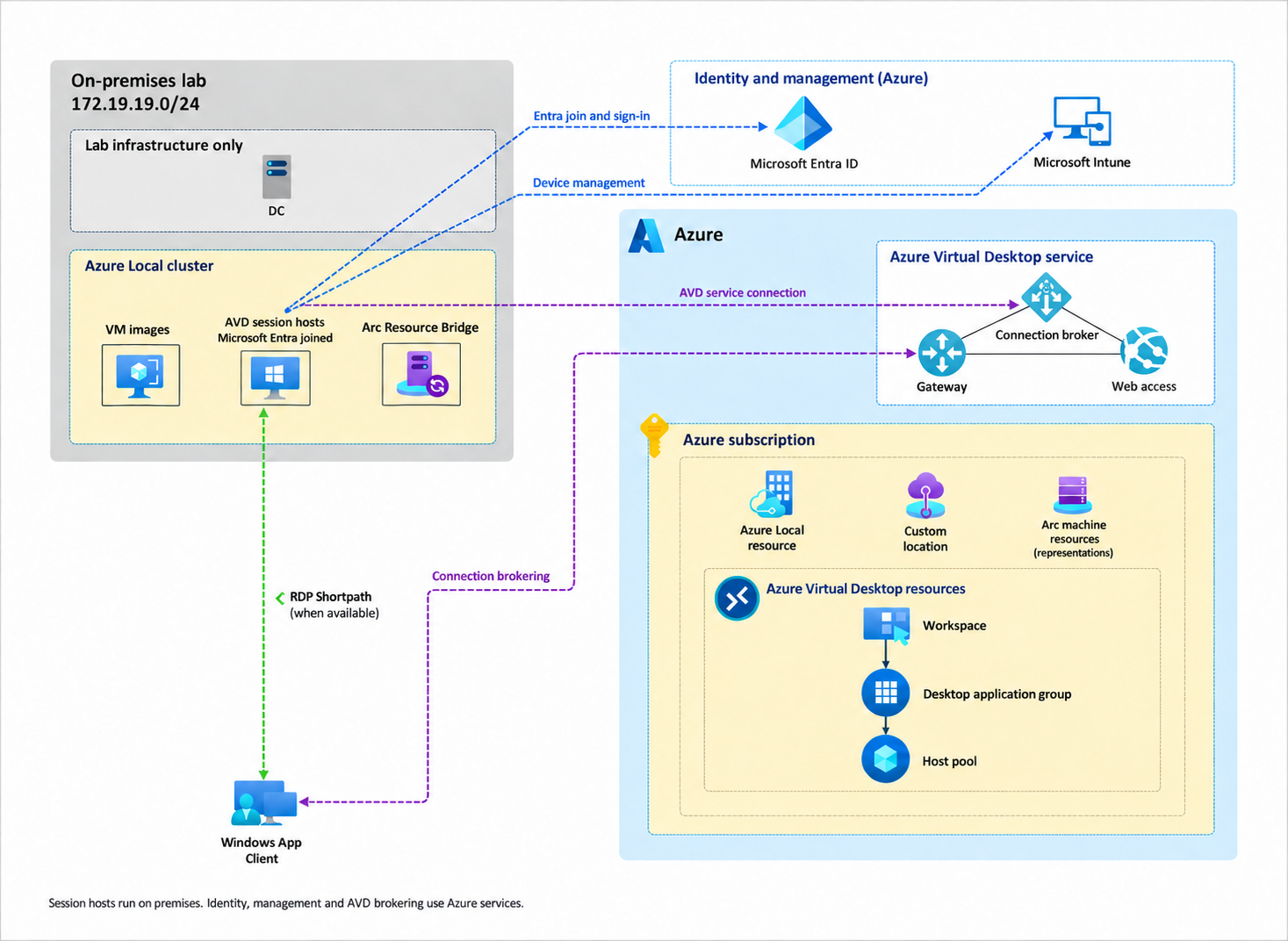
Selecting a metadata region for the AVD resources does not move your VMs into an Azure datacenter. The custom location decides where the session hosts land and that is your cluster. I have watched more than one person assume otherwise and get nervous about data residency for no reason.
For me, one of the main advantages of Entra join is removing the need for the desktops to reach a domain controller for domain join and Windows sign-in. Access to AD-backed applications or file shares can still introduce that dependency. With the hosts enrolled in Microsoft Intune, I can manage their applications and policies from the same place as the rest of my Windows clients. Having one client management platform makes day-to-day administration much more intuitive for me. Microsoft’s Entra joined session host guide covers this management model and its prerequisites.
You can give access to both hybrid identities synchronized from on-premises AD to Microsoft Entra ID and cloud only identities created directly in Entra ID. The session hosts stay Entra joined in both cases.
Keeping the desktops and their application data in your own datacenter also puts them close to local services and storage, with very low latency between those components. Users on the local network can benefit from a direct connection through RDP Shortpath where configured. Remote users still depend on their network path, so I would not promise near-zero latency for every connection. Application and profile data can remain on premises when their storage is local, while AVD metadata and some service data remain in Azure, as described in the data storage documentation.
I even managed to get FSLogix profiles working with Entra only accounts against a local SMB share in my lab, using a workaround based on Marcel Meurer’s script. That needs more explanation than the host join itself, so I cover the approach and its remaining validation work in the FSLogix section below.
Microsoft documents the supported deployment experiences in the Azure Local AVD overview. Read it before you follow this article, because which join types are supported through which tooling has changed before and will change again.
What You Need First
My setup assumes an Azure Local instance that is already deployed and registered, with a custom location and a storage container. If you do not have that yet, follow either the Demolab or my Terraform deployment article. Terraform is the approach I have been using lately to deploy my own environment.
You also need an existing logical network for the AVD session hosts. This represents the on-premises network where the desktop VMs will run. Prepare it before starting the deployment, including IP allocation, DNS and the required outbound connectivity. I cover its creation in the Day 2 Operations article.
You do not need to download the Windows image beforehand. The script lets you select an existing image or download and import one from Azure Marketplace during the deployment flow. For the pooled desktops in this walkthrough, use Windows 11 Enterprise multi-session, generation 2, with Secure Boot and a virtual TPM enabled. The image must be generalized, must never have been domain joined and must carry no registered AVD agents.
The deployment identity is a service principal. The modules are Az.Accounts, Az.Resources, Az.Compute and Az.ConnectedMachine. Microsoft Graph gets called directly through authenticated requests rather than pulling in the Graph module, which keeps the dependency list short.
One thing that is easy to skip: host availability is not readiness. Licensing, Windows activation, network connectivity and your intended sign-in configuration are separate questions and a session host showing as Available answers none of them. The AVD prerequisites cover the rest.
The Deployment in Four Stages
The script submits four ARM deployments, each with its own tracking link.
| Stage | What it does |
|---|---|
| Core | Host pool, desktop application group and workspace |
| VMs | Azure Local VMs, network interfaces and the Arc machine resources |
| Entra join | The AADLoginForWindows extension, with optional MDM settings |
| AVD registration | A readable guest script delivered through Azure Arc Run Command |
The order matters for one specific reason. The registration key is generated after the VMs exist and after Entra join completes, rather than at the start. Registration keys expire and there is no sense burning that lifetime while an image import runs.
The registration stage uses Microsoft.HybridCompute/machines/runCommands with a readable source.script. The registration token travels as an ARM securestring through protectedParameters, so it never lands in the saved script or in deployment history. Microsoft documents this model in Run command on Azure Arc-enabled servers, currently as a preview feature.
Inside the guest, the script confirms the machine is Entra joined and not domain joined, downloads the Microsoft installers over HTTPS, checks their signatures, checks the MSI exit codes, then verifies the Boot Loader service and the agent’s registration state.
That last part exists because of the next section.
Success Without a Session Host
Here is the failure that cost me the most time and the one I would have been glad to read about before hitting it.
The first deployment looked finished. Every ARM stage reported Succeeded, including the Custom Script Extension I was using at the time for AVD registration. Then the script sat there printing:
Available session hosts: 0/1
My first guesses were all wrong. Delayed registration, a hostname matching bug, something about how Azure Local surfaces managed identity. I spent real time on each one.
An ARM query returned an empty session host collection. So I went into the VM and looked. No Boot Loader service. No AVD agent registry key. Not even the directory the installer payload creates before it does anything else.
This was not an agent installed and waiting to go healthy. The payload had never run.
The launcher compressed its embedded PowerShell payload to stay inside command line length limits. Microsoft Defender detected that pattern as Behavior:Win32/PShellCobStager.A and blocked it. Events 1116 and 1117 lined up exactly with the extension execution time.
Defender blocked the execution and the extension reported exit code 0 with no output.
That is the part worth sitting with. A green ARM deployment, a zero exit code and an empty session host list, all at the same time, all technically accurate.
I reproduced it by replaying the compressed command. Running the same installer payload as a readable script through Arc worked immediately. So I replaced the compressed launcher with an explicit Run Command script and left Defender enabled. No exclusions, because adding an exclusion to make a compressed PowerShell stager run is not a fix, it is an agreement to stop being told about it.
The real change was to the definition of success. The script now requires a guest registration completion message alongside a successful execution state and a zero exit code. An empty successful command cannot pass that check. The wait has a ten minute deadline and names the step it was on when it gave up.
Permissions Are Two Separate Problems
Azure resource permissions and Microsoft Graph permissions solve different things and conflating them wasted another afternoon.
The ARM side is a preflight that checks the operations needed to create the resources and the role assignments. When something is missing it offers an alternate user login to repair the permission, then hands the context back to the service principal. For the AVD resource group the repair uses Contributor and Role Based Access Control Administrator. That is a practical lab arrangement rather than the tightest possible production scoping.
The Graph side is about finding people. Four application permissions:
| Permission | What it is for |
|---|---|
Application.Read.All |
Find the Azure Local resource provider enterprise application |
User.Read.All |
Search users |
Group.Read.All |
Search security groups |
CrossTenantInformation.ReadBasic.All |
Resolve basic tenant information |
The trap: an ARM role assignment at resource group scope grants you nothing in Graph. Consenting to these is a tenant level action and needs a privileged administrator. I built the flow assuming one implied the other and had to take it apart.
A related correction: I originally gated every directory search behind one overall access flag, so a single missing permission disabled user search, group search and enterprise application lookup together. Each search now attempts its own endpoint. If groups are unavailable, user search still works.
If Graph is locked down in your tenant, manual object ID entry stays available throughout.
Running It
You can find the deployment script, the guest tasks and the FSLogix share helper in the 04AVD folder of my AzSHCI repository. Clone or download the repository so the supporting files stay together, then run 30_AVDAzureLocal.ps1 from the repository root:
.\scripts\04AVD\30_AVDAzureLocal.ps1
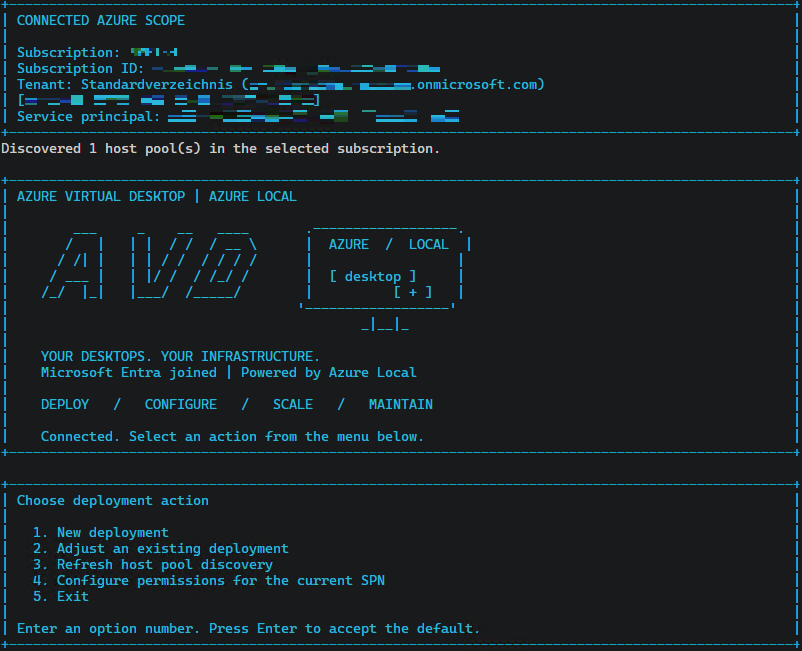
The flow confirms your account and tenant, selects the subscription, then discovers what exists. It shows the tenant’s display name or first domain next to the ID when the permitted APIs return one and falls back to the GUID when they do not.
From the main menu you get New deployment, Adjust an existing deployment, a discovery refresh and permission configuration. Adjust stays available even when the first discovery returns no pools, which is a fix rather than a design choice. The original hid it whenever the list came back empty, which is exactly when an operator most wants to go looking. Now you can refresh the subscription or search a specific resource group, including one typed in by hand.
Host pools that read correctly stay selectable even when the linked workspace or application group query fails, with inspection marking the discovery as incomplete. Empty and offline pools remain manageable.
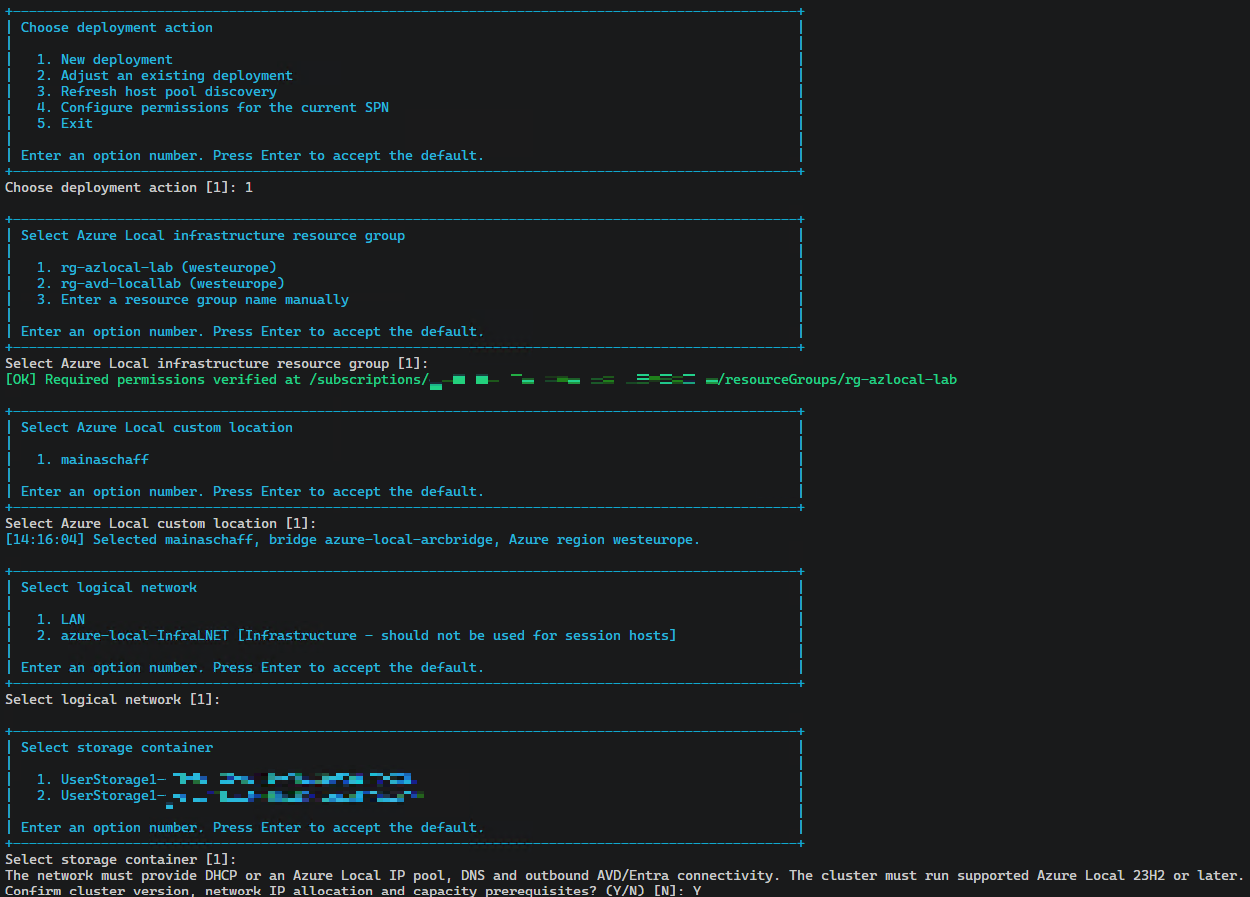
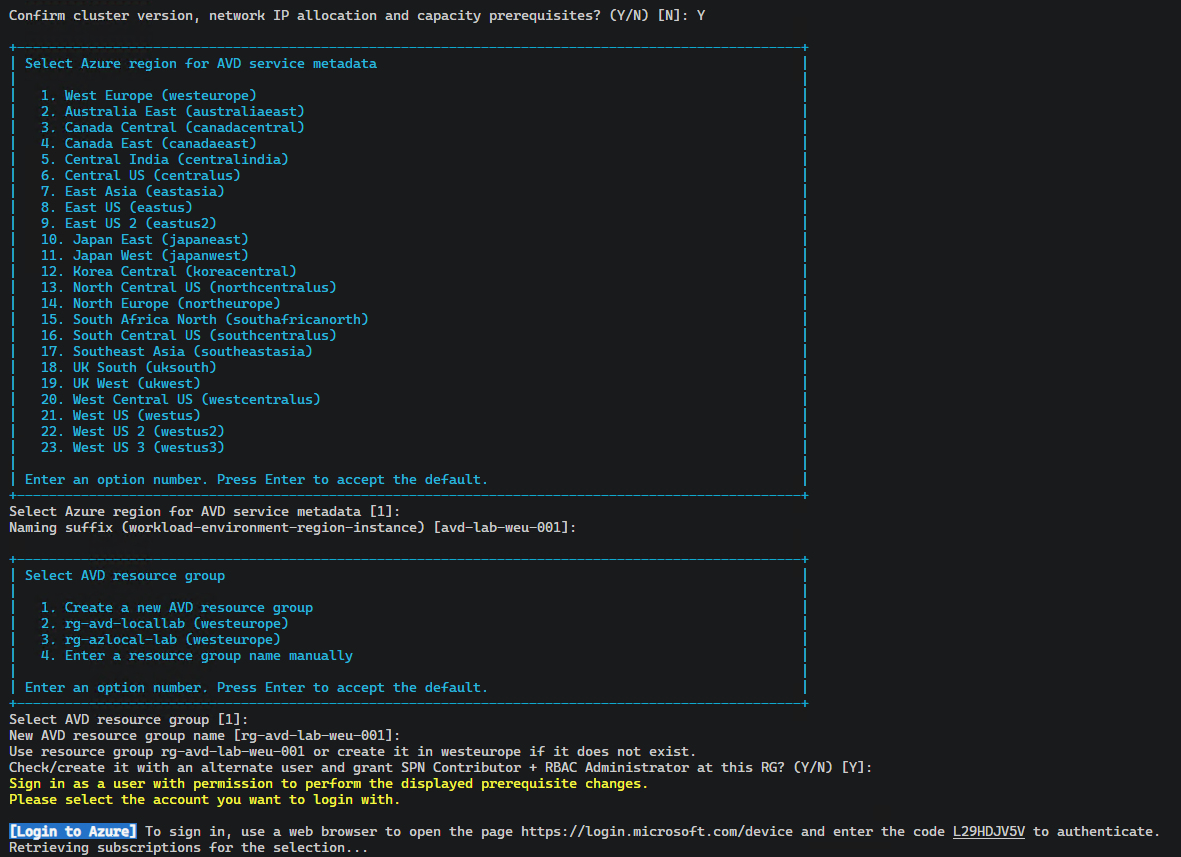
The screenshots below follow a single-host deployment. The guest-task timings further down come from an earlier two-host run.
Choose New deployment, then select the Azure Local infrastructure resource group, custom location, workload logical network and storage container. The infrastructure network is marked as unsuitable for session hosts; here I select LAN for the desktops.
Next comes the Azure region for AVD metadata and the resource group for the AVD resources. In this run I create a new group and use the alternate user login to grant the SPN the required Contributor and RBAC Administrator roles before continuing.
The next prompts cover optional Intune enrollment, the host pool type and the Windows image. This run uses a pooled host pool and an existing Windows 11 multi-session image, with Intune enrollment left disabled. The same screen collects the resource names, host prefix and VM sizing.
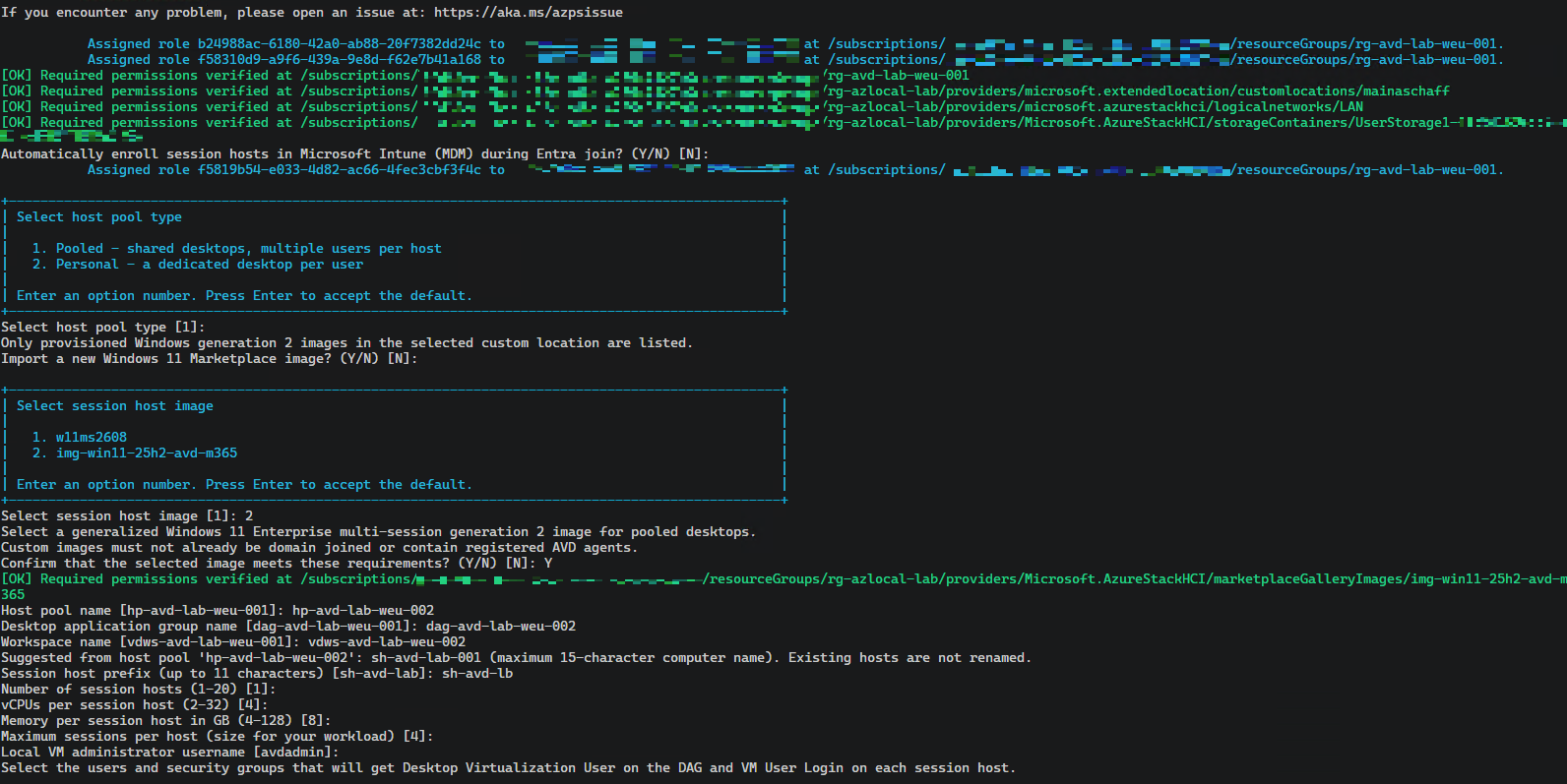
These are the names and sizing choices used in this run:
Host pool name [hp-avd-lab-weu-001]: hp-avd-lab-weu-002
Session host prefix (up to 11 characters) [sh-avd-lab]: sh-avd-lb
Number of session hosts (1-20) [1]: <Enter>
vCPUs per session host (2-32) [4]: <Enter>
Memory per session host in GB (4-128) [8]: <Enter>
Maximum sessions per host (size for your workload) [4]: <Enter>
Keep the host prefix inside eleven characters so the numeric suffix fits the Windows computer name limit. This run uses one host with four vCPUs and 8 GB of memory. That is my lab configuration rather than a sizing recommendation.
Then it deploys and the four stages report through to the check that matters:
avd-core-20260922-<run>:       Running -> Succeeded
avd-vms-20260922-<run>:        Running -> Succeeded
avd-entra-join-20260922-<run>: Running -> Succeeded
avd-avd-agent-20260922-<run>:  Running -> Succeeded

AVD guest registration verified: sh-avd-lb-001
sh-avd-lb-001: Available
Available session hosts: 1/1
In the screenshot run, I select an Entra only user, review the configuration and submit the deployment. All four stages complete, guest registration is verified and the single host reaches Available, shown as 1/1:
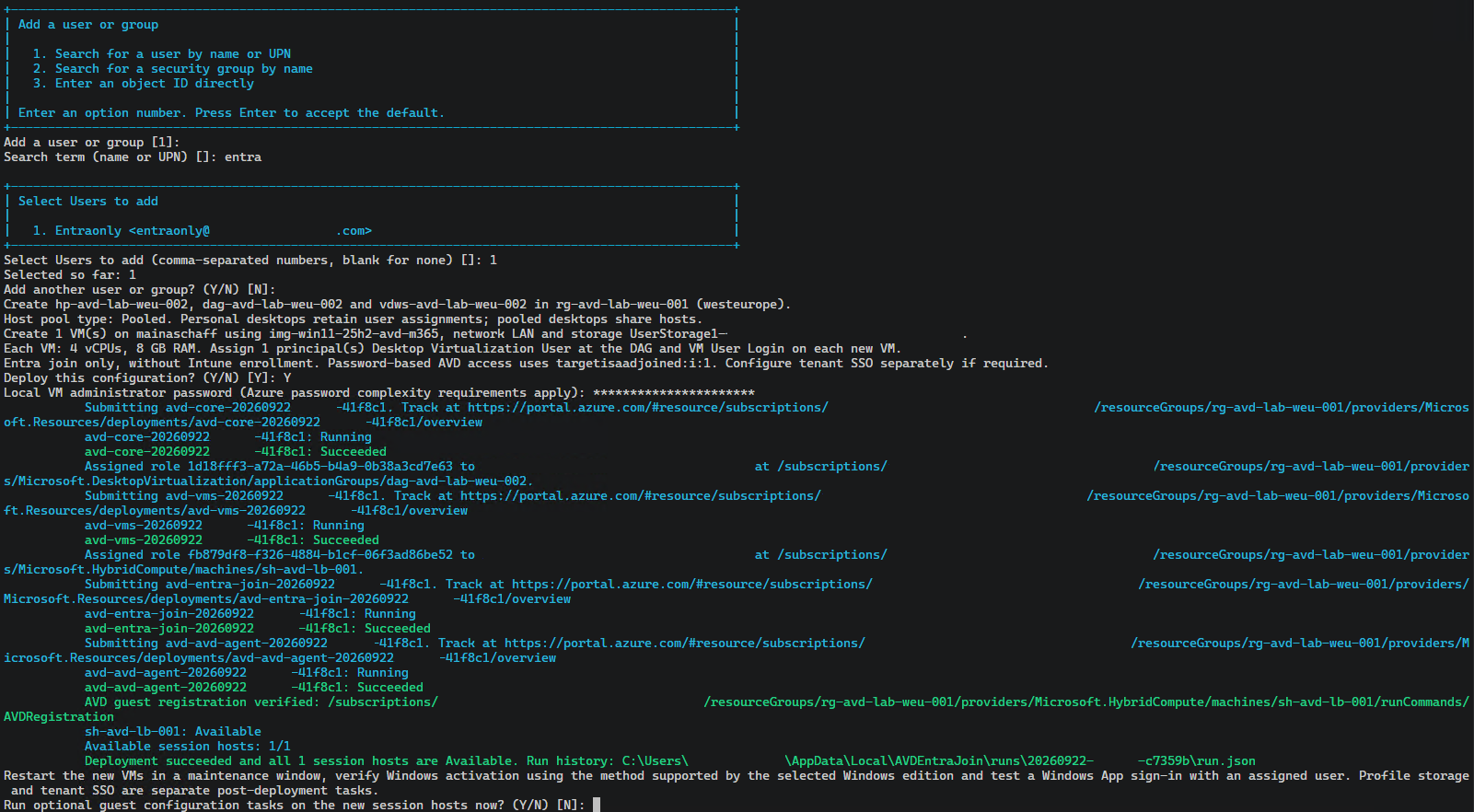
In this run, it took roughly twelve minutes from submission to the single host becoming Available. Image preparation, capacity and connectivity move that number a lot.
Every run writes a run.json and you can reattach to it later:
.\scripts\04AVD\30_AVDAzureLocal.ps1 -Monitor `
    'C:\Users\<operator>\AppData\Local\AVDEntraJoin\runs\<run>\run.json'
Monitor mode observes work that was already submitted. It does not resume missing stages.
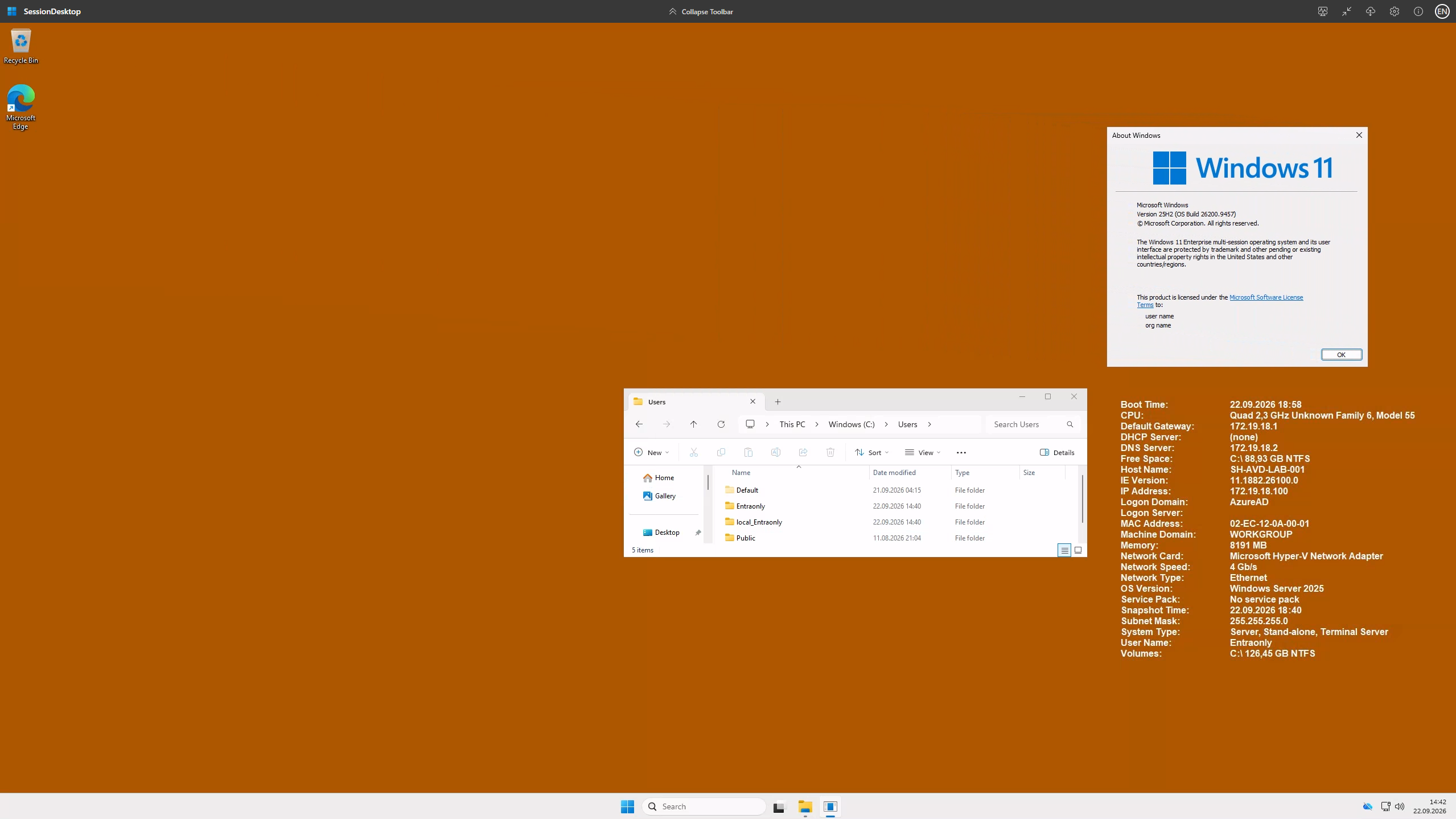
Here is the connected desktop from the lab. The Windows version dialog shows Windows 11 Enterprise multi-session, with the Entra only user visible in the session. BGInfo is also visible after guest configuration. A connected desktop confirms more than an Available host, while profile persistence and Windows activation still need their own checks.
Configuring the Guests
A registered session host is not a desktop anyone wants to use yet. The script ships thirteen optional guest tasks that run through Arc Run Command, covering regional settings, BGInfo, the agent staging directory ACL, AVD agent updates, Entra Kerberos policies, FSLogix, DNS suffix configuration, Windows Update, host policies, session experience, network overrides, WinGet applications and local administrator membership.
You pick tasks and hosts from comma separated lists, the runner collects each task’s parameters, then asks whether to restart after each one and separately offers a final restart.
A task counts as successful only when Arc reports success, the exit code is zero and the expected structured result with its unique completion marker comes back. Failed commands keep their normalized Arc error text in run.json. Protected values never get written to tracking.
My recorded run did eight tasks across two hosts. Sixteen executions, ten restarts, a little over four hours. Language installation, Windows updates and the sequential restart waits dominated that. The twelve minute core deployment is not the time it takes to prepare a desktop.
Two things from that run are worth passing on.
Booleans do not survive Arc Run Command. Protected parameters serialize as strings, so PowerShell could not bind a textual True to a parameter declared [bool]. Every guest task now takes the transport value and normalizes True, False, 1 and 0 explicitly.
Language installation on Windows 11 is its own adventure. Install-Language ran for about 47 minutes and threw ArgumentException with the language still absent. On 24H2 and newer the regional task now preserves, disables and restores the two LanguageComponentsInstaller scheduled tasks around the installation. Even then, Set-SystemPreferredUILanguage can reject an installed language until a restart, so the task completes the time zone work, reports LanguageSettingsDeferred=true and applies the language on the next run. Regional settings need two passes with a reboot between them.
There is a broader point hiding in those structured results. Sixteen out of sixteen task executions means sixteen scripts ran and reported success. It does not mean eight features are accepted. BGInfo installing tells you nothing about whether the overlay appears at logon. An Entra Kerberos policy applying tells you nothing about whether SMB authentication works. I kept those separate in the output on purpose and I would encourage you to keep them separate in your head.
FSLogix, Cloud Only Users and SMB
This is the part that is still unfinished and the part I get asked about most.
Entra joined session hosts with cloud only users need somewhere to put profiles. FSLogix wants an SMB share. SMB wants an identity the file server recognizes. A cloud only user does not have one.
That is the whole problem in three sentences and no amount of deploying things makes it go away. Kubernetes does not solve it, because the SMB CSI driver needs an SMB service to already exist and Kubernetes does not bridge Entra user identity to SMB. Arc managed identity does not solve it either, because a machine identity is not the user’s identity.
For hybrid identities the answer is ordinary: an on premises SMB share, which is what the FSLogix task configures. It configures an existing share. It does not create one, provision a file server or prove that your chosen authentication path works.
For cloud only users I ran an experiment and I want to label it clearly before describing it. This is a lab workaround, not a production design.
The approach, adapted from an ITProCloud example, stores an SMB credential under SYSTEM and switches FSLogix to machine context attachment. The session host becomes the trusted boundary for profile access rather than the user.
My first attempt failed in a way that taught me something. The FSLogix log showed Accessing network as user object, then error 1326 on the share lookup, then a fallback to a local profile. I had supplied the correct UNC path and FSLogix had installed correctly. AccessNetworkAsComputerObject was sitting at its default of 0, so the host was trying to reach the share as the cloud only user, who the file server has never heard of.
After importing the dedicated storage credential under SYSTEM and setting AccessNetworkAsComputerObject=1, the container was created and attached and the profile redirected. It works in my lab.
I currently host the share on the domain controller because it is already part of my lab. The storage credential is a dedicated AD account. The workaround does not require the share itself to live on a DC: another SMB file server or NAS could provide it, as long as it supports the authentication, permissions and storage behaviour required by FSLogix.
To automate the storage setup, I use 31_FSLogixFileShare.ps1 from the AzSHCI repository:
.\scripts\04AVD\31_FSLogixFileShare.ps1
The script creates the dedicated AD storage account, the profile directory and an encrypted SMB share. It applies restricted directory and share permissions, then writes the connection settings to fslogix.env for the experimental FSLogix guest task to consume. That file contains a plaintext password protected by file permissions, so it must stay private. The share script prepares storage; the guest task configures FSLogix and imports the credential under SYSTEM on each session host.
This script is written for my lab and must be adapted before using it elsewhere. It explicitly checks that its target is a domain controller and uses AD cmdlets to create the account. Pointing it at another server is not enough: the account provisioning and share configuration need to match the storage platform you choose.
With the current configuration, my Entra only users cannot access the SMB share directly, not even their own profile container. When they try to browse the UNC path with their Entra only identity, authentication against the lab’s AD-backed file service fails. Their profile still gets created and attached because FSLogix runs under SYSTEM and uses the dedicated storage credential saved in that context. Although the setting is called AccessNetworkAsComputerObject, the SMB identity in this workaround is the stored account, rather than an AD computer account delegated access to the share. Once attached, the user can work with their own profile through the Windows session.
That blocks the direct share access I was concerned about in my lab. It does not prove isolation against someone who gains administrative or SYSTEM access to a session host. Microsoft documents that AccessNetworkAsComputerObject can give the VM access to all profile containers reachable by the credential. Anyone who obtains that credential has the same reach.
I am comfortable using this in my lab, but I would only consider it for production with appropriate security boundaries around the session hosts, storage and management access. Restricted administrator rights, protected credentials and controlled SMB connectivity would be part of that design. Cross host profile reuse, reboot persistence and credential rotation still need validation in my testing, alongside broader isolation checks beyond the direct share access described above.
Microsoft’s own guidance for larger Azure Local deployments is to keep profile container storage on a separate SMB share outside the cluster. The Entra joined session hosts documentation covers on premises resource access properly.
What Is Still Open
Being straight about the edges:
- The lab screenshots now show a connected desktop. Windows activation, Intune enrollment and the intended client and SSO configurations still need their own validation
- Autoscale, Start VM on Connect and blue/green maintenance are implemented but validated against mocks rather than live resources
- FSLogix profile creation and attachment work in my lab. The tested Entra only users cannot browse the SMB share directly, even for their own container. Production use would need the security boundaries described above; cross host reuse, reboot persistence and credential rotation remain follow-up tests
- The script can also delete the corresponding Entra device when you select that cleanup during session host removal and grant the required Microsoft Graph
Device.ReadWrite.Allapplication permission with admin consent. If you retain the device or remove the VM outside this workflow, a stale Entra record can causeerror_hostname_duplicatewhen you reuse the hostname - Arc Run Command is a preview feature, so check its status before you build on it
The deployment script and guest library pass 160 and 60 offline checks in both PowerShell 5.1 and PowerShell 7. Those checks do not exercise a user sign-in.
Conclusion
The useful outcome is an Entra joined AVD session host running on Azure Local, deployed by a script that checks the result inside the guest instead of trusting a green ARM deployment.
That distinction is the thing I would take away from the whole exercise. Four successful ARM stages and a zero exit code described a VM where the installer had never run. Any deployment automation worth keeping has to verify the outcome where the outcome actually lives, which for a session host is inside the guest.
The identity story is less tidy. Entra join for the hosts is solved. Profile storage for cloud only users is not, at least not in a way I would put in front of a customer and I would rather say that than dress up a lab workaround.
The scripts are available in the AzSHCI repository on GitHub.
If you are running AVD on Azure Local with Entra joined hosts, I would like to know what you are doing about profiles.

Comments