Introduction
If you have been following this series, you already know how I built my Azure Local demolab step by step: preparing the Hyper-V host, configuring the domain controller, registering the node with Azure Arc and then walking through the portal deployment. That workflow works, but it is entirely manual. Every time I tear down and rebuild the lab I repeat the same sequence of clicks and commands and every time I do that I risk a small configuration drift.
A few months ago I decided to change that. The goal was straightforward: replace the portal deployment path with a fully automated Terraform run that I could trigger from a pipeline with a service account and that I could later reuse for AVD, AKS and other workloads on top of Azure Local. Less clicking, more repeatable infrastructure.
Getting there turned out to be more work than I expected. The Azure Verified Module (AVM) for Azure Local is a good starting point, but it was written against a specific point in time and the Azure Local deployment API has moved since then. From the end of 2025 onward, several things changed: resource provider behavior, required role assignments and the API version that the Azure control plane accepts. When I first tried to apply the module against my lab, I got a series of failures that took real investigation to understand.
This article covers what I built, what broke, how I fixed it and how the deployment now flows end to end. I will also explain where I plan to take the repository from here.
The AzSHCI Repository
All of the automation lives in my AzSHCI repository.
The badge shows the last full Terraform deployment in my lab. So far the staged flow has completed end to end on Azure Local releases 2604, 2605, 2606 and 2608, most recently on 4 October 2026 with build 12.2608.1003.9.
It has two parallel paths that work together:
scripts/01Lab/: PowerShell scripts that handle everything from Azure prerequisites through Hyper-V infrastructure setup, domain controller configuration and Arc registration. These run before Terraform comes into the picture.terraform/: A root Terraform configuration that calls a local fork of the AVM module. The fork carries the fixes and additions that were needed to make the deployment work against the current Azure API.
The repository now covers cluster deployment and workload automation. The Terraform configuration builds the Azure Local foundation, while scripts/04AVD/ handles Entra joined AVD deployment and management through PowerShell. That AVD workflow is separate from Terraform state.
The lab uses a service principal for automation. Key Vault stores deployment secrets, but the local .env and terraform.tfvars files also contain credentials. Keep those files and Terraform state private. The repository contains templates; it is not a secret store or a completed CI/CD pipeline.
Prerequisites: The First Script
Before any Terraform runs, Azure needs to be in the right state. The script scripts/01Lab/00_AzurePreRequisites.ps1 handles that in a single, interactive run.
What it does:
- Checks for and installs the required Az PowerShell modules (
Az.Accounts,Az.Resources). - Checks your Azure session, signs out a cached SPN session and uses an interactive user for the prerequisite work.
- Lets you select a subscription interactively.
- Lets you choose an existing resource group or create a new one.
- Assigns the requested RBAC roles to an existing user, a new service principal or an existing service principal.
- Registers all required resource providers.
The roles it assigns fall into two scopes. At resource group scope: Azure Connected Machine Onboarding, Azure Connected Machine Resource Administrator, Key Vault Data Access Administrator, Key Vault Secrets Officer, Key Vault Contributor and Storage Account Contributor. At subscription scope: Azure Stack HCI Administrator and Reader.
The resource providers it registers cover the full Azure Local stack: Microsoft.HybridCompute, Microsoft.AzureStackHCI, Microsoft.Kubernetes, Microsoft.KubernetesConfiguration, Microsoft.ExtendedLocation, Microsoft.ResourceConnector, Microsoft.HybridContainerService and several others.
Run this step as a user authorized to create the requested Azure role assignments and register providers. Creating the application also needs the appropriate Entra rights. The script logs failed assignments as warnings, so check the output before moving on.
To reuse an SPN, select option 3 and enter its application/client ID or a unique display name. The script resolves the object ID for RBAC. It does not create a new secret for an existing SPN. Supply a valid secret yourself and use the same client ID, tenant and subscription throughout the lab configuration.
For a new SPN, the script creates a secret with a two-year lifetime and prints it at the end. Save it privately and plan its rotation. The following redacted transcript is from my earlier new-SPN run; the current menu also includes the existing-SPN option:
Checking required Az modules...
Module 'Az.Accounts' is available.
Module 'Az.Resources' is available.
All required modules loaded.
Active session: admin@<tenant>.com on subscription 'Azure-Abonnement 1'.
Use this session? (Y/N): N
Starting device code login...
[Login to Azure] To sign in, use a web browser to open the page https://login.microsoft.com/device
and enter the code GAX*****QB to authenticate.

Authenticated to Azure.
Retrieving available subscriptions...

Select the subscription to use:
    0. Azure-Abonnement 1
Select subscription: 0
Using subscription 'Azure-Abonnement 1' (<subscription-id>).

Resource Group setup:
  1. Use an existing resource group
  2. Create a new resource group
Select option (1 or 2): 2

Recommended resource group name: 'rg-azlocal-lab'
Enter resource group name (press Enter to accept recommendation): rg-azlocal-demolab

Select the Azure region for the new resource group:
    0. westeurope
    1. northeurope
    2. eastus
    ...
Enter a list number or type a region name directly: 0
Creating resource group 'rg-azlocal-demolab' in 'westeurope'...
Resource group 'rg-azlocal-demolab' created.

Select how to assign the required Azure RBAC roles:
  1. Assign to an existing user account
  2. Create a new Service Principal and assign roles to it
Select option (1 or 2): 2

Recommended SPN name: 'sp-azlocal-lab'
Enter SPN display name (press Enter to accept recommendation): sp-azlocal-demolab
Creating app registration 'sp-azlocal-demolab'...
App registration created. AppId: <app-id>
Creating service principal...
Service principal created. ObjectId: <object-id>
Generating client secret (valid for 2 years)...
Client secret generated.
Waiting 20 seconds for the SPN to propagate before assigning roles...

Assigning resource group scoped roles to 'sp-azlocal-demolab'...
Assigned 'Azure Connected Machine Onboarding' at RG scope.
Assigned 'Azure Connected Machine Resource Administrator' at RG scope.
Assigned 'Key Vault Data Access Administrator' at RG scope.
Assigned 'Key Vault Secrets Officer' at RG scope.
Assigned 'Key Vault Contributor' at RG scope.
Assigned 'Storage Account Contributor' at RG scope.

Assigning subscription scoped roles to 'sp-azlocal-demolab'...
Assigned 'Azure Stack HCI Administrator' at subscription scope.
Assigned 'Reader' at subscription scope.

Checking and registering required resource providers...
Provider 'Microsoft.HybridCompute' is already registered.
Provider 'Microsoft.GuestConfiguration' is already registered.
Provider 'Microsoft.HybridConnectivity' is already registered.
Provider 'Microsoft.AzureStackHCI' is already registered.
Provider 'Microsoft.Kubernetes' is already registered.
Provider 'Microsoft.KubernetesConfiguration' is already registered.
Provider 'Microsoft.ExtendedLocation' is already registered.
Provider 'Microsoft.ResourceConnector' is already registered.
Provider 'Microsoft.HybridContainerService' is already registered.
Provider 'Microsoft.Attestation' is already registered.
Provider 'Microsoft.Storage' is already registered.
Provider 'Microsoft.KeyVault' is already registered.
Provider 'Microsoft.Insights' is already registered.

Azure prerequisites setup completed.

Summary:
  Subscription : Azure-Abonnement 1 (<subscription-id>)
  Resource Group: rg-azlocal-demolab (location: westeurope)
  Principal    : sp-azlocal-demolab

================================================================
  SERVICE PRINCIPAL CONNECTION DETAILS
  Save these values securely. The secret cannot be retrieved
  again after this session ends.
================================================================

  Display Name    : sp-azlocal-demolab
  Tenant ID       : <tenant-id>
  Subscription ID : <subscription-id>
  App ID          : <app-id>
  Client Secret   : <client-secret>
  Secret Expiry   : 2028-04-17

  IMPORTANT: Rotate this secret before it expires to avoid service disruptions.

  To connect with this SPN in PowerShell:

  $spnCredential = New-Object PSCredential(
      "<app-id>",
      (ConvertTo-SecureString "<client-secret>" -AsPlainText -Force))
  Connect-AzAccount -ServicePrincipal `
      -Tenant "<tenant-id>" `
      -Subscription "<subscription-id>" `
      -Credential $spnCredential

================================================================
Infrastructure and Cluster Preparation
With the Azure side ready, the next scripts prepare the local environment:
00_Infra_AzHCI.ps1builds the Hyper-V infrastructure: virtual switches, storage paths and the Azure Local node VM.01_DC.ps1sets up the domain controller that the cluster needs for Active Directory integration.02_Cluster.ps1performs the Arc registration of the node. After this script completes, the machine appears in Azure as an Arc-enabled server and is ready for the Terraform deployment step.
These three scripts now read their configuration from a single scripts/01Lab/.env file that you load once per session with Set-LabEnv.ps1. That way you set every value (subscription and tenant ids, VM sizing, ISO paths, credentials) in one place instead of editing each script. Only 00_AzurePreRequisites.ps1 stays fully interactive and does not use .env. The full list of keys and the workflow are documented in the AzSHCI repository README.
The Terraform Architecture
The Terraform configuration is a thin root module that creates a few shared prerequisites and then calls the Azure Local cluster module. The shared prerequisites are:
- Key Vault with RBAC authorization enabled, used to store the deployment credentials.
- Witness storage account for the cluster quorum.
- Required role assignments at resource group scope for the Arc machine identity and the Azure Stack HCI resource provider service principal. If the resource provider assignment survived a previous lab, Terraform adopts it instead of creating it again.
- Edge device registration (
Microsoft.AzureStackHCI/edgeDevices) for the Arc node.
The cluster module is a local fork of the AVM module. The fork is not a divergence for its own sake. It carries specific fixes that the upstream module did not have at the time of writing and I will describe those in the next section.
Staged deployment
The deployment happens in two stages, controlled by a single variable:
Stage 1 (is_exported = false): Terraform creates the Key Vault, storage account, RBAC assignments and edge device registration, then submits deploymentSettings to Azure with deploymentMode = Validate. Azure runs a validation sequence that checks connectivity, Active Directory and node configuration. In my lab this stage takes around 90 minutes, most of it spent installing the Arc extensions and running the environment checks.
Stage 2 (is_exported = true): After validation succeeds, flip is_exported to true and run terraform apply again. This patches deploymentMode to Deploy and starts full cluster provisioning. Allow two to three hours for the lab deployment rather than treating validation completion as a finished cluster.
The same Stage 2 apply also reads the resources that only exist once Azure has finished the deployment: the Arc resource bridge, the custom location and the Arc settings. Terraform holds those reads until the deployment update returns, so custom_location_id is already in the outputs when the apply ends. Earlier versions needed a third variable called deployment_completed plus an extra apply for this. That variable is now deprecated and has no effect.
What Broke and How I Fixed It
This section documents the real debugging history. I am including it because if you try to use any version of the AVM module against a current Azure subscription, you will likely hit some of these same issues.
Missing edgeDevices resource
The most impactful missing piece was the Microsoft.AzureStackHCI/edgeDevices resource. This resource registers each Arc machine with the HCI edge management system and lets the LcmController’s ARM client communicate back to Azure. Without it, every deployment settings validation failed with:
Failed to download deployment settings file using edge Arm client
The upstream AVM module did not include this resource at all. Adding edgedevices.tf with the correct API version (2025-09-15-preview) and ensuring it depends on the RBAC assignments resolved the failure.
Missing role assignments
The ARM QuickStart template assigns two roles to the Arc machine identity at resource group scope that the AVM module was not creating:
Azure Stack HCI Device Management RoleAzure Stack HCI Connected InfraVMs
Without these, the LcmController cannot install the required Arc extensions. I added machine_rg_role_assign in rolebindings.tf to mirror the ARM template behavior.
API version changes
Between late 2024 and early 2025, the live Azure endpoint stopped accepting networkingType and networkingPattern as body fields. Sending them causes an HTTP 400 ObjectAdditionalProperties error. The fix is to omit them by setting both variables to empty strings; the merge() logic in locals.tf then drops them from the JSON body.
The API version itself also matters. The ARM QuickStart template uses 2025-09-15-preview for both Microsoft.AzureStackHCI/clusters and Microsoft.AzureStackHCI/clusters/deploymentSettings. Using a newer preview version can change how the control plane processes the request. After several failed attempts with 2026-03-01-preview, reverting to 2025-09-15-preview was the right call.
The LcmController 0.settings bug
This one took the most iterations to nail down and I want to be honest: I went down several wrong paths before finding the real cause. The full investigation trail, including the false leads and the intermediate workarounds I tried, is documented in the CHANGELOG if you want the unfiltered version. I will keep this section to what matters.
The symptom was a BITS failure during validation:
Cannot bind argument to parameter 'Source' because it is an empty string.
The root cause is a type-checking bug in DownloadHelpers.psm1 inside the AzureEdgeLifecycleManager Arc extension (NuGet package 10.2601.0.1162). When Terraform creates deploymentSettings, Azure writes a minimal object to the LcmController runtime settings file that carries only cloud identity markers and no actual deployment payload. A null-check in GetTargetBuildManifest fails to detect this correctly because [string]::IsNullOrEmpty() returns $false for any non-null PowerShell object, even one with no useful content. The fallback that would download the cloud manifest never activates and the code ends up with four empty download URLs.
One important lesson from this: the four required Arc extensions (AzureEdgeTelemetryAndDiagnostics, AzureEdgeDeviceManagement, AzureEdgeLifecycleManager, AzureEdgeRemoteSupport) must be installed through the cluster creation process itself. Trying to pre-stage them manually before terraform apply is not only unnecessary, it can leave the node in a state where validation rejects it. Let Terraform handle the extension installation as part of Stage 1. The 03_TroubleshootingExtensions.ps1 script is now archived in scripts/01Lab/Old version/ for reference. It is not a step in the normal flow.
Alongside the extension repair logic, that script also applied a targeted LcmController hotfix on the node through Azure Arc Run Command, so it did not need direct network access to the node. The hotfix patched the exact DownloadHelpers.psm1 line responsible for the null-check bug described above and restarted the LcmController service. The bug only affected build 10.2601 of the deployment service and the script pins its extension versions to that build. Do not run it against a cluster on a newer release, because it would reinstall older extensions. Before terraform apply the node only needs the Arc registration from 02_Cluster.ps1 and the SPN and RBAC from 00_AzurePreRequisites.ps1.
Leftover role assignments after a host-only teardown
When I rebuild the lab I often tear it down with 99_Offboarding.ps1 alone. That script removes the Hyper-V VMs and host networking, but it never touches Azure. The Azure Connected Machine Resource Manager (ACMRM) assignment for the Microsoft.AzureStackHCI resource provider service principal stays in the resource group. That principal is the same in every deployment, so the next apply failed on service_principal_role_assign["ACMRM"] with:
409 RoleAssignmentExists: The role assignment already exists.
For a while the fix was manual: copy the GUID from the error into a recovery variable, apply, then reset the variable. Now main.tf lists the role assignments of the resource group with azapi_resource_list on every plan and filters for the resource provider principal, the ACMRM role definition and an exact resource group scope (the list also returns assignments inherited from the subscription). If a match exists, it feeds an import block and Terraform adopts the assignment. If not, the module creates it as before. Once the assignment is in state the import is a no-op, so the block can stay in place permanently.
The machine assignments (Azure Stack HCI Device Management Role, Azure Stack HCI Connected InfraVMs and Key Vault Secrets User) do not need this treatment. They belong to the Arc machine identity, which is new after every node registration. The Key Vault they point to also gets a new random suffix on every deployment.
Post-deployment reads without a third apply
The Arc resource bridge, custom location and Arc settings only exist after Azure finishes the deployment. Reading them earlier made every terraform plan fail with Resource not found, so I gated those data sources behind a deployment_completed flag. That meant one more manual step after every successful deployment: flip the flag and run another apply just to get custom_location_id.
Those data sources already depended on the deployment update resource, which only completes when Azure finishes the deployment (with a 24 hour timeout). Terraform defers a data source with a pending dependency until apply time, so the flag was redundant. The reads are now gated by is_exported instead:
- Stage 1: nothing is read, because nothing exists yet.
- Stage 2: the reads wait for the deployment and run in the same apply.
- Later plans: the deployment update is in state with no changes, so the reads run at plan time against resources that now exist.
- Failed deployment: the update resource errors, the apply stops before the reads and the next apply retries with the reads deferred again.
The root deployment_completed variable stays declared as deprecated, so an older terraform.tfvars still loads without a warning.
Step-by-Step Deployment
With all of the above in place, here is the actual deployment flow.
Step 1: Azure prerequisites
Run 00_AzurePreRequisites.ps1 as your authorized bootstrap user, select or create a resource group and create or reuse an SPN for the Terraform path. Use the client ID for sign-in, not the service principal object ID used in role assignments. The Prerequisites section above explains the current choices.
The lab scripts use AZSHCI_SPN_APP_ID and AZSHCI_SPN_SECRET from scripts/01Lab/.env. Terraform’s login helper reads service_principal_id and service_principal_secret from terraform.tfvars, with AZSHCI_TENANT_ID from .env. Updating one file does not update the other. Keep them aligned when reusing or rotating the SPN.
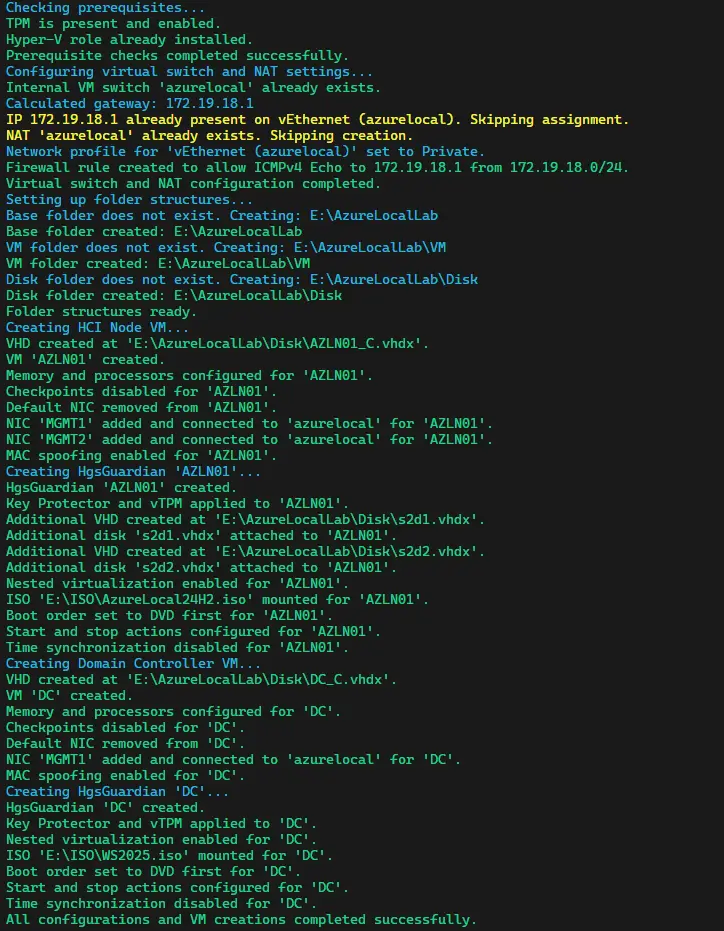
Step 2: Build the Hyper-V infrastructure
Run 00_Infra_AzHCI.ps1 to create the Hyper-V host infrastructure for the lab node. This step is identical to the one described in the demolab article, so refer to it for a detailed walkthrough. On Windows Server Insider builds the script now detects Hyper-V through the VMMS service instead of the DISM feature cmdlets, which could hang there even with the role installed.
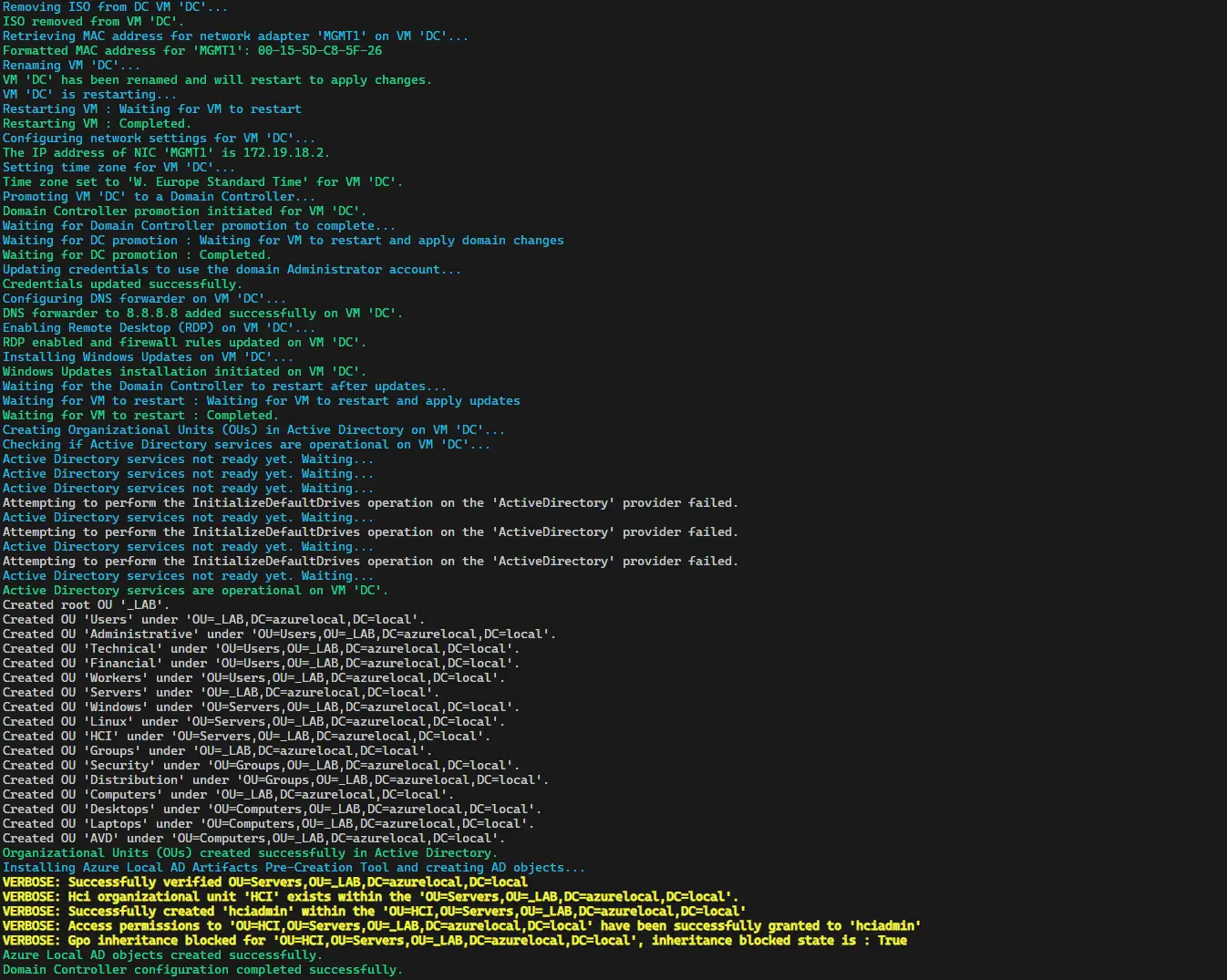
Step 3: Configure the domain controller
Run 01_DC.ps1 to set up Active Directory on the domain controller VM. Again, this step is identical to the one covered in the demolab article. After installing Windows Updates the script now restarts the DC itself and continues only once Active Directory answers and the VM stays up for AZSHCI_DC_SLEEP_UPDATES seconds on the same boot. A cumulative update can restart the DC twice and the old fixed sleep let the script continue in between.
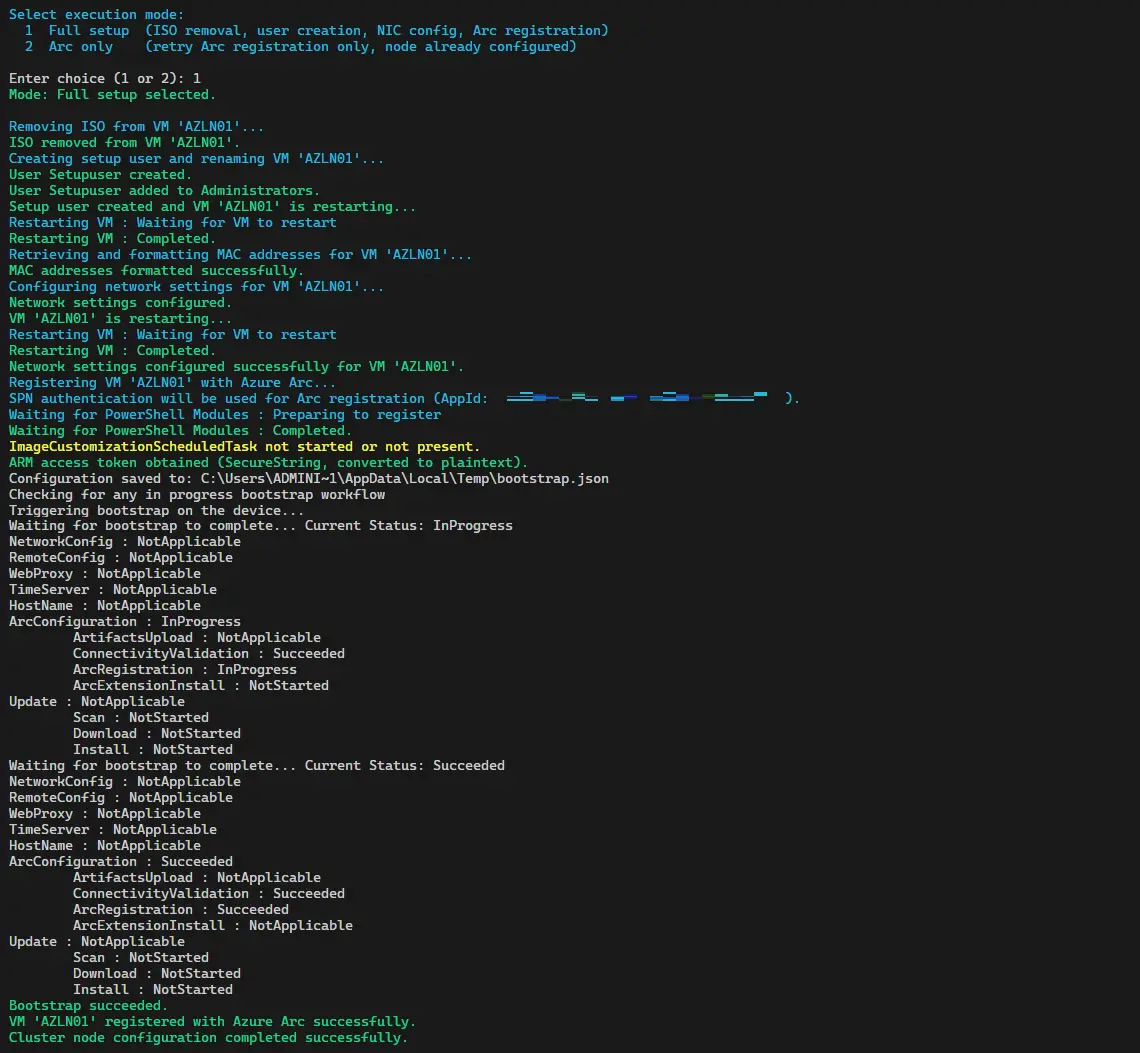
Step 4: Register the node with Arc
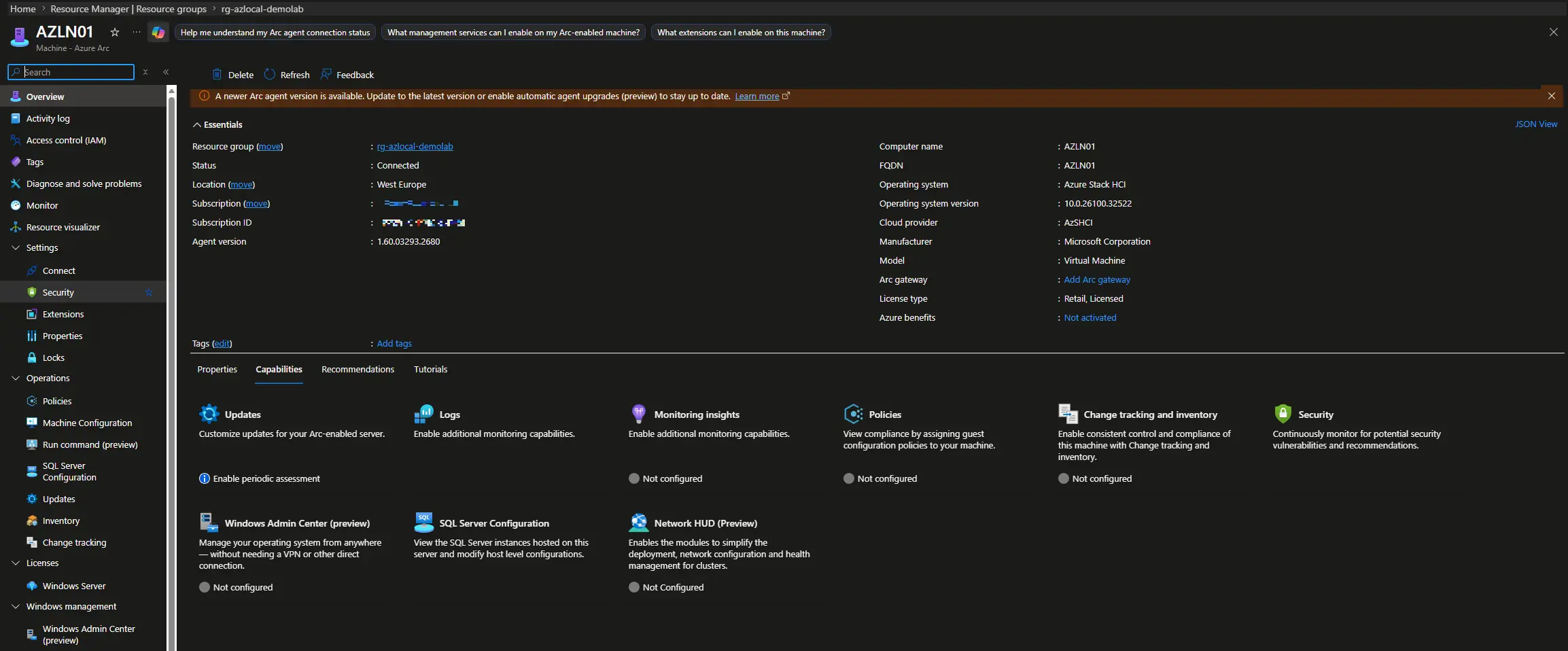
Run 02_Cluster.ps1 to Arc-register the Azure Local node. Confirm the machine appears in Azure portal as an Arc-enabled server before continuing.
Step 5: Configure Terraform variables
Copy terraform/terraform.tfvars.example to terraform/terraform.tfvars. Replace every TODO value with your actual credentials and network settings. Key variables for a single-node lab:
management_adapters = ["MGMT1"]
storage_networks    = [
  { name = "MGMT1", networkAdapterName = "MGMT1", vlanId = "711" }
]
rdma_enabled        = false
networking_type     = ""
networking_pattern  = ""
witness_type        = ""
is_exported         = false
If your terraform.tfvars comes from an older copy and still contains deployment_completed, you can delete the line. The variable has no effect any more.
Step 6: Authenticate with Azure CLI
The current lab configuration uses an Azure CLI session for authentication. An Az PowerShell login from the prerequisite script does not sign the CLI in. Clear any cached CLI account, then log in with the SPN selected in Step 1:
az account clear
az login --service-principal `
    --username "<app-id>" `
    --password "<client-secret>" `
    --tenant "<tenant-id>"
az account set --subscription "<subscription-id>"
There is also a small helper in the terraform/ folder, Connect-Spn.ps1, that automates this login. Copy Connect-Spn.ps1.example to Connect-Spn.ps1 and run it at the start of each session. It clears any cached Azure CLI session first, then logs in as the service principal using the values from terraform.tfvars and the tenant id from scripts/01Lab/.env, so a stale login from another tenant cannot leak into the run.
From the repository root:
Set-Location terraform
# Copy once; retain your existing helper on later runs.
Copy-Item Connect-Spn.ps1.example Connect-Spn.ps1
.\Connect-Spn.ps1
az account show --query '{subscription:id,tenant:tenantId,identity:user.name}'
The helper also accepts -TenantId when you need an explicit tenant. Review any existing ARM_* authentication environment variables before running Terraform, since a separately configured provider credential can override the CLI path. Provider auto-registration is disabled in providers.tf, so provider registration belongs in the bootstrap step.
Step 7: Initialize and run Stage 1 (Validate)
terraform init
terraform plan
terraform apply
Review the plan output before confirming the apply. Terraform creates the Key Vault, storage account, RBAC assignments and edge device registration, then submits the deployment settings to Azure for validation.
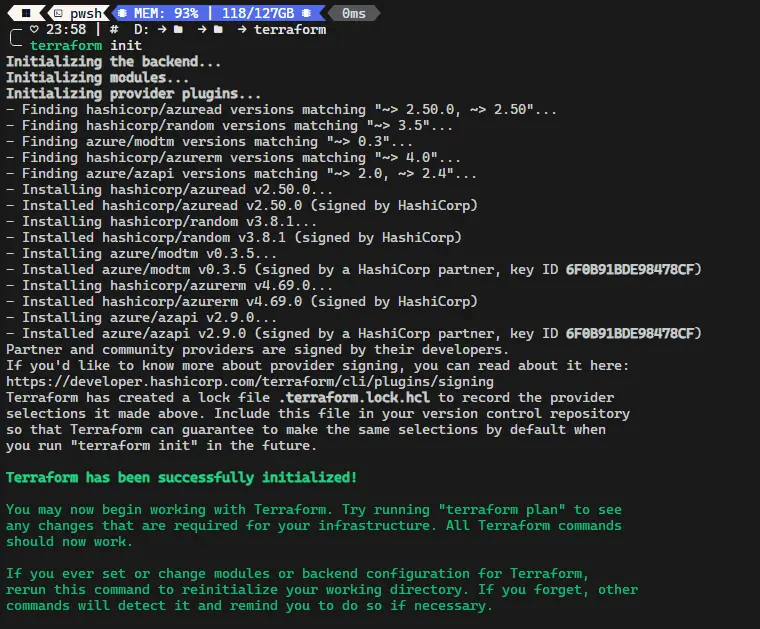
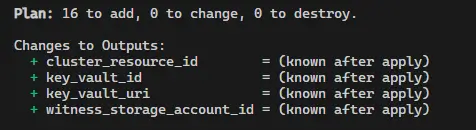
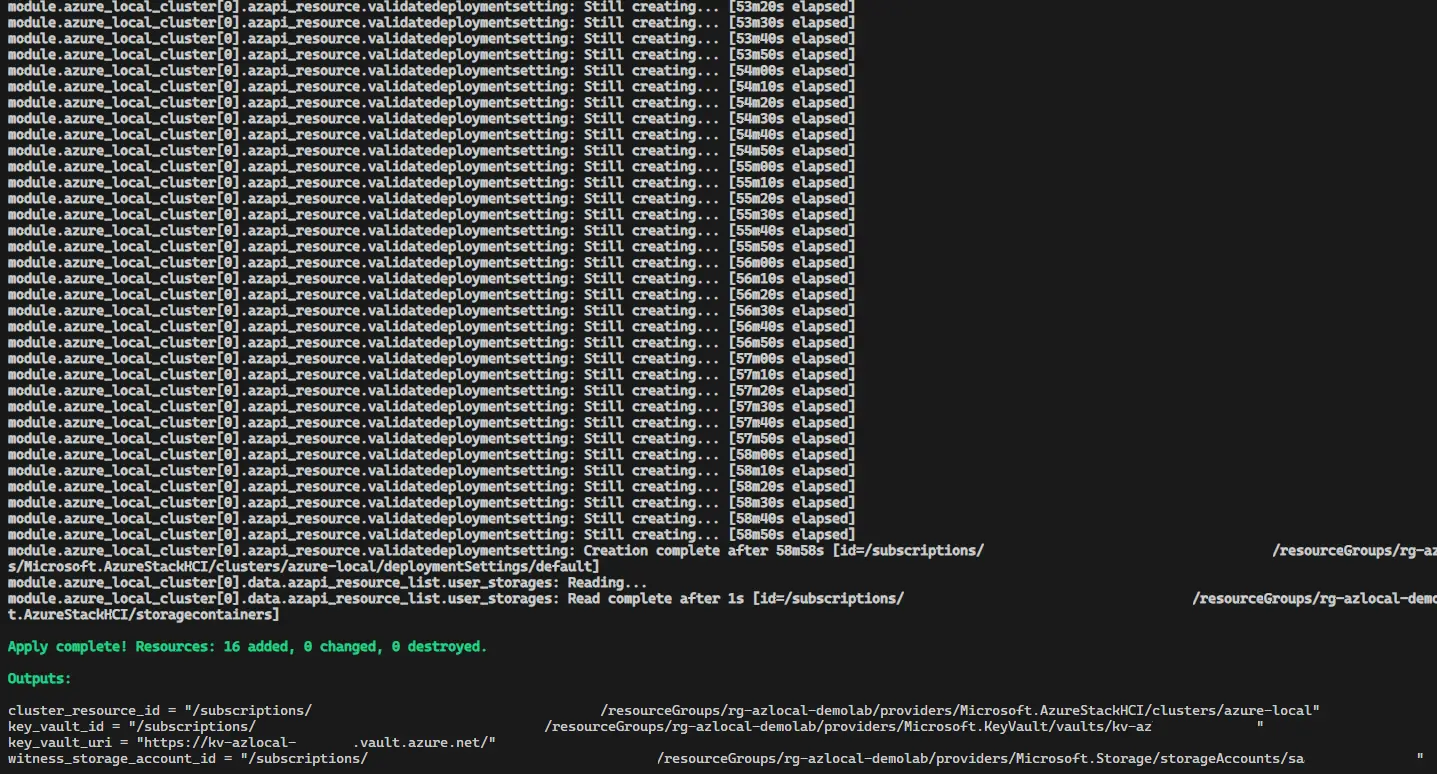
Validation runs as part of the apply itself. Once Terraform reports the apply as complete, Stage 1 is done (it takes around 90 minutes) and you can move straight to Stage 2.
Step 8: Switch to Stage 2 (Deploy)
Set is_exported = true in terraform.tfvars and run terraform apply again. Terraform patches deploymentMode to Deploy and Azure starts the full cluster provisioning. This apply will run for 90 to 180 minutes while Azure works through the FullCloudDeployment plan.
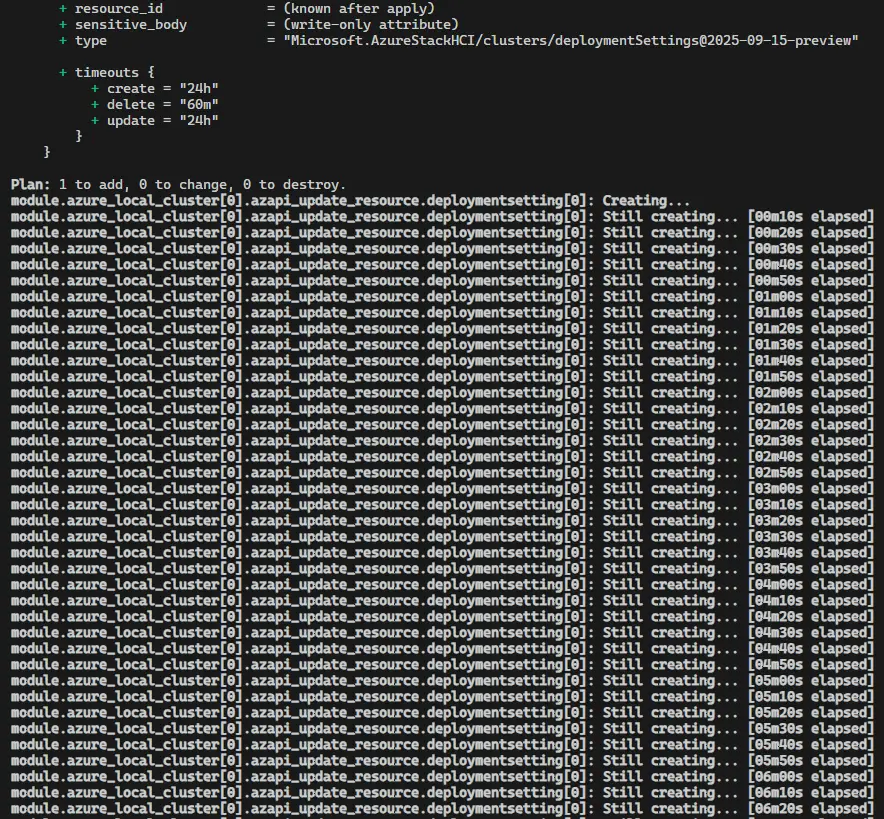
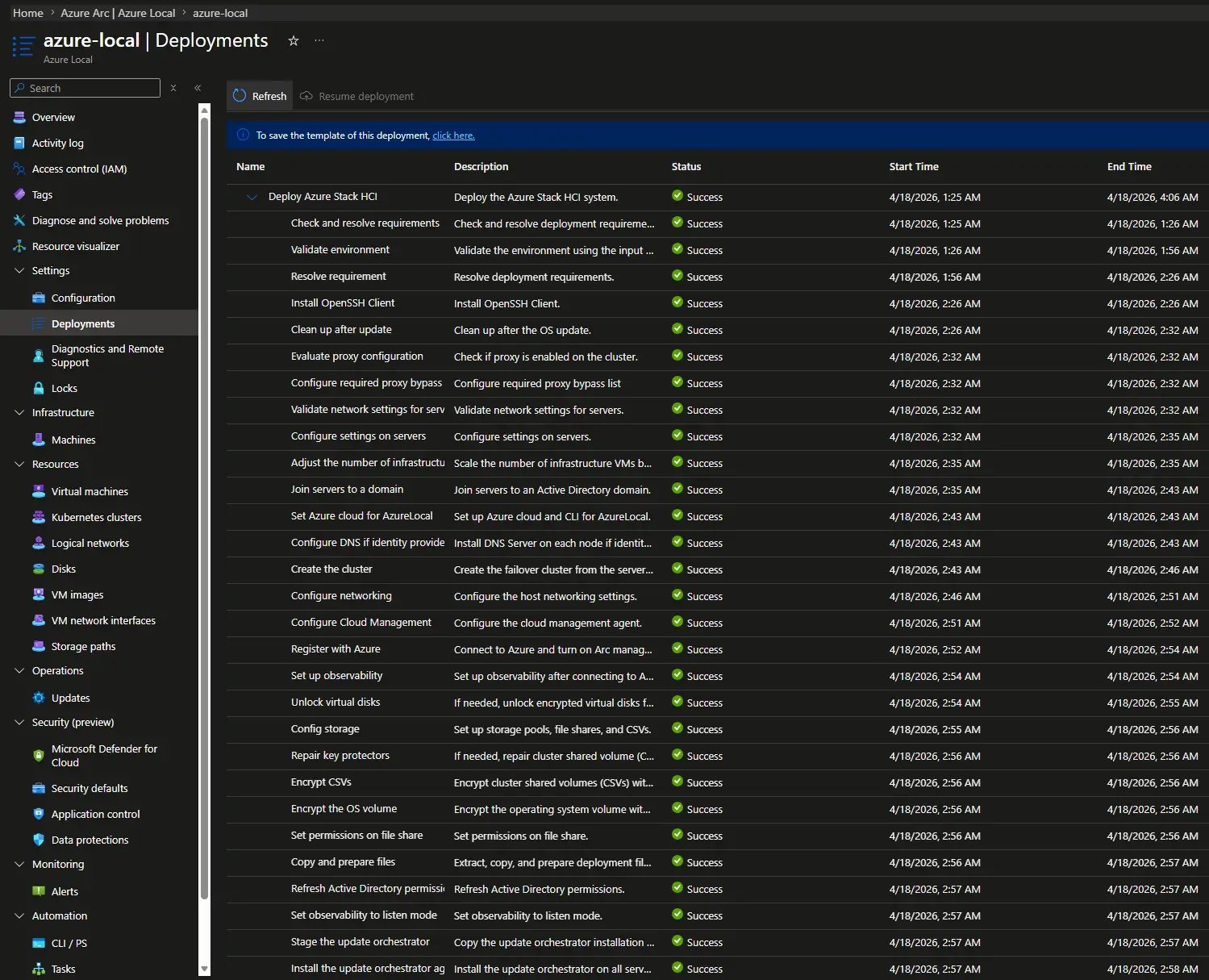
While Terraform is waiting, you can follow the deployment progress in real time in the Azure portal under the Azure Local resource. Each step of the plan is shown individually, which makes it much easier to spot a failure early rather than waiting for a Terraform timeout.
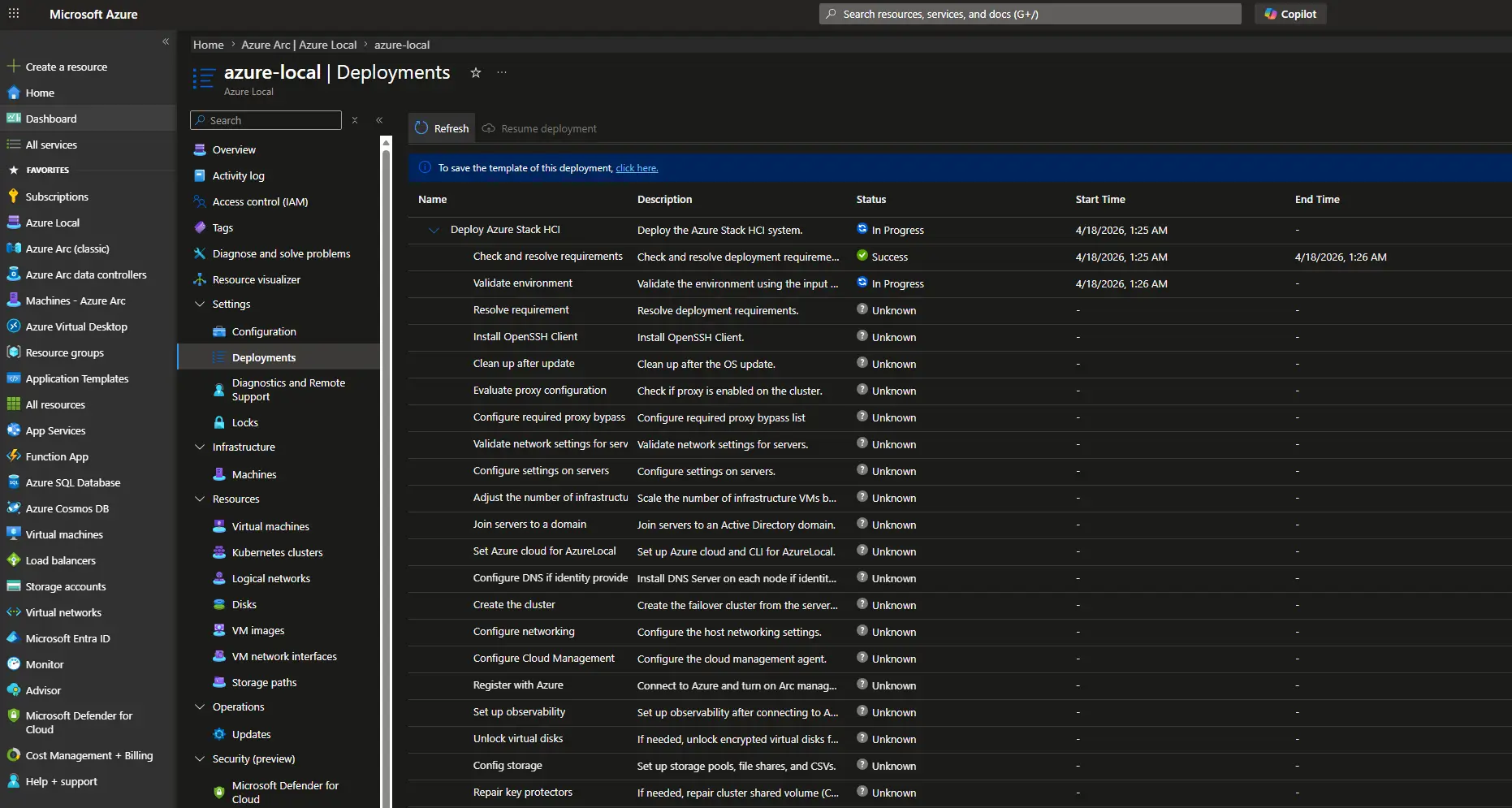
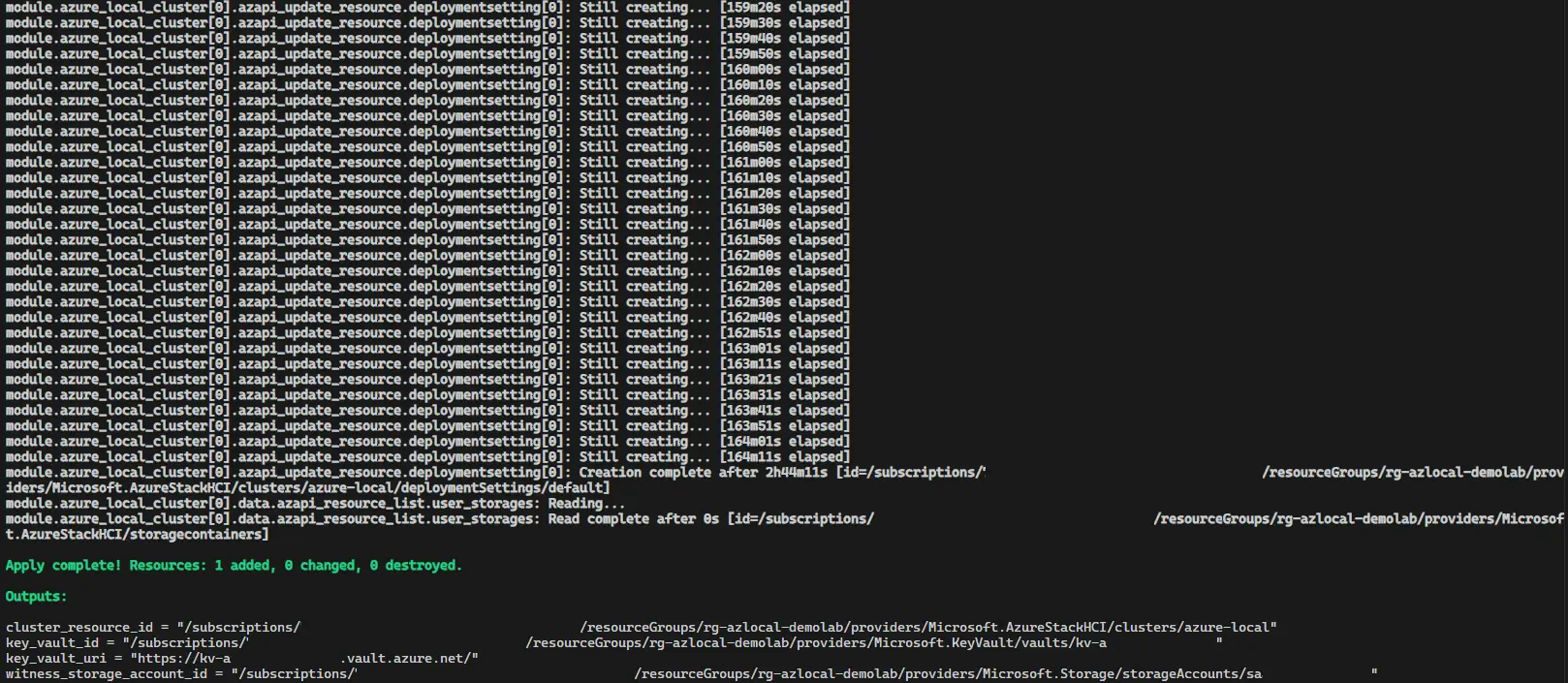
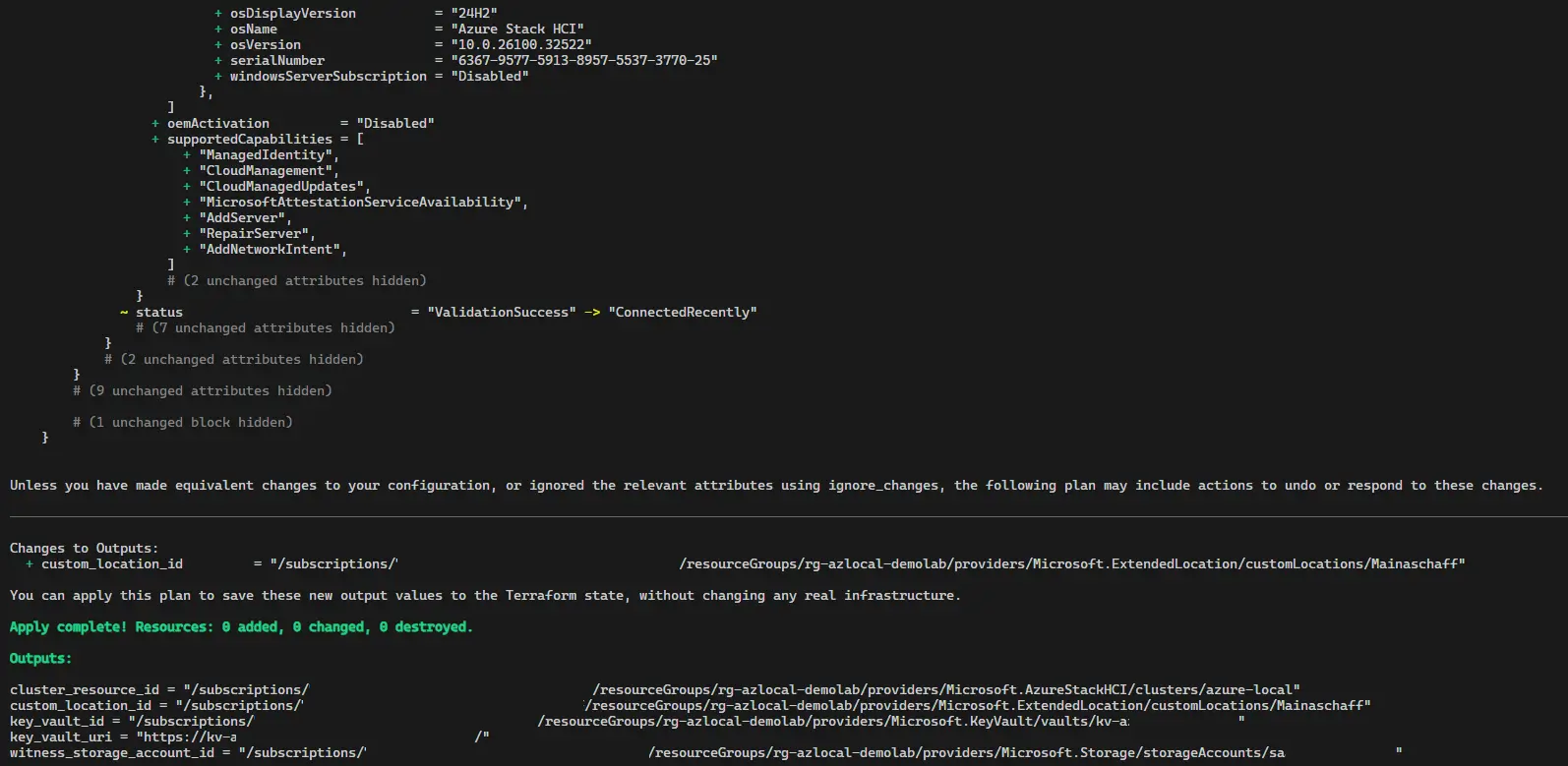
Once the apply finishes and all steps complete successfully, this is what it looks like from both sides. First, the Terraform output confirming all resources were created. My October run took 145 minutes, the one in this screenshot 164. The screenshot predates the change described in Post-deployment reads without a third apply, so custom_location_id is still missing from its outputs. With the current code the same apply also reads the custom location and lists it.
And the Azure portal showing the cluster as successfully deployed:
Step 9: Check the outputs
There is nothing left to switch after Stage 2. Leave is_exported = true in terraform.tfvars and read the custom location ID that the AVD and AKS workloads will need:
terraform output custom_location_id
If the cluster was deployed with an older checkout of the repository, pull the current code and run terraform apply once. Terraform reads the Arc resource bridge, custom location and Arc settings at plan time, changes nothing in Azure and only saves the new output to state:
Recovery Helpers
The clean way to remove the lab is terraform destroy from the terraform/ folder first and 99_Offboarding.ps1 on the host afterwards, since the offboarding script never touches Azure. If you skip the destroy, the leftover role assignments no longer block the next deployment, as described in Leftover role assignments after a host-only teardown.
If a terraform apply times out or you lose Terraform state after a successful apply, the configuration includes three recovery variables to help you get back on track without destroying and rebuilding:
-
import_deployment_settings(bool, defaultfalse): Whentrue, imports the pre-existingdeploymentSettings/defaultinto state before the plan phase. Use this when a previous apply timed out but the resource already exists in Azure. -
import_machine_rg_role_assignment_ids(map(string), default{}): When themachine_rg_role_assignrole assignments already exist in Azure and a new apply would fail with409 Conflict, populate this map with the existing assignment GUIDs (visible in the 409 error message) and runterraform applyto import them. Reset to{}afterward. -
import_service_principal_role_assignment_ids(map(string), default{}): Manual override for the ACMRM assignment on the Microsoft.AzureStackHCI resource provider service principal. You normally do not need it, since Terraform now detects and imports that assignment on its own. Use it only if the automatic lookup cannot read the role assignments of the resource group and the apply still fails with409 RoleAssignmentExistsonservice_principal_role_assign["ACMRM"]. Take the GUID from the error and import it as{ "ACMRM" = "<guid>" }, then reset to{}after a successful apply. Values set here take precedence over the lookup.
If the Arc machine was manually deleted from Azure and you need to run terraform destroy, set enable_cluster_module = false to skip the cluster module and avoid failing Arc data-source lookups.
The cluster deployment also creates additional Azure resources such as Arc extensions and logical networks that are lifecycle-managed by the cluster resource itself: they are created and destroyed together with it, so they do not need to be imported separately. The custom location is the exception, it is the only post-deployment resource that Terraform captures in state and exposes as an output, since workload modules (AVD, AKS) need to reference it. Everything else is handled by Azure as part of the cluster’s own lifecycle.
What Is Next
The cluster deployment is the foundation. AVD automation is now available through 30_AVDAzureLocal.ps1, including guest tasks and optional Entra device cleanup. Its Azure RBAC checks and Graph consent flow are separate from the Terraform bootstrap roles. The remaining Terraform work is:
- Azure Virtual Desktop: A Terraform module for AVD host pools, session hosts and workspace configuration, deployable against the custom location created by the cluster deployment.
- AKS on Azure Local: Terraform for AKS cluster creation using the Arc-enabled Kubernetes stack, scoped to the same resource group and custom location.
- Pipelines: GitHub Actions or Azure DevOps pipeline definitions that call these Terraform configurations using the service principal created by
00_AzurePreRequisites.ps1. The goal is a single pipeline trigger that goes from a fresh Arc-registered node to a fully deployed cluster with workloads. - Dedicated Terraform repository: what lives today in
AzSHCI/terraformis still a proof of concept sitting next to the PowerShell scripts. Once it stabilises, the Terraform path will move to its own repository with a remote state backend on Azure Blob Storage, a modular pipeline structure and full Day-2 lifecycle operations (upgrades, node management, monitoring).
If you have questions, hit issues or have already built something similar with Terraform on Azure Local, I would love to hear from you in the comments below. The repository is public and pull requests are welcome.



Comments